
I am getting errors for few frameworks/module integrated into my workspace.
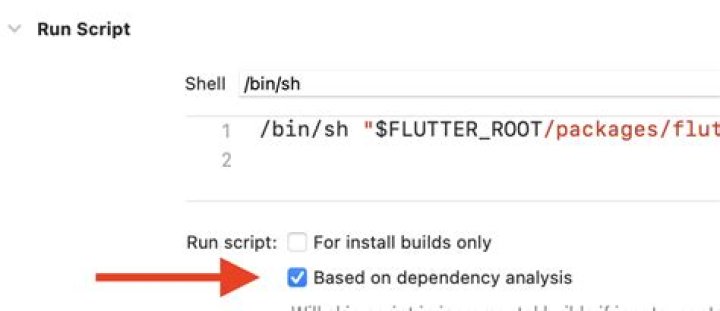
warning build: Run script build phase 'Module name' will be run during every build because it does not specify any outputs. To address this warning, either add output dependencies to the script phase, or configure it to run in every build by unchecking "Based on dependency analysis" in the script phase.
I am looking for a solution on how to address that issue.
To address this warning... or configure it to run in every build by unchecking "Based on dependency analysis" in the script phase.
I don't want to use the solution described above as this will cost me a build time. I'd rather know how to do below:
... either add output dependencies to the script phase
Unfortunately I don't have enough knowledge on how to do it. I searched online and found nothing specific.
How to output those dependencies? Thanks
9 Answers
See the script phase documentation for details, especially the "Specify the Input and Output Files for Your Script" section. You need to edit your build phase and specify which files your script is using as input (if any) and which files it's going to generate.
Using this information, the Xcode build process can determine whether a script phase needs to be run: if the input files haven't changed, there's no need to run the script phase at all. If it does run, Xcode at least knows which output files were generated and thus which other build processes depending on these files need to be run.
See also the "Declare Inputs and Outputs for Custom Scripts and Build Rules" section in Improving the Speed of Incremental Builds
7If you are using CocoaPods, your warnings are mostly coming from it. I came up with 2 temporary solutions for this, by modifying the Podfile. A permanent solution would require fixing the issue directly in CocoaPods itself. For custom run scripts that are not generated by CocoaPods, simply uncheck the "Based on dependency analysis" to indicate to Xcode that you intentionally don't have input/output files to determine whether this script should be run or not.
Both set the always_out_of_date (aka "Based on dependency analysis") flag to true ("1") when needed, on any given project <=> target pair.
Solution A: Do this all in the post_integrate hook
Pros: single block, compact solution
Cons: less performant than Solution B when running pod install, but it's not perceptible, honestly.
# Fix Xcode 14 warnings like: # warning: Run script build phase '[CP] Copy XCFrameworks' will be run during every build because it does not specify any outputs. To address this warning, either add output dependencies to the script phase, or configure it to run in every build by unchecking "Based on dependency analysis" in the script phase. (in target 'ATargetNameHere' from project 'YourProjectName') # Ref.: post_integrate do |installer| main_project = installer.aggregate_targets[0].user_project pods_project = installer.pods_project targets = main_project.targets + pods_project.targets targets.each do |target| run_script_build_phases = target.build_phases.filter { |phase| phase.is_a?(Xcodeproj::Project::Object::PBXShellScriptBuildPhase) } cocoapods_run_script_build_phases = run_script_build_phases.filter { |phase| phase.name.start_with?("[CP]") } cocoapods_run_script_build_phases.each do |run_script| next unless (run_script.input_paths || []).empty? && (run_script.output_paths || []).empty? run_script.always_out_of_date = "1" end end main_project.save pods_project.save end Solution B: Same as A, except modify the pods_project within the post_install hook, for a slightly better performance
Pros: technically more performant than Solution A because it saves one expensive call to xcodeproj.save
Con: the solution is more scattered throughout your Podfile.
# Fix Xcode 14 warnings like: # warning: Run script build phase '[CP] Copy XCFrameworks' will be run during every build because it does not specify any outputs. To address this warning, either add output dependencies to the script phase, or configure it to run in every build by unchecking "Based on dependency analysis" in the script phase. (in target 'ATargetNameHere' from project 'YourProjectName') # Ref.: def set_run_script_to_always_run_when_no_input_or_output_files_exist(project:) project.targets.each do |target| run_script_build_phases = target.build_phases.filter { |phase| phase.is_a?(Xcodeproj::Project::Object::PBXShellScriptBuildPhase) } cocoapods_run_script_build_phases = run_script_build_phases.filter { |phase| phase.name.start_with?("[CP]") } cocoapods_run_script_build_phases.each do |run_script| next unless (run_script.input_paths || []).empty? && (run_script.output_paths || []).empty? run_script.always_out_of_date = "1" end end project.save end post_integrate do |installer| main_project = installer.aggregate_targets[0].user_project set_run_script_to_always_run_when_no_input_or_output_files_exist(project: main_project) end post_install do |installer| installer.pods_project.targets.each do |target| # Projects usually do stuff in here… end set_run_script_to_always_run_when_no_input_or_output_files_exist(project: installer.pods_project) end After running pod install, commit the changes made to your main xcodeproj if your xcodeproj file is stored in git.
Alternatively, you can configure the "Create Symlinks to Header Folders" build phase to run in every build by unchecking "Based on dependency analysis" in the script phase. To do this, follow these steps:
- Open your Xcode project.
- Click on the project library "Based on dependency analysis" in the left sidebar.
- Click on the "Build Phases" tab in the main window.
- Look for the "Create Symlinks to Header Folders" build phase and click on it to select it.
- In the right sidebar, uncheck the "Based on dependency analysis" checkbox. Save your changes and rebuild your project.
I have created a sample project with a working solution on how to address these warnings. You can find the repository here:
We can generate the input and output file list as a pre-build phase script, so the build phase only executes if that list has changed.
For flutter developers if you are using latest macOS and Xcode version to publish app to app store
-Don't try to change anything in Xcode [for example Run Script,Thin Binary - check "Based on dependency analysis" or "for install build only" (except if you are using firebase crash analytics)]
Just try Upgrading to latest version - Flutter Channel stable, 3.7.7 - 3.7.10 etc
Update minimum deployment version of project and any xcodeproj file, if you are using in your project like SDWebImage, I updated it, now it is working fine.
First solution
I've changed the deployment target version to 12 and didn't work.
Second solution
Then tried the below steps:
- flutter clean,
- flutter pub get,
- delete the Pods folder,
- delete the Podfile.lock,
- delete the .xcworkspace,
- Run pod install,
- Then clean the Xcode project.
And this is not worked too.
Third solution
After that, I changed the Project-> info -> Configuration and this is not working too.
Fourth solution (Accepted)
Finally, I've Archived the project, and the error specified that can not find the xcode_backend.sh file path and this is because of the FLUTTER_ROOT path in the Build Settings that has been changed by someone else through Git.
Hope it will be helpful for someone.
He're my grain of salt, if it helps anybody. I went to Project > Build Phases > [CP] Embed Pods Frameworks and commented out the code as such
#"${PODS_ROOT}/Target Support Files/Pods-App/Pods-App-frameworks.sh" It should actually be displayed on multiple lines. I don't have a clue what this is but the app works. Initially, the error came up when trying to Archive the app and distribute it to the App Store.
I got this message after I installed the Run Script stuff for Crashlytics to upload Symbolication files. To remove the warning I unchecked "Based on dependency analysis" in the "Run Script:" section.