How can I set up my DSL connection on Ubuntu 16.04? The way I set up a DSL connection in Ubuntu 14.04 is not working in Ubuntu 16.04.
5 Answers
I solved my problem through following steps:
- go to terminal
- type
sudo pppoeconf - it will ask some question, press yes
- when you want to start internet just type
sudo pon dsl-providerto connect to internet - type this to turn it off
sudo poff
This tutorial is going to show you how to setup a PPPoE connection in Ubuntu from the terminal.
Open up your terminal and type the following command to set your PPPoE connection.
nmcli con edit type pppoe con-name “YOUR_CONNECTION_NAME”Enter your DSL account and password provided by your ISP and save your settings in the following commands.
set pppoe.username YOUR_DSL_ACCOUNT_USERNAME set pppoe.password YOUR_DSL_ACCOUNT_PASSWORD saveThen it will prompt asking:
Saving the connection with ‘autoconnect=yes’. That might result in immediate activation of the connection. Do you still want to save? (yes/no).Type
yesand quit.
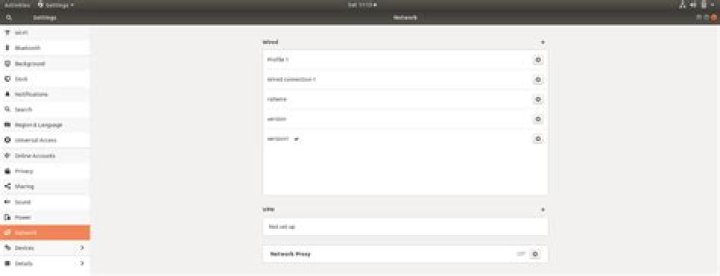
Finally, select DSL connection from the network settings menu to establish the connection.
(Click image to enlarge)
Just run sudo pppoeconf in terminal. Then give your username and password in popup windows.
I was having the same problem yesterday, and I tried all the above options but this did not work. However, today, after comparing the dsl-provider file on my Ubuntu 16.04 computer with the file that has the same name on my Debian 8.8 computer, I noticed that there was an error in the Ubuntu file. So I fixed the file this way:
# Minimalistic default options file for DSL/PPPoE connections noipdefault defaultroute replacedefaultroute hide-password #lcp-echo-interval 30 #lcp-echo-failure 4 noauth persist #mtu 1492 #persist #maxfail 0 #holdoff 20 plugin rp-pppoe.so nic-enp3s0f1 usepeerdns user "XXXXXXX" where XXXXXXX is my mailbox provider.
Edit the file:
$ sudo nano /etc/network/interfaces By adding to it:
auto lo eth0 iface lo loopback eth0 inet dhcp After restart network-manager:
$ sudo service network-manager restart