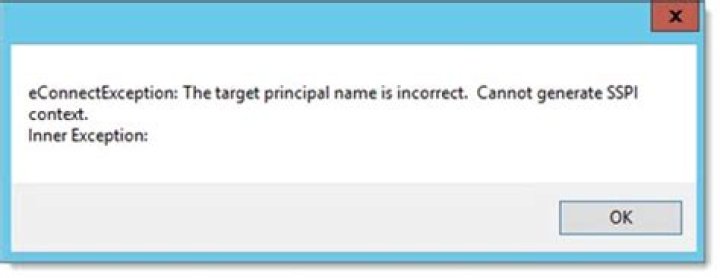
I am struggling to get a SQL Server connection from machine A to machine B which is running the SQL Server.
I have Googled extensively and all the things I have found have not worked. Nor do they lead you step by step through the process of solving this.
We are not using Kerberos, but NTLM where configured.

The machines involved are (xx is used to obscure some of the machine name for security purposes):
- xxPRODSVR001 - Windows Server 2012 Domain Controller
- xxDEVSVR003 - Windows Server 2012 (This machine is generating the error)
- xxDEVSVR002 - Windows Server 2012 (This machine is running SQL Server 2012)
The following SPN's are registered on the DC (xxPRODSVR001). I have obscured the domain with yyy for security purposes:
Registered ServicePrincipalNames for CN=xxDEVSVR002,CN=Computers,DC=yyy,DC=local:
MSSQLSvc/xxDEVSVR002.yyy.local:49298 MSSQLSvc/xxDEVSVR002.yyy.local:TFS RestrictedKrbHost/xxDEVSVR002 RestrictedKrbHost/xxDEVSVR002.yyy.local Hyper-V Replica Service/xxDEVSVR002 Hyper-V Replica Service/xxDEVSVR002.yyy.local Microsoft Virtual System Migration Service/xxDEVSVR002 Microsoft Virtual System Migration Service/xxDEVSVR002.yyy.local Microsoft Virtual Console Service/xxDEVSVR002 Microsoft Virtual Console Service/xxDEVSVR002.yyy.local SMTPSVC/xxDEVSVR002 SMTPSVC/xxDEVSVR002.yyy.local WSMAN/xxDEVSVR002 WSMAN/xxDEVSVR002.yyy.local Dfsr-12F9A27C-BF97-4787-9364-D31B6C55EB04/xxDEVSVR002.yyy.local TERMSRV/xxDEVSVR002 TERMSRV/xxDEVSVR002.yyy.local HOST/xxDEVSVR002 HOST/xxDEVSVR002.yyy.localRegistered ServicePrincipalNames for CN=xxDEVSVR003,CN=Computers,DC=yyy,DC=local:
MSSQLSvc/xxDEVSVR003.yyy.local:1433 MSSQLSvc/xxDEVSVR003.yyy.local Hyper-V Replica Service/xxDEVSVR003 Hyper-V Replica Service/xxDEVSVR003.yyy.local Microsoft Virtual System Migration Service/xxDEVSVR003 Microsoft Virtual System Migration Service/xxDEVSVR003.yyy.local Microsoft Virtual Console Service/xxDEVSVR003 Microsoft Virtual Console Service/xxDEVSVR003.yyy.local WSMAN/xxDEVSVR003 WSMAN/xxDEVSVR003.yyy.local TERMSRV/xxDEVSVR003 TERMSRV/xxDEVSVR003.yyy.local RestrictedKrbHost/xxDEVSVR003 HOST/xxDEVSVR003 RestrictedKrbHost/xxDEVSVR003.yyy.local HOST/xxDEVSVR003.yyy.local
Now if only the SQL Server error message was more descriptive and told me what principal name it was trying to connect to I might be able to diagnose this.
So can anyone step me through how to solve this one or can you see anything in what I have provided that is wrong?
I would be happy to generate more debug info, just tell me what you need.
450 Answers
I had this problem with an ASP.NET MVC app I was working on.
I realized I had recently changed my password, and I was able to fix it by logging out and logging back in again.
6Try setting Integrated Security=true to remove this param from the connection string.
IMPORTANT: As user @Auspex commented,
4Removing Integrated Security will prevent this error, because the error occurs when trying to login with your Windows credentials. Unfortunately, most of the time, you want to be able to login with your Windows credentials
I was getting the same error when trying through windows authentication. Sounds ludicrous but just in case it helps someone else: it was because my domain account got locked somehow while I was still logged in (!). Unlocking the account fixed it.
The SSPI context error definitely indicates authentication is being attempted using Kerberos.
Since Kerberos authentication SQL Server's Windows Authentication relies on Active Directory, which requires a thrusted relationship between your computer and your network domain controller, you should start by validating that relationship.
You can quickly check that relationship, thru the following Powershell command Test-ComputerSecureChannel.
Test-ComputerSecureChannel -Verbose
If it returns False, you must repair your computer Active Directory secure channel, since without it no domain credencials validation is possible outside your computer.
You can repair your Computer Secure Channel, thru the following Powershell command:
Test-ComputerSecureChannel -Repair -Verbose If the above doesn't work (because your domain credentials don't work because the machine isn't trusted) you can use NETDOM RESET instead from an elevated cmd.exe (not PowerShell) prompt:
NETDOM RESET %COMPUTERNAME% /UserO:domainAdminUserName /Password0:* /SecurePasswordPrompt (Yes, the command-line arguments really do have an O (Capital-"Oh", not zero 0). The /Password0:* /SecurePasswordPrompt option will use a credential popup instead of having you put your password directly in the command-line, which you must never do).
Check the security event logs, if you are using kerberos you should see logon attempts with authentication package: Kerberos.
The NTLM authentication may be failing and so a kerberos authentication attempt is being made. You might also see an NTLM logon attempt failure in your security event log?
You can turn on kerberos event logging in dev to try to debug why the kerberos is failing, although it is very verbose.
Microsoft's Kerberos Configuration Manager for SQL Server may help you quickly diagnose and fix this issue.
4I was logging into Windows 10 with a PIN instead of a password. I logged out and logged back in with my password instead and was able to get in to SQL Server via Management Studio.
2Just to add another potential solution to this most ambiguous of errors The target principal name is incorrect. Cannot generate SSPI context. (.Net SqlClient Data Provider) :
Verify that the IP that is resolved when pinging the SQL Server is the same as the one in the Configuration Manager. To check, open SQL Server Configuration Manager and then go to SQL Server Network Configuration > Protocols for MSSQLServer > TCP/IP.
Make sure TCP/IP is enabled and in the IP Addresses tab, make sure that the IP that the server resolves to when pinging is the same one here. That fixed this error for me.
The issue seems to be a windows credentials issue. I was getting the same error on my work laptop with a VPN. I am supposedly logged in as my Domain/Username, which is what I use successfully when connecting directly but as soon as I move to a VPN with another connection I receive this error. I thought it was a DNS issue as I could ping the server but it turns out I needed to run SMSS explicitly as my user from Command prompt.
e.g runas /netonly /user:YourDoman\YourUsername "C:\Program Files (x86)\Microsoft SQL Server Management Studio 18\Common7\IDE\Ssms.exe"
1Login to both your SQL Box and your client and type:
ipconfig /flushdns nbtstat -R If that doesn't work, renew your DHCP on your client machine... This work for 2 PCs in our office.
1I just ran into this and fixed it by doing 2 things:
- Granting read/write servicePrincipalName permissions to the service account using ADSI Edit, as described in
Removing the SPNs that previously existed on the SQL Server computer account (as opposed to the service account) using
setspn -D MSSQLSvc/HOSTNAME.domain.name.com:1234 HOSTNAMEwhere 1234 was the port number used by the instance (mine was not a default instance).
Check your clock matches between the client and server.
When I had this error intermittently, none of the above answers worked, then we found the time had drifted on some of our servers, once they were synced again the error went away. Search for w32tm or NTP to see how to automatically sync the time on Windows.
1In my case, restarting SQL Server 2014 (on my development server) fixed the issue.
1This is usually due to missing, incorrect or duplicated Service Principle Names (SPNs)
Steps to resolve:
- Confirm what AD account SQL Server is using
- Run the following command in Powershell or CMD in administrator mode (service account should not contain the domain)
setspn -L <ServiceAccountName> | Select-String <ServerName> | select line
Make sure the returned output contains an SPN which is fully qualified, no fully qualified, with a port and without a port.
Expected Output:
Registered ServicePrincipalNames for CN=<ServiceAccountName>,OU=CSN Service Accounts,DC=<Domain>,DC=com: MSSQLSvc/<ServerName>.<domain>.com:1433 MSSQLSvc/<ServerName>:1433 MSSQLSvc/<ServerName>.<domain>.com MSSQLSvc/<ServerName>If you don't see all of the above, run the following command in PowerShell or CMD in admin mode (make sure to change the port if you don't use default 1433)
SETSPN -S MSSQLSvc/<ServerName> <Domain>\<ServiceAccountName> SETSPN -S MSSQLSvc/<ServerName>.<Domain> <Domain>\<ServiceAccountName> SETSPN -S MSSQLSvc/<ServerName>:1433 <Domain>\<ServiceAccountName> SETSPN -S MSSQLSvc/<ServerName>.<Domain>:1433 <Domain>\<ServiceAccountName>
- Once above is complete it normally takes a few minutes for DNS propagation
Also, if you get a message about duplicate SPNs found, you may want to delete them and recreate them
2I had this problem when accessing the web application. It might be due to i have changed a windows password recently.
This issue got resolved when i have updated the password for the app pool where i have hosted the web application.
I was testing out IPv6 on a cluster of PC's in an isolated network and ran into this issue when I reverted back yo IPv4. I had been play in the active directory, DNS and DHCP so have no idea what I prodded to break the Kerberos setup.
I retested the connection outside of my software with this useful tip to connect remote connectivity I found.
then after a brief search found this on the Microsoft website .
run the tool on the SQL server see if there are any issue if the status says error then hit the fix button that appears.
This resolved the problem for me.
I had the same issue, but locking, and unlocking the machine worked for me. Sometimes, firewall issues will give errors.
I am not sure it will work for you or not, just sharing my experience.
0This Microsoft Tool is like Magic. Run it, connect it to the SQL server, and click Fix
The old version linked here worked on SQL server 2017.
Kerberos Configuration Manager for SQL Server
In my situation I was trying to use Integrated Security to connect from a PC to SQL Server on another PC on a network without a domain. On both PCs, I was signing in to Windows with the same Microsoft account. I switched to a local account on both PCs and SQL Server now connects successfully.
Since I landed here when looking for a solution to my own problem, I'll share my solution here, in case others land here as well.
I was connecting fine to SQL Server until my machine was moved to another office on another domain. Then, after the switch, I was getting this error regarding the target principal name. What fixed it was connecting using a fully qualified name such as: server.domain.com. And actually, once I connected to the first server that way, I could connect to other servers using just the server name (without the full qualification), but your mileage may vary.
1In my Case since I was working in my development environment, someone had shut down the Domain Controller and Windows Credentials couldn't be authenticated. After turning on the Domain Controller, the error disappeared and everything worked just fine.
1In case anyone is wondering, I untangled the MS terminology:
Target = (active directory) target Active directory target = target server running the domain controller Domain controller = server that verifies your login information Principal name = your windows username SSPI = security support provider interface Security support provider interface = software interface that manages "authenticated communications" and allows SSPs like TLS to allow SSL, among others SSP = security support provider (SSPI implementation) TLS/SSL = you should already know this = Can't verify your password.
1I ran into this today and wanted to share my fix, since this one is simply overlooked and easy to fix.
We manage our own rDNS and recently redid our server naming scheme. As part of that, we should have updated our rDNS and forgot to do this.
A ping turned up the correct hostname, but a ping -a returned the wrong hostname.
Easy fix: change the rDNS, do an ipconfig /flushdns, wait 30 seconds (just something I do), do another ping -a , see it resolving the correct hostname, connect ... profit.
I ran into a new one for this: SQL 2012 hosted on Server 2012. Was tasked to create a cluster for SQL AlwaysOn.
Cluster was created everyone got the SSPI message.
To fix the problems ran following command:
setspn -D MSSQLSvc/SERVER_FQNName:1433 DomainNamerunningSQLService
DomainNamerunningSQLService == the domain account I set for SQL I needed a Domain Administrator to run the command. Only one server in the cluster had issues.
Then restarted SQL. To my surprise I was able to connect.
1I was trying to connect to a VM running SQL Server 2015 from my laptop in a Visual Studio 2015 Console App. I run my app the night before and it is fine. In the morning I try to debug the app and I get this error. I tried ipconfig/flush and release + renew and a a bunch of other garbage, but in the end...
Restart your VM and restart the client. That fixed it for me. I should have known, restart works every time.
1I had this problem on my sql server. I setspn -D mssqlsvc\Hostname.domainname Hostname then stoped and started my SQL server service.
I am thinking that just stopping and starting my sql service would have done it.
2I have tried all the solutions here and none of them have worked yet. A workaround that is working is to Click Connect, enter the server name, select Options, Connection Properties tab. Set the "Network protocol" to "Named Pipes". This allows users to remote connect using their network credentials. I'll post an update when I get a fix.
1In my case, the problem was setting up DNS on the wifi. I removed the settings, and left them empty, and worked.

Make sure that "Named Pipes" are enabled from "SQL Server Configuration Manager". This worked for me.
- Open "SQL Server Configuration Manager".
- Expand "SQL Server Network Configuration", from the list on the left.
- Select "Protocols for [Your Instance Name]".
- Right click on "Named Pipes", from the list on the right.
- Select "Enable"
- Restart your Instance service.
Another niche to this issue caused by network connections. I connect via windows VPN client and this issue popped up when I switched from Wifi to a wired connection. The fix for my situation was to manually adjust the adapter metric.
In powershell use Get-NetIPInterface to see all of the metric values. The lower numbers are lower cost and so they are preferred by windows. I switched the ethernet and VPN and the credentials got where they needed to be for SSMS to be happy.
To configure the Automatic Metric feature: In Control Panel, double-click Network Connections. Right-click a network interface, and then select Properties. Click Internet Protocol (TCP/IP), and then select Properties. On the General tab, select Advanced. To specify a metric, on the IP Settings tab, select to clear the Automatic metric check box, and then enter the metric that you want in the Interface Metric field.
I have been unable to solve this in a satisfactory manner. If I log in from a client as a local Windows account, Windows authentication works without a glitch. If I however attempt to log in from a Microsoft account (which is preferable for me because of the synchronization features), I get the "incorrect principal" message. No record of the failed login appears in the MS-SQL logs, implying that the failure occurs very early.
I ran into a variant of this issue, here were the characteristics:
- User was able to successfully connect to a named instance, for example, connections to
Server\Instancewere successful - User was unable to connect to the default instance, for example, connections to
Serverfailed with the OP's screenshot regarding SSPI - User was unable to connect default instance with fully qualified name, for example, connections to
Server.domain.comfailed (timeout) - User was unable to connect IP address without named instance, for example, connections to
192.168.1.134failed - Other users not on the domain (for example, users who VPN to the network) but using domain credentials were able to successfully connect to the default instance and IP address
So after many headaches of trying to figure out why this single user couldn't connect, here are the steps we took to fix the situation:
- Take a look at the server in the SPN list using
setspn -l Server
a. In our case, it saidServer.domain.com - Add an entry to the hosts file located in
C:\Windows\System32\drivers\etc\hosts(run Notepad as Administrator to alter this file). The entry we added was
Server.domain.com Server
After this, we were able to successfully connect via SSMS to the default instance.




