I'd like to run / open Visual Studio Code from the Mac OSX Terminal by running this command code .. I found instructions here:
Apparently I need to include this in my .bashrc file, so I did, but to no avail.
code () { if [[ $# = 0 ]] then open -a "Visual Studio Code" else [[ $1 = /* ]] && F="$1" || F="$PWD/${1#./}" open -a "Visual Studio Code" --args "$F" fi } I edited the .bashrc file here:
~/.bashrc which points to /Users/username/.bashrc
Which .bashrc should I be editing?
24 Answers
Try this one
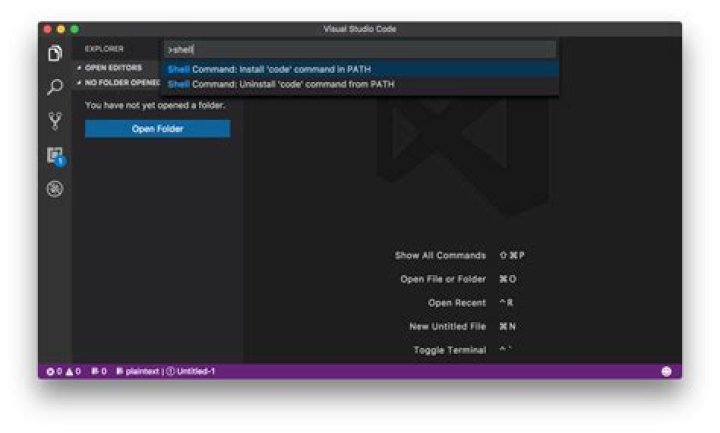
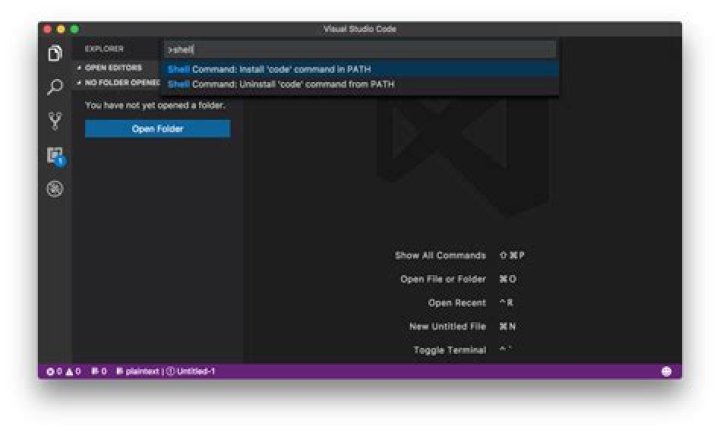
Open Visual Studio Code and press Command + Shift + P or F1 then type Shell in command palette now you are able to find this option like Shell Command : Install code in PATH from suggested list in command palette. Select that options.
That's it.
Now open your terminal type.
$ code . To make this change persist after restart on MacOS
Many Mac users find this is forgotten and needs to be re-applied after any restart. This may happen if MacOS has applied the quarantine attribute to VS Code, which the OS uses for the "Are you sure?" notice applied on first using apps downloaded from the internet.
To check if this attribute is applied, look for com.apple.quarantine in the list returned by this command (changing the path if that's not where you installed it):
xattr "/Applications/Visual Studio Code.app" If that does return com.apple.quarantine, you can remove the attribute using the same command with the -d flag (alongside -r to recursively remove it from all contained files and sudo to allow the change):
sudo xattr -r -d com.apple.quarantine "/Applications/Visual Studio Code.app" ...then do Shell Command : Install code in PATH as above after the attribute has been removed, and it should persist after restart.
Credit: derflounder.wordpress.com article linked to by RicardoVallejo in this comment.
9
I just want to pull out Benjamin Pasero's answer from inside his comment as it seems the best solution. It is the tip given on the Setting up Visual Studio Code page where it says ...
If you want to run VS Code from the terminal, append the following to your ~/.bash_profile file (~/.zshrc in case you use zsh).
code () { VSCODE_CWD="$PWD" open -n -b "com.microsoft.VSCode" --args $* ;} Now, you can simply type code . in any folder to start editing files in that folder. [Or code test.txt to go to work on the test.txt file]
To setup path permanently for mac users;
open ~/.zshrc using the below command
vi ~/.zshrc Add the following path
export PATH="$PATH:/Applications/Visual Studio " And source it using below command
source ~/.zshrc Now close the terminal and reopen and run code . command should work properly.
follow some simple steps :
- open your visual studio code (vs code).
- press F1.
- pallete will open in top center with symbol >
- type shell .
- select intall 'code' command in PATH.
- it will be automatically intalled.
Now you can use from terminal by typing
$ code .
0If you are on Mac OSX Maverick, it's ~/.bash_profile not ~/.bashrc
Try putting the code in there, close the terminal and then try again. Should be working
2Open VSCode, press Command + Shift + P, type Shell in command palette, Select that option => Install code in PATH from suggested list in command palette.
For Mac you can do : View > Command Palette > Shell command > "install code command in path". I'd assume there would be something similar for other OS's. After I do
which code and it tells me it put it in /usr/local/bin
2Sometimes, just adding the shell command doesn't work. We need to check whether visual studio code is available in "Applications" folder or not. That was the case for me.
The moment you download VS code, it stays in "Downloads" folder and terminal doesn't pick up from there. So, I manually moved my VS code to "Applications" folder to access from Terminal.
Step 1: Download VS code, which will give a zipped folder.
Step 2: Run it, which will give a exe kinda file in downloads folder.
Step 3: Move it to "Applications" folder manually.
Step 4: Open VS code, "Command+Shift+P" and run the shell command.
Step 5: Restart the terminal.
Step 6: Typing "Code ." on terminal should work now.
To set up VS code path permanently on Mac OS;
just open .bash_profile using the following command on terminal
open -t .bash_profile Then add the following path to .bash_profile
code () { VSCODE_CWD="$PWD" open -n -b "com.microsoft.VSCode" --args $* ;} save the .bash_profile file and quit the terminal. Then reopen the terminal and type code .to open VS code.
For Mac users:
One thing that made the accepted answer not work for me is that I didn't drag the vs code package into the applications folder
So you need to drag it to the applications folder then you run the command inside vs code (shown below) as per the official document
- Launch VS Code.
- Open the Command Palette (⇧⌘P) and type 'shell command' to find the Shell Command: Install 'code' command in PATH command.
Somehow using Raja's approach worked for me only once, after a reboot, it seems gone. To make it persistent across Mac OS reboot, I added this line into my ~/.zshrc since I'm using zsh:
export PATH=/Applications/Visual\ Studio\ then
source ~/.zshrc now, I could just do
code .
even after I reboot my Mac.
2For macOS 12.0 and above:
- Open profile in Notepad
open ~/.zshrc - Create an alias for
code, Paste below:
alias code='open -a "Visual Studio Code"' # open file or folder in VSCode e.g. code ~/.zshrc Now you can open the current folder e.g.
code .or any other file/folder by providing its path.Profit
PS: You can add as many aliases as needed to open a file/folder with different editors. Just mention the editor's name in the alias. For example, open file/folder with sublime text:
alias subl='open -a "Sublime Text"' # open file or folder in sublime e.g. subl ~/.zshrc And use it like subl .
How about a simple Bash alias that you stick in your .bash_profile ?
alias code="open -a /Applications/Visual\ Studio\ Code.app"
To open the current directory:
code .
Yo do this:
- Launch Visual Studio Code.
- Press Cmd ⌘ + Shift ⇧ + P to open the Command Palette.
- Type in shell command and select the Shell command: Install ‘code’ command in PATH to install it.
To set it up, launch VS Code. Then open the Command Palette (⇧⌘P) and type shell command to find the Shell Command: Install 'code' command in PATH command.enter image description here
1I just made a symbolic link from the "code" program supplied in the Visual Studio Code.app bundle to /usr/local/bin (a place where I prefer to put stuff like that and which is already in my path on my machine).
You can make a symbolic link using ln -s like this:
ln -s /Applications/Visual\ Studio\ /usr/local/bin/code
add below snipped in your bash profile -
PATH="/Library/Frameworks/" code () { VSCODE_CWD="$PWD" open -n -b "com.microsoft.VSCode" --args $* ;} I moved VS Code from Downloads folder to Applications, and then i was able to run code in the terminal. I guess, it might help you too.
I simply created a file called code:
#!/bin/bash open /Applications/Visual\ Studio\ Code.app $1 Make it executable:
$ chmod 755 code Then put that in /usr/local/bin
$ sudo mv code /usr/local/bin As long as the file sits someplace that is in your path you can open a file by just typing: code
I prefer to have symlinks in the home directory, in this case at least. Here's how I have things setup:
: cat ~/.bash_profile | grep PATH # places ~/bin first in PATH export PATH=~/bin:$PATH So I symlinked to the VSCode binary like so:
ln -s /Applications/Visual\ Studio\ ~/bin/code Now I can issue code . in whichever directory I desire.
Since, default shell is zsh in macOS, you can try this:
cat << EOF >> ~/.zshrc # Add Visual Studio Code (code) export PATH="\$PATH:/Applications/Visual Studio " EOF This will add a path to your VS Code, restart your terminal and voila, you're good to go.
code example.py
open finder and go to applications and make sure that vscode exists there ,then open type in terminal export PATH="/Applications/Visual Studio "
alias code="/Applications/Visual\ Studio\ Code\ $1" the alias to the vs code's bin file with parameters works well
you can do code . after having sourced your bash file
code () { if [[ $# = 0 ]] then open -a "Visual Studio Code" else echo "Opening: "$@ "/Applications/Visual Studio " $@ fi } I put that into my .bash_profile I tested it and it works.