Quick version: I've got broken links in a file I'm working with because they're pointing to someone else's hard drive. A macro went wrong in someone else's file that converted all formulas to text by appending an apostrophe before the formula. I wrote a macro to fix this, but there are a ton of external links in the file. The macro essentially changes a formula from the first line to the second line below, doing nothing more than removing the unnecessary apostrophe.
1) '='C:\OtherPersonsFolderPath\[FileName.xlsm]Sheet1'!A1 2) ='C:\OtherPersonsFolderPath\[FileName.xlsm]Sheet1'!A1 If I do this manually, Excel opens a dialog box asking me to "Update Values" in FileName.xlsm by pointing to the right file. I don't want to update the file path though: I plan to give this back to the original owner of the file with all paths in tact, sans apostrophes. If I hit the "cancel" button on that dialog box, I get the intended effect: The formula updates to what I need, and the value changes to whatever it used to be back when it was a working link. It works fine if I manually hit "cancel" on the box every time it pops up, but I've got thousands of cells to iterate through across dozens of sheets. I need a way to tell VBA to say "cancel" in that box, or prevent the box from appearing in the first place. Any ideas? My code is below:
Public Sub MyBugFix() Application.Calculation = xlCalculationManual 'Note that I unsuccessfully tried options like "ThisWorkbook.UpdateLinks = xlUpdateLinksNever" and "Application.DisplayAlerts = False" here Dim WS_Count As Integer Dim I As Integer WS_Count = ActiveWorkbook.Worksheets.Count For I = 1 To WS_Count Sheets(I).Visible = True Sheets(I).Select Range("A1:BZ400").Select 'Simple fix for embedded apostrophes in formulas (e.g., an equals sign in an IF statement) Selection.Replace What:="'=", Replacement:="=", LookAt:=xlPart, _ SearchOrder:=xlByRows, MatchCase:=False, SearchFormat:=False, _ ReplaceFormat:=False 'More complex fix for apostrophes at the start (they're special characters, so the find/replace trick doesn't work) Dim myRng As Range Dim myCell As Range Set myRng = Nothing On Error Resume Next Set myRng = Intersect(Selection, _ Selection.Cells.SpecialCells(xlCellTypeConstants)) On Error Resume Next For Each myCell In myRng.Cells If myCell.PrefixCharacter <> "" Then myCell.Value = "" & myCell.Text On Error Resume Next End If Next myCell Next I Application.Calculation = xlCalculationAutomatic End Sub 4 Answers
I found a solution here: so I can't claim any credit for it!
Put this before you edit the formula ...
ThisWorkbook.UpdateLinks = xlUpdateLinksNever
Then turn it back on after you have made your edits...
ThisWorkbook.UpdateLinks = xlUpdateLinksAlways
This solved a similar problem for me, where I was using VBA to write cell formula containing references to other spreadsheets. All credit goes to AlphaFrog on the MrExcel forum!
I found out a combination of commands:
ThisWorkbook.UpdateLinks = xlUpdateLinksNever Application.DisplayAlerts = False 'your macro
ThisWorkbook.UpdateLinks = xlUpdateLinksAlways Application.DisplayAlerts = True Best Regards
1Disabling the Select Sheet or Update Values dialog:
This short macro's use of the Range.TextToColumns method should quickly sweep away any prefixing tick (aka ', single-quote or Chr(39)) .PrefixCharacters from an entire workbook. While the operation is intended to target formulas that have been commented out of operation with a ', it will also revert text that looks like numbers to true numbers.
Sub Clean_Prefix_Ticks() Dim w As Long, c As Long With ActiveWorkbook '<- set this workbook properly if necessary For w = 1 To Worksheets.Count With Worksheets(w).UsedRange For c = 1 To .Columns.Count With .Columns(c) If CBool(Application.CountA(.Cells)) Then _ .Cells.TextToColumns Destination:=.Cells(1), _ DataType:=xlFixedWidth, FieldInfo:=Array(0, 1) End With Next c End With Next w End With End Sub The bulk nature of removing the Range.PrefixCharacter property allows the Text-to-Columns operation to sweep through each worksheet's .UsedRange without raising the external reference Select Sheet dialog.
If there was sufficient need, each column could easily be examined before the operation took place. The above code was written to handle a workbook-wide sweep.
Caveat: The TextFileColumnDataTypes property is set to xlGeneralFormat. Be advised that you may lose some forms of special cell formatting that you have assigned; especially text formatting on characters within a string (e.g. Range .Characters property).
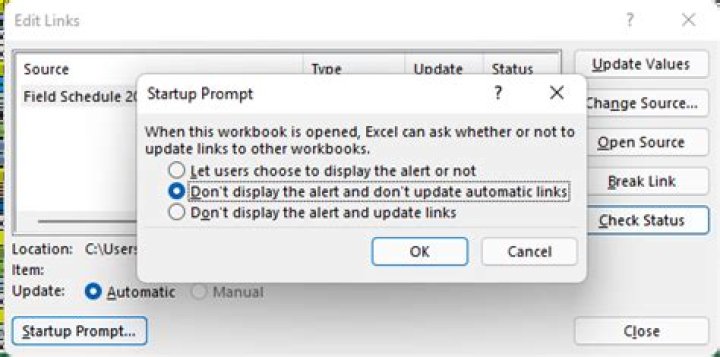
Go to Data/edit link/Startup Prompt and then click on Don't display the alert and don't update automatic links.