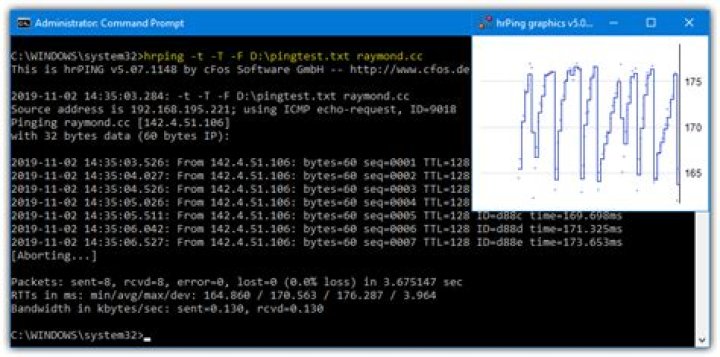

On the Windows command prompt cmd, I use ping -t to 10.21.11.81
Reply from 10.21.11.81: bytes=32 time=3889ms TTL=238 Reply from 10.21.11.81: bytes=32 time=3738ms TTL=238 Reply from 10.21.11.81: bytes=32 time=3379ms TTL=238 Are there any possibilities to get an output like this?
10:13:29.421875 Reply from 10.21.11.81: bytes=32 time=3889ms TTL=238 10:13:29.468750 Reply from 10.21.11.81: bytes=32 time=3738ms TTL=238 10:13:29.468751 Reply from 10.21.11.81: bytes=32 time=3379ms TTL=238 Please note that I wanna achieve this with only commands provided by CMD
217 Answers
WindowsPowershell:
option 1
ping.exe -t COMPUTERNAME|Foreach{"{0} - {1}" -f (Get-Date),$_} option 2
Test-Connection -Count 9999 -ComputerName COMPUTERNAME | Format-Table @{Name='TimeStamp';Expression={Get-Date}},Address,ProtocolAddress,ResponseTime @echo off ping -t localhost|find /v ""|cmd /q /v:on /c "for /l %%a in (0) do (set "data="&set /p "data="&if defined data echo(!time! !data!)" note: code to be used inside a batch file. To use from command line replace %%a with %a
Start the ping, force a correct line buffered output (find /v), and start a cmd process with delayed expansion enabled that will do an infinite loop reading the piped data that will be echoed to console prefixed with the current time.
2015-01-08 edited: In faster/newer machines/os versions there is a synchronization problem in previous code, making the set /p read a line while the ping command is still writting it and the result are line cuts.
@echo off ping -t localhost|cmd /q /v /c "(pause&pause)>nul & for /l %%a in () do (set /p "data=" && echo(!time! !data!)&ping -n 2 localhost>nul" Two aditional pause commands are included at the start of the subshell (only one can be used, but as pause consumes a input character, a CRLF pair is broken and a line with a LF is readed) to wait for input data, and a ping -n 2 localhost is included to wait a second for each read in the inner loop. The result is a more stable behaviour and less CPU usage.
NOTE: The inner ping can be replaced with a pause, but then the first character of each readed line is consumed by the pause and not retrieved by the set /p
You can do this in Bash (e.g. Linux or WSL):
ping 10.0.0.1 | while read line; do echo `date` - $line; done Although it doesn't give the statistics you usually get when you hit ^C at the end.
7Batch script:
@echo off set /p host=host Address: set logfile=Log_%host%.log echo Target Host = %host% >%logfile% for /f "tokens=*" %%A in ('ping %host% -n 1 ') do (echo %%A>>%logfile% && GOTO Ping) :Ping for /f "tokens=* skip=2" %%A in ('ping %host% -n 1 ') do ( echo %date% %time:~0,2%:%time:~3,2%:%time:~6,2% %%A>>%logfile% echo %date% %time:~0,2%:%time:~3,2%:%time:~6,2% %%A timeout 1 >NUL GOTO Ping) This script will ask for which host to ping. Ping output is output to screen and log file. Example log file output:
Target Host = Pinging nu-nl.gslb.sanomaservices.nl [62.69.166.210] with 32 bytes of data: 24-Aug-2015 13:17:42 Reply from 62.69.166.210: bytes=32 time=1ms TTL=250 24-Aug-2015 13:17:43 Reply from 62.69.166.210: bytes=32 time=1ms TTL=250 24-Aug-2015 13:17:44 Reply from 62.69.166.210: bytes=32 time=1ms TTL=250 Log file is named LOG_[hostname].log and written to same folder as the script.
10This might help someone : [Needs to be run in Windows PowerShell]
ping.exe -t 10.227.23.241 |Foreach{"{0} - {1}" -f (Get-Date),$_} >> Ping_IP.txt -- Check for the Ping_IP.txt file at the current directory or user home path.
Above command gives you output in a file like below ;
9/14/2018 8:58:48 AM - Pinging 10.227.23.241 with 32 bytes of data: 9/14/2018 8:58:48 AM - Reply from 10.227.23.241: bytes=32 time=29ms TTL=117 9/14/2018 8:58:49 AM - Reply from 10.227.23.241: bytes=32 time=29ms TTL=117 9/14/2018 8:58:50 AM - Reply from 10.227.23.241: bytes=32 time=28ms TTL=117 9/14/2018 8:58:51 AM - Reply from 10.227.23.241: bytes=32 time=27ms TTL=117 9/14/2018 8:58:52 AM - Reply from 10.227.23.241: bytes=32 time=28ms TTL=117 9/14/2018 8:58:53 AM - Reply from 10.227.23.241: bytes=32 time=27ms TTL=117 9/14/2018 8:58:54 AM - Reply from 10.227.23.241: bytes=32 time=28ms TTL=117 On Windows
You can use one of the other answers.
On Unix/Linux
while :;do ping -n -w1 -W1 -c1 10.21.11.81| grep -E "rtt|100%"| sed -e "s/^/`date` /g"; sleep 1; done Or as function pingt for your ~/.bashrc:
pingt() { while :;do ping -n -w1 -W1 -c1 $1| grep -E "rtt|100%"| sed -e "s/^/`date` /g"; sleep 1; done } This might fit the bill for later Windows versions:
for /l %i in (1,0,2) do @echo|cmd /v:on /c set /p=!time! & ping -n 1 10.21.11.81 | findstr "Reply timed" && timeout /t 2 > nul: I think my code its what everyone need:
ping -w 5000 -t -l 4000 -4 localhost|cmd /q /v /c "(pause&pause)>nul &for /l %a in () do (for /f "delims=*" %a in ('powershell get-date -format "{ddd dd-MMM-yyyy HH:mm:ss}"') do (set datax=%a) && set /p "data=" && echo([!datax!] - !data!)&ping -n 2 localhost>nul" to display:
[Fri 09-Feb-2018 11:55:03] - Pinging localhost [127.0.0.1] with 4000 bytes of data: [Fri 09-Feb-2018 11:55:05] - Reply from 127.0.0.1: bytes=4000 time<1ms TTL=128 [Fri 09-Feb-2018 11:55:08] - Reply from 127.0.0.1: bytes=4000 time<1ms TTL=128 [Fri 09-Feb-2018 11:55:11] - Reply from 127.0.0.1: bytes=4000 time<1ms TTL=128 [Fri 09-Feb-2018 11:55:13] - Reply from 127.0.0.1: bytes=4000 time<1ms TTL=128 note: code to be used inside a command line, and you must have powershell preinstalled on os.
0Try this:
Create a batch file with the following:
echo off cd\ :start echo %time% >> c:\somedirectory\pinghostname.txt ping pinghostname >> c:\somedirectory\pinghostname.txt goto start You can add your own options to the ping command based on your requirements. This doesn't put the time stamp on the same line as the ping, but it still gets you the info you need.
An even better way is to use fping, go here to download it.
1Use
ping -D 8.8.8.8 From the man page
-D Print timestamp (unix time + microseconds as in gettimeofday) before each line Output
[1593014142.306704] 64 bytes from 8.8.8.8: icmp_seq=2 ttl=120 time=13.7 ms [1593014143.307690] 64 bytes from 8.8.8.8: icmp_seq=3 ttl=120 time=13.8 ms [1593014144.310229] 64 bytes from 8.8.8.8: icmp_seq=4 ttl=120 time=14.3 ms [1593014145.311144] 64 bytes from 8.8.8.8: icmp_seq=5 ttl=120 time=14.2 ms [1593014146.312641] 64 bytes from 8.8.8.8: icmp_seq=6 ttl=120 time=14.8 ms Try this instead:
ping -c2 -s16 sntdn | awk '{print NR " | " strftime("%Y-%m-%d_%H:%M:%S") " | " $0 }' Check if it suits you
1ping -t wwww.google.com|cmd /q /v /c “(pause&pause)>nul & for /l %a in () do (set /p “data=” && echo(!date! !time! !data!)&ping -n 2 wwww.google.com>nul”
Another powershell method (I only wanted failures)
$ping = new-object System.Net.NetworkInformation.Ping $target="192.168.0.1" Write-Host "$(Get-Date -format 's') Start ping to $target" while($true){ $reply = $ping.send($target) if ($reply.status -eq "Success"){ # ignore success Start-Sleep -Seconds 1 } else{ Write-Host "$(Get-Date -format 's') Destination unreachable" $target } } I also need this to monitor the network issue for my database mirroring time out issue. I use the command code as below:
ping -t Google.com|cmd /q /v /c "(pause&pause)>nul & for /l %a in () do (set /p "data=" && echo(!date! !time! !data!)&ping -n 2 Google.com>nul" >C:\pingtest.txt You just need to modify Google.com to your server name. It works perfectly for me. and remember to stop this when you finished. The pingtest.txt file will increase by 4.5 KB per min (around).
0An enhancement to MC ND's answer for Windows.
I needed a script to run in WinPE, so I did the following:
@echo off SET TARGET=192.168.1.1 IF "%~1" NEQ "" SET TARGET=%~1 ping -t %TARGET%|cmd /q /v /c "(pause&pause)>nul & for /l %%a in () do (set /p "data=" && echo(!time! !data!)&ping -n 2 localhost >nul" This can be hardcoded to a particular IP Address (192.168.1.1 in my example) or take a passed parameter. And as in MC ND's answer, repeats the ping about every 1 second.
Simple 😎:
@echo off set hostName= set logfile=C:\Users\Dell\Desktop\PING_LOG\NetworkLog\Log_%hostName%.text echo Network Loging Running %hostName%... echo Ping Log %hostName% >>%logfile% :Ping for /f "tokens=* skip=2" %%A in ('ping %hostName% -n 1 ') do ( echo %date% %time:~0,2%:%time:~3,2%:%time:~6,2% %%A>>%logfile% timeout 1 >NUL GOTO Ping) Instead of having the additional ping -n 2 localhost at the end of the loop, you can just add the character R before !data! since the only possibilities are Reply or Request. The first character is consumed from the pause>nul. So instead of having the following expression:
ping localhost -t -l 4|cmd /q /v /c "(pause&pause)>nul & for /l %%a in () do (set /p data=&echo(!date! !time! !data!)&ping -n 2 localhost>nul" You can use this expression:
ping localhost -t -l 4|cmd /q /v /c "(pause&pause)>nul & for /l %%a in () do (set /p data=&echo(!date! !time! R!data!)&pause>nul" Which produces the same output eg.:
22:34:49.49 Reply from 172.217.4.46: bytes=4 time=14ms TTL=116 22:34:50.49 Reply from 172.217.4.46: bytes=4 time=14ms TTL=116 22:34:55.47 Request timed out. 22:34:56.49 Reply from 172.217.4.46: bytes=4 time=14ms TTL=116 22:34:57.49 Reply from 172.217.4.46: bytes=4 time=14ms TTL=116