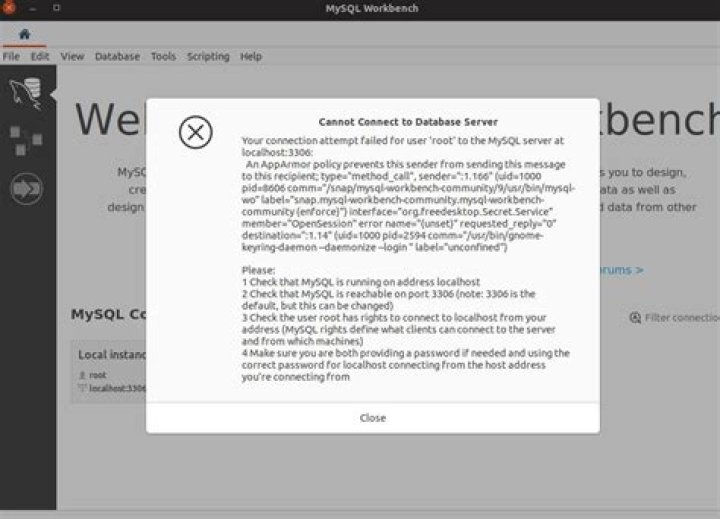

I cannot open the local instance in MySQL Workbench in Ubuntu 20.04 after installing the MySQL server. I searched for some similar topics here but these did not help.
Solution Found: I've found the solutions for this problem. This was because of the MySQL Workbench couldn't store password in keychain and also because it failed to connect to mysql at 127.0.0.1:3306 with user root access denied for user 'root'@'localhost'(using password:YES).
Use this command in the terminal: sudo snap connect mysql-workbench-community:password-manager-service :password-manager-service.
The snap package is sandboxed as usual and is not by default allowed to access the service. MySQLWorkbench is blocked by AppArmor when we choose "Store in keychain" option. That's why we need to enter the command to allow the package to access the service.
The solution links that helped me:
MySQL Workbench not saving passwords in keychain
13 Answers
All I need to do here is mainly type the following command in the terminal:
sudo snap connect mysql-workbench-community:password-manager-service :password-manager-service
Here, the snap package is sandboxed as usual and is not by default allowed to access the service. MySQLWorkbench is blocked by AppArmor when we choose "Store in keychain" option. That's why we need to enter the command to allow the package to access the service.
2Try adding this step.
login to mysql in the terminal
execute this command
ALTER USER 'root'@'localhost' IDENTIFIED WITH mysql_native_password BY 'password';
Check if this solved your problem <NOTE THE 'password' PART, CHANGE IT TO THE PASSWORD YOU WANT TO USE>
I tried all of the above steps, this one was the one that solved for me.
Make sure all the mentioned things working.
First check mysql is running by running below command:
sudo systemctl status mysql
If it's running make sure that your mysql username is root and password you are entering is correct. If still not working make sure you have given all the privileges to user "root".
If don't know how to set privileges read this article carefully.
0



