I have already installed Jupyter notebook in my ubuntu 16.04 machine. In jupyter notebook there is by default python installed. Now I want to use R from jupyter notebook.
To do so I followed IRkernel installation link and run below commands:
install.packages('devtools') devtools::install_github('IRkernel/IRkernel') But when I run IRkernel::installspec() command it shows below error:
jupyter-client has to be installed but “jupyter kernelspec --version” exited with code 127
I am now confused why this error occurs.
520 Answers
Running this command from RStudio will show this error. When you run this command from command line/ terminal then everything will be fine.
So just type R from your command line.
Then Run below commands:
install.packages('devtools') devtools::install_github('IRkernel/IRkernel') 
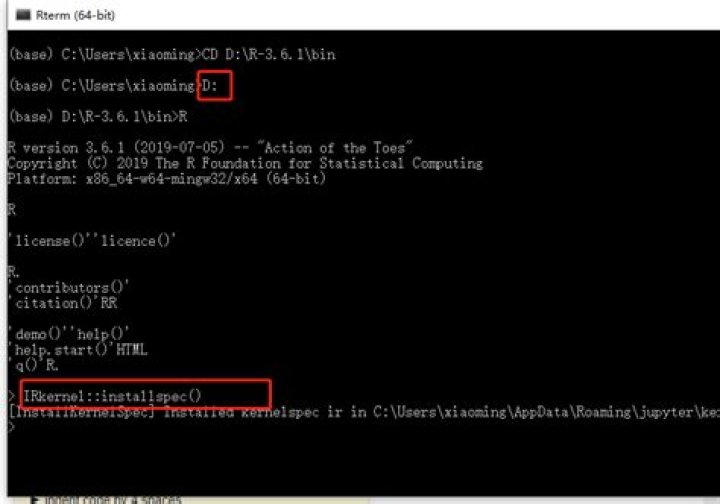
IRkernel::installspec() - If Anaconda is installed and the Jupyter-Notebook with it (should be the standard install), open up the Anaconda prompt, not the Windows command prompt or the Anaconda Navigator
- Look up the executable of R (not Rgui or Rstudio), it should be somewhere like C:\Program Files\R\R-3.5.1\bin and remember the path typing
cd C:\Program Files\R\R-3.5.1\binand start R by typingR - typing
IRkernel::installspec() - Now you can start an R kernel within Jupyter-Notebook
On some Windows systems you may not succeed even if you run R from cmd / powershell. That's the case on my machine. My workaround is to run R from Anaconda Prompt (if you installed Jupyter via Anaconda). You may need to specify the full path if R is not on your PATH.
I think this is some problem related to the PATH, however I had no luck adding Anaconda\Lib\site-packages\jupyter_client to my system PATH.
I have solved with this:
sudo ln -s /home/'my user name'/anaconda3/bin/jupyter /usr/bin/jupyter
3I am running Ubuntu 18.04.4 with R installed in /usr/bin/R and Python in /home/ubuntu/anaconda3/bin/python. I ran into a number of path related problems when trying to tell Jupyter where to find the kernel for my R installation. Regardless of how I ran R the IRkernel::installspec() would not work in R. I found success by making the connection using jupyter kernelspec from the command line. Specifically this is what worked for me.
From within R:
install.packages("devtools") devtools::install_github("IRkernel/IRkernel") system.file('kernelspec', package = 'IRkernel') The last line should give you the location of Jupyter will need to find the kernel. Mine was /home/ubuntu/R/x86_64-pc-linux-gnu-library/4.0/IRkernel/kernelspec
From the command line:
- inspect the path that you receive when you were in R. There should be a .json file in it.
jupyter kernelspec list(run this to be sure that jupyter is in your path, you should see information about the current available kernels.jupyter kernelspec install /home/ubuntu/R/x86_64-pc-linux-gnu-library/4.0/IRkernel/kernelspec --name 'R' --user(you will use path that you received while working in R which could be different)jupyter kernelspec list(this list should now include R)- restart jupyter
I tried to install IRkernel on my Windows machine. I experienced a similar problem when I ran from within R:
> IRkernel::installspec(user = FALSE) Error in IRkernel::installspec(user = FALSE) : jupyter-client has to be installed but “jupyter kernelspec --version” exited with code 1. I did not use conda to install Jupyter on my machine, but pip. I have some programmes installed which use python under the hood. It means that I have more than one Python instance on my machine and more Jupyter instances too. To be sure I was referencing the right Jupyter instance, I did this:
> setwd('C:/usr/lib/Python36-32/Scripts') > IRkernel::installspec(user = FALSE) [InstallKernelSpec] Installed kernelspec ir in C:\ProgramData\jupyter\kernels\ir Besides Python, I can now also use R within my notebooks.
1Here a way to overcome this problem. I have installed IRkernel with anaconda in my mac (I guess is the same on Linux). The below command also works in windows to be run on Anaconda shell and pressing y after a y/n prompt (you can also refer )
I typed:
conda install -c r r-irkernel Then I started started R typing:
R Finally, I have install the kernelspec to tell Jupyter about IRkernel, with the option user=FALSE for installation in the global environment:
IRkernel::installspec(user=FALSE) Hope it helps!
Adding this for anyone, who googling and getting stuck on this issue may benefit from this simple learning. I got the same error, as above, followed the instructions above (while launching R in Terminal):
IRkernel::installspec() Error in IRkernel::installspec() : jupyter-client has to be installed but “jupyter kernelspec --version” exited with code 127. In Bash I ran:
Mac-Pro:~ $ jupyter kernelspec --version -bash: jupyter: command not found Duh, I had no Jupyter installed. Install Jupyter (on mac, using brew) with: brew install jupyter. Installation instructions for other OS's can be found here.
All now working fine.
1I had the same error but the fix was different:
Make sure you also have anaconda install on your system! (or at least jupyter)
I had the same error, but in my case, I have jupyter installed in a virtual environment, so I had to start R after installing the virtual environment in order for IRkernel::installspec() to succeed.
1I had the same error while trying to install my environment as kernel in Jupyter. First I had created a new environment, installed R, IRkernel and devtools from within conda prompt, then runned R typing R from the prompt and typing
IRkernel::installspec(name = 'myenvname', displayname = 'myenvname') I had the same error. I solved simply in this way:
conda install -c anaconda jupyter_client And then retyping the previous code it just worked.
0In windows 10 sys you just move the 3 files in your R library (install 'IRkernel' before this step) to your jupyter-lab "ir" path
Hope it helps u!
2I came up with the same problem and solved it with ease following these steps
pc specs: macOS version 10.14.6
- make sure R is installed if not find here how to.
- make sure you have jupyter notebook installed if not find that here how.
- Go to the terminal or use Launchpad to launch R, then install following package:
devtools::install_github('IRkernel/IRkernel'). - find out the where its installed using:
system.file('kernelspec', package = 'IRkernel')and use the path (mine was :/Users/ali/Library/R/4.0/library/IRkernel/kernelspec) you get here in the commond below. - now go to the terminal again and type this :
jupyter kernelspec install /Users/ali/Library/R/4.0/library/IRkernel/kernelspec --name 'R' --user. - Then the last thing is to check the kernal list and restart notebook using cmd 4 and 5 from @Bryan Prazen above.
enjoy !!
2I had the same issue; I added the following in the ~/.bashrc (and source) and then tried running IRkernel::installspec() and it worked:
export PATH="~/anaconda3/bin:$PATH" I had the same problem but none of the above solutions worked for me. I was using Debian 9 with the default versions of python and R. I had to delete installed programs and compile latest versions of both from source. For Python compiling I had to use this configuration
For Windows Users, After installing anaconda, you should restart your system so Anaconda prompt appears on start. After opening Anaconda Prompt enter
IRkernel::installspec()
This time it will works since I think restart 'cuz PATH of the system to be upgraded.
I don't use conda - I have python virtual env and R installed. I don't know if it matters but I'm running on ubuntu for windows (WSL) (might be the cause of my error, might be unrelated). In the console, it recognized jupyter. Inside R console I installed IRkernel but IRkernel::installspec() gave me the error above (didn't recognize jupyter). I couldn't find a solution that worked, so I am writing here what solved it for me. I found the internals of installspec here. Check before hand where is your jupyter installed with which jupyter and run R from command line. Then, run the following code (adjusted from the link above):
srcdir <- system.file('kernelspec', package = 'IRkernel') tmp_name <- tempfile() dir.create(tmp_name) file.copy(srcdir, tmp_name, recursive = TRUE) spec_path <- file.path(tmp_name, 'kernelspec', 'kernel.json') library(jsonlite) spec$argv[[1]] <- file.path(R.home('bin'), 'R') spec$display_name <- 'R' write(toJSON(spec, pretty = TRUE, auto_unbox = TRUE), file = spec_path) args <- c('kernelspec', 'install', '--replace', '--name', 'ir', file.path(tmp_name, 'kernelspec')) system2('/path/to/jupyter', args) <--- here you copy paste the path you got earlier with pwd unlink(tmp_name, recursive = TRUE) For mac users:
I came across the same problem. You should call IRkernel::installspec(user = FALSE) in the terminal through R. I solved it this way, and I bet you could do the same:
- Call
R.home()in R console - You shall get
[1] "/Library/Frameworks/" - Add
/bin/Rto path nlike this:/Library/Frameworks/ - In terminal, paste this path
/Library/Frameworks/and enter. - Now you are using R in terminal. Call
IRkernel::installspec(user = FALSE)And it shall be solved then.
I was installing jupyter notebook for R in linux and when I was adding IRkernel for jupyter then I got this same error. Then I install jupyter-client by using Linux terminal sudo apt-get install jupyter-client After this, no other error occurred.
1Assume that you have already run R in the terminal. You can first call library('IRkernel'), press Enter, then call installspec() or installspec(user=FALSE).
For me, simply calling IRkernel::installspec() will always raise the error you mentioned in your question. I don't know why what I did solved this problem on my centos server.