I am new to iOS development and need help from someone a bit more experienced than me. I searched the internet and couldn't find any working solution.
I need to draw to the screen like canvas in Android. Currently I have a CADisplayLink to call a function every frame. And that's working well. The problem is: How do I actually draw anything, like a rectangle, a circle or a line to the screen every frame?
This is what I have (I linked this class to the view in the storyboard):
class Canvas: UIView { override func draw(_ rect: CGRect) { let context = UIGraphicsGetCurrentContext() context?.setLineWidth(2.0) context?.setStrokeColor(UIColor.green.cgColor) context?.move(to: CGPoint(x: 30, y: 30)) context?.addLine(to: CGPoint(x: Double(xBall), y: Double(yBall))) context?.strokePath() } } With the following code I can actually draw a line to the screen:
let canvas = Canvas() canvas.draw(CGRect()) The problem is, that this works exactly ONE time. When I have canvas.draw(CGRect()) in my loop which repeats every frame, it works for the first frame (the initial values of xBall and yBall) and never again. When I print the values in the draw method, it gets called every frame and the variables have the correct values. But it does not draw it to the screen. I tried adding the line setNeedsDisplay() in the draw method, with similar results.
Any help will be appreciated! Thanks!
21 Answer
If you refer to the draw(_:) documentation, it says:
This method is called when a view is first displayed or when an event occurs that invalidates a visible part of the view. You should never call this method directly yourself. To invalidate part of your view, and thus cause that portion to be redrawn, call the
setNeedsDisplay()orsetNeedsDisplay(_:)method instead.
The common approach would be to have your view controller viewDidLoad method add Canvas view:
override func viewDidLoad() { super.viewDidLoad() let canvas = Canvas() canvas.translatesAutoresizingMaskIntoConstraints = false view.addSubview(canvas) NSLayoutConstraint.activate([ canvas.leadingAnchor.constraint(equalTo: view.leadingAnchor), canvas.trailingAnchor.constraint(equalTo: view.trailingAnchor), canvas.topAnchor.constraint(equalTo: view.topAnchor), canvas.bottomAnchor.constraint(equalTo: view.bottomAnchor) ]) } You don’t call draw(_:) yourself, but rather the OS will do so automatically. All you need to do is add it to your view hierarchy with addSubview(_:). And you can then just have your CADisplayLink update the properties and call setNeedsDisplay (or, better, add didSet observers to those properties that calls setNeedsDisplay for you).
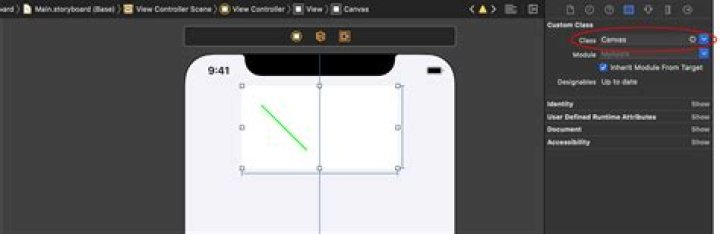
By the way, if you don’t want to add this programmatically, like shown above, you can add Canvas right in Interface Builder. Just drag a UIView onto your storyboard scene, add all of the appropriate constraints, go to the “identity” inspector, and set the base class name to be Canvas:

And if you mark your class as @IBDesignable, you can actually see your path rendered right in Interface Builder, like shown above.
A number of refinements:
If you are going to implement
draw(_:)yourself, instead of getting a graphics context withUIGraphicsGetCurrentContext, you might juststrokeaUIBezierPath:override func draw(_ rect: CGRect) { let path = UIBezierPath() path.move(to: CGPoint(x: 30, y: 30)) path.addLine(to: CGPoint(x: xBall, y: yBall)) path.lineWidth = 2 UIColor.green.setStroke() path.stroke() }Like your solution, this requires that after you update
xBallandyBall, if you callsetNeedsDisplayto have the view re-rendered with the updated path.Sometimes we wouldn’t even implement
draw(_:). We would just add aCAShapeLayeras a sublayer:@IBDesignable class Canvas: UIView { var xBall = ... var yBall = ... let shapeLayer: CAShapeLayer = { let shapeLayer = CAShapeLayer() shapeLayer.strokeColor = UIColor.green.cgColor shapeLayer.fillColor = UIColor.clear.cgColor shapeLayer.lineWidth = 2 return shapeLayer }() override init(frame: CGRect = .zero) { super.init(frame: frame) configure() } required init?(coder: NSCoder) { super.init(coder: coder) configure() } func configure() { layer.addSublayer(shapeLayer) updatePath() } func updatePath() { let path = UIBezierPath() path.move(to: CGPoint(x: 30, y: 30)) path.addLine(to: CGPoint(x: xBall, y: yBall)) shapeLayer.path = path.cgPath } }In this sort of approach, you just update the
pathof theshapeLayerand the OS will render your shape layer (and itspath) for you.