Android toolchain - I develop for Android devices (Android SDK version 30.0.3):
X cmdline-tools component is missing Run `path/to/sdkmanager --install "cmdline-tools;latest"` See for more details. 18 Answers
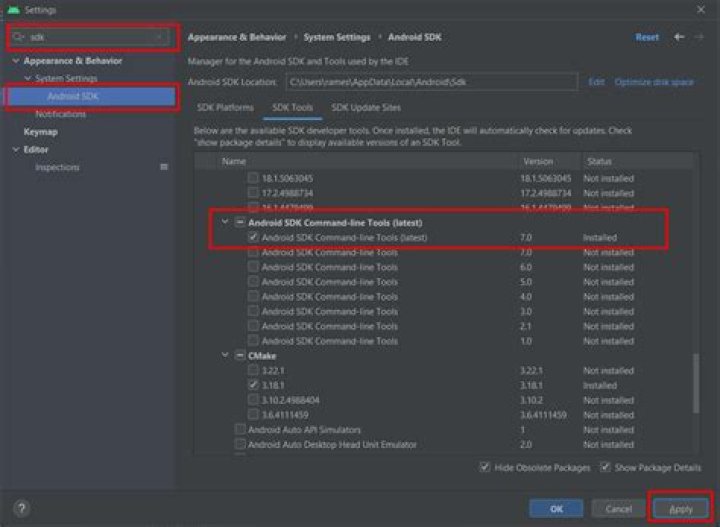
The solution for me was opening Android Studio and going to SDK Manager, switch to the SDK Tools tab and check Android SDK Command-line Tools (latest).

Don't forget to add to your PATH the tools and platform-tools folder that are inside your SDK.
4Android SDK Manager screenshot on Windows
Please see the attached screenshot for installing tools from SDK Manager.
0Since my Android Studio starting screen looks different from the answers above I want to share my solution:
- Open Android Studio and click on 'more actions' on the welcome screen.
- Click on 'SDK Manager'
- In the '*Preferences' window go to the '*SDK Tools•' tab
- Select the 'Android SDK Command-line Tools (latest)' checkbox.
- Click on 'Apply'.
My solution process is as follows:
~/Library/Android/sdk/tools/bin/sdkmanager --install "cmdline-tools;latest"Exception in thread "main" java.lang.NoClassDefFoundError: javax/xml/bind/annotation/XmlSchema at com.android.repository.api.SchemaModule$SchemaModuleVersion.<init>(SchemaModule.java:156) at com.android.repository.api.SchemaModule.<init>(SchemaModule.java:75) at com.android.sdklib.repository.AndroidSdkHandler.<clinit>(AndroidSdkHandler.java:81) at com.android.sdklib.tool.sdkmanager.SdkManagerCli.main(SdkManagerCli.java:73) at com.android.sdklib.tool.sdkmanager.SdkManagerCli.main(SdkManagerCli.java:48) Caused by: java.lang.ClassNotFoundException: javax.xml.bind.annotation.XmlSchema at (BuiltinClassLoader.java:636) at (ClassLoaders.java:182) at (ClassLoader.java:519) ... 5 moreInstall Android SDK Command-line Tools in Android Studio:
Preferences → Appearance & Behavior → System Settings → Android SDK → SDK Tools → Android SDK Command-line Tools (latest)
flutter doctorDoctor summary (to see all details, run flutter doctor -v): [✓] Flutter (Channel stable, 2.5.0, on macOS 11.5.2 20G95 darwin-x64, locale zh-Hans-CN) [✓] Android toolchain - develop for Android devices (Android SDK version 29.0.3) [✓] Xcode - develop for iOS and macOS [✓] Chrome - develop for the web [✓] Android Studio (version 2020.3) [✓] IntelliJ IDEA Ultimate Edition (version 2021.2) [✓] IntelliJ IDEA Ultimate Edition (version 2021.2) [✓] Connected device (2 available) • No issues found!
- Open SDK Manager from your Android Studio.
- SDK Tools tab
- Check Android SDK Command Line Tools as in the picture
- Apply.
- Then again run
flutter doctor.
If what flutter doctor said was something like:
[!] Android toolchain - develop for Android devices (Android SDK version 30.0.2) • Android SDK at /Users/<admin>/Library/Android/sdk ✗ cmdline-tools component is missing Run `path/to/sdkmanager --install "cmdline-tools;latest"` The path/to/sdkmanager for me was:
/Users/<user>/Library/Android/sdk/tools/bin/sdkmanager So what solved the whole thing for me was running:
/Users/<user>/Library/Android/sdk/tools/bin/sdkmanager --install "cmdline-tools;latest" For macOS, I ran this command;
cd ~/Library/Android/sdk/tools/bin ./sdkmanager --install "cmdline-tools;latest" Then when I ran the flutter doctor command again, it confirmed that the problem was solved.
For Windows users
If you still see the same error even after your build tools, tools are installed and added to the user/system path variable, and maybe your sdkmanager location is really not found
Try this
Just type in
flutter config --android-sdk "C:\Users\barma\AppData\Local\Android\Sdk" (since my SDK folder is here)Add the path inside
""to where your Android SDK folder is locatedThen you can run the licenses to verify any license which are not approved.
This worked for me.
2
Easiest solution:
- Open Android Studio and click settings in the upper left corner of Android studio.
- Search for "SDK tools" in the search box.
- From the SDK tools just check the Android SDK Platform Tools.
- Run
flutter doctorto verify. You can also restart Android Studio if you want.
I hope the problem will be solved.
Your Android SDK version requires an update.
Open Android Studio
Android Studio (or File if using older version) -> Preferences -> Appearance & behavior -> System Settings (dropdown) -> Android SDK -> SDK Tools -> check Android SDK Command-line Tools (latest) -> Apply -> click OK once update has finished -> Run flutter doctor. Screenshot of the Appearance & Behavior menu
I solved this problem on Windows 10 with the following actions:
Run the following command in a Windows command prompt or Flutter console:
flutter config --android-sdk "C:\Users\'your computer name' AppData\Local\Android\Sdk"(you may need to find and enter your own SDK path)
The Android SDK location could be found in the Android Studio application* → Appearance & Behavior → System Settings → Android SDK
Open your Android Studio, and then → File → Settings → Appearance & Behavior → System Settings → Android SDK → SDK Tools → download Android SDK Command-line Tools (latest) and you are good to go.
For Mac OS users:
flutter config --android-sdk "/Users/{YOUR_USER_NAME}/Library/Android/sdk" then
flutter doctor --android-licenses Types for all stops "y"
If you are a Mac user, just open your terminal and paste:
cd Library/Android/sdk/tools/bin./sdkmanager --install "cmdline-tools;latest" And hit Enter.
This command will install the latest version of cmdline-tools.
Then, run flutter doctor, and the error will be gone.
If you have already downloaded cmdline-tools and the Android Sdk, make sure flutter isn't looking in the wrong directory with
flutter config --android-sdk="" For Linux (Ubuntu)
Just copy this command in your terminal and change 'your user name' with your user name without spaces:
/home/your user name/Android/Sdk/tools/bin/sdkmanager --install "cmdline-tools;latest" I installed the Android SDK platform tool from Android Studio. This helped me resolved this error.
Installed platform tool from Android Studio
After installation of Platform tools
2You have to install Android SDK Command-line Tools. To do that, invoke menu command File → Settings → Android SDK and download the latest.
You must choose Android SDK in the left side of the Settings window. It’s under Appearance & Behavior → System Settings.
If you have installed the latest cmd-line tools from Android Studio, but it still gives the error, then you should do the following.
If you have installed the Android SDK to a custom directory, then you need to copy the path of your SDK folder. Then you have to go to the edit environment variable, click New give a variable name: ANDROID_SDK_ROOT. And a variable value: path of your SDK folder. Click OK.
In the older version of Flutter, this error came with the solution (creating ANDROID_SDK_ROOT), but in the new versions it does not show that.