Trying to install modules from GitHub results in this error:
ENOENT error on package.json.
Easily reproduced using express:
npm install throws error.
npm install express works.
Why can't I install from GitHub?
Here is the console output:
npm http GET npm http 200 npm ERR! not a package /home/guym/tmp/npm-32312/1373176518024-0.6586997057311237/tmp.tgz npm ERR! Error: ENOENT, open '/home/guym/tmp/npm-32312/1373176518024-0.6586997057311237/package/package.json' npm ERR! If you need help, you may report this log at: npm ERR! < npm ERR! or email it to: npm ERR! <> npm ERR! System Linux 3.8.0-23-generic npm ERR! command "/usr/bin/node" "/usr/bin/npm" "install" "" npm ERR! cwd /home/guym/dev_env/projects_GIT/proj/somename npm ERR! node -v v0.10.10 npm ERR! npm -v 1.2.25 npm ERR! path /home/guym/tmp/npm-32312/1373176518024-0.6586997057311237/package/package.json npm ERR! code ENOENT npm ERR! errno 34 npm ERR! npm ERR! Additional logging details can be found in: npm ERR! /home/guym/dev_env/projects_GIT/proj/somename/npm-debug.log npm ERR! not ok code 0 21 Answers
Because is the URL of a web page and not an npm module. Use this flavor: git+{url}.git
git+ or this flavor if you need SSH:
git+ssh://git@ To install from GitHub, you can also do
npm install visionmedia/express Or
npm install visionmedia/express#branch There is also support for installing directly from a Gist, Bitbucket, GitLab, and a number of other specialized formats. Look at the npm install documentation for them all.
If Git is not installed, we can try:
npm install --save As of September 2016, installing from vanilla HTTPS GitHub URLs now works:
npm install You can't do this for all modules because you are reading from a source control system, which may well contain invalid/uncompiled/buggy code. So to be clear (although it should go without saying): given that the code in the repository is in an npm-usable state, you can now quite happily install directly from GitHub.
In October 2019, we are now living through "peak TypeScript/React/Babel", and therefore JavaScript compilation has become quite common. If you need to take compilation into account, look into prepare. That said, NPM modules do not need to be compiled, and it is wise to assume that compilation is not the default, especially for older node modules (and possibly also for very new, bleeding-edge "ESNext"-y ones).
There's also npm install to use a different branch.
The methods are covered pretty well now in npm's install documentation as well as the numerous other answers here.
npm install git+ssh://:<githubname>/<githubrepo.git[#<commit-ish>] npm install git+ssh://:<githubname>/<githubrepo.git>[#semver:^x.x] npm install git+ npm install git:// npm install github:<githubname>/<githubrepo>[#<commit-ish>] However, something notable that has changed recently is npm adding the prepare script to replace the prepublish script. This fixes a long-standing problem where modules installed via Git did not run the prepublish script and thus did not complete the build steps that occur when a module is published to the npm registry. See Run prepublish for Git URL packages #3055.
Of course, the module authors will need to update their package.json file to use the new prepare directive for this to start working.
The current top answer by Peter Lyons is not relevant with recent NPM versions. For example, using the same command that was criticized in this answer is now fine.
npm install If you have continued problems it might be a problem with whatever package you were using.
1The general form of the syntax is
<protocol>://[<user>[:<password>]@]<hostname>[:<port>][:][/]<path>[#<commit-ish> | #semver:<semver>] which means for your case it will be
npm install git+ssh://git@ From npmjs docs:
npm install :
Installs the package from the hosted git provider, cloning it with git. For a full git remote url, only that URL will be attempted.
<protocol>://[<user>[:<password>]@]<hostname>[:<port>][:][/]<path>[#<commit-ish>| #semver:] is one of git, git+ssh, git+http, git+https, or git+file.
If # is provided, it will be used to clone exactly that commit. If the commit-ish has the format #semver:, can be any valid semver range or exact version, and npm will look for any tags or refs matching that range in the remote repository, much as it would for a registry dependency. If neither # or
semver: is specified, then master is used.
If the repository makes use of submodules, those submodules will be cloned as well.
If the package being installed contains a prepare script, its dependencies and devDependencies will be installed, and the prepare script will be run, before the package is packaged and installed.
The following git environment variables are recognized by npm and will be added to the environment when running git:
- GIT_ASKPASS
- GIT_EXEC_PATH
- GIT_PROXY_COMMAND
- GIT_SSH
- GIT_SSH_COMMAND
- GIT_SSL_CAINFO GIT_SSL_NO_VERIFY
See the git man page for details.
Examples:
npm install git+ssh://:npm/npm.git#v1.0.27 npm install git+ssh://:npm/npm#semver:^5.0 npm install git+ npm install git:// GIT_SSH_COMMAND='ssh -i ~/.ssh/custom_ident' npm install git+ssh://:npm/npm.git npm install
You can do:
npm install git:// Or in package.json:
"dependencies": { "bar": "git://" } This works for me and it is less typing.
npm i github:<UserName>/<RepoName> package.json
{ "dependencies": { "name": "github:<UserName>/<RepoName>" } } Install it directly:
npm install visionmedia/express Alternatively, you can add "express": "github:visionmedia/express" to the "dependencies" section of package.json file, then run:
npm install You could also do
npm i alex-cory/fasthacks or
npm i github:alex-cory/fasthacks Basically:
npm i user_or_org/repo_name You can directly install a GitHub repository by the npm install command, like this:
npm install --save NOTE: In the repository which will be installed by npm command:
- maybe you have to have a dist folder in you repository, according to Dan Dascalescu's comment.
- You definitely have to have a package.json in your repository! Which I forget add.
Simple:
npm install *GithubUrl*.git --save Example:
npm install --save I tried npm install git+ but that took way too long and I wasn't sure that would work.
What did work for me was - yarn add git+.
Below piece of code worked for me to install from github repository:
npm install git+ssh://<your_repository_ssh_clone_link>#<branch_name_if_any> You can get ssh clone link as below:
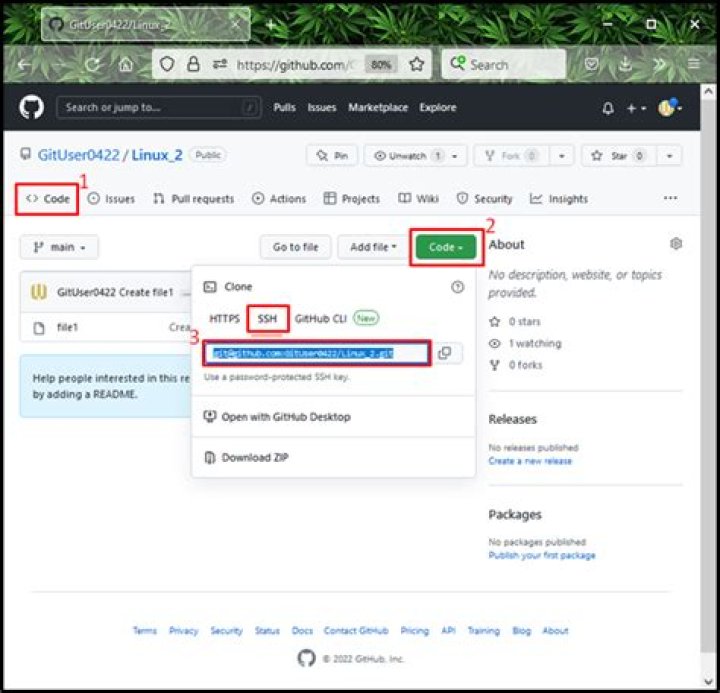
So for above screenshot repository, you may need to import as below,
npm install git+ssh://:Siddhu2/calculator-chatbot.git#master where master is my branch and it is optional since I have only one branch.
Sometimes I need to install from a specific branch or commit. To make things simple I just use

If you get something like this:
Make sure you update to the latest npm and that you have permissions as well.
The only command that worked for me was npm i MY_PACKAGE_NAME:MY_REPOSITORY#BRANCH_NAME
No need to do much; this helped me:
Yarn add <git_name>:<github_name>/<Repository_name>.git Example:
yarn add :myGitHub/dynamic-checkbox-input.git And if you want to add some specific commit or branch name then add #.
Example:
yarn add :myGitHub/dynamic-checkbox-input.git#master Example:
yarn add :myGitHub/dynamic-checkbox-input.git#c978U57 Try this command:
npm install github:[Organisation]/[Repository]#[master/BranchName] -g This command worked for me:
npm install github:BlessCSS/bless#3.x -g