How do I get the version number for Windows 10 [1903], instead of the build number [10.0.18362.592], via command line?
6 Answers
How do I get the version, such as
1903, instead of the "build number"?
The following PowerShell command will provide the information you are seeking:
(Source: How to get Windows version from the command prompt or PowerShell)
-
(Get-ItemProperty -Path 'HKLM:\SOFTWARE\Microsoft\Windows NT\CurrentVersion').ReleaseId - Registry query from the command prompt:
Reg Query "HKLM\SOFTWARE\Microsoft\Windows NT\CurrentVersion" | findstr ReleaseId
I have no words for this. I've been spending a ridiculous amount of time searching and searching and searching a million times, and every single webpage on the Internet keeps telling me about the worthless
vercommand orwmic blabla, which does not give you the version number.
I must point out the version of Windows you are using is actually the Build version (i.e. 18363), instead of ReleaseID (i.e. 1909).
- You would use
[System.Environment]::OSVersion.Versionto tell the difference between Windows 7 Service Pack 1 and Windows 7 RTM.
Reg Query "HKLM\SOFTWARE\Microsoft\Windows NT\CurrentVersion" /v ReleaseId 
Powershell
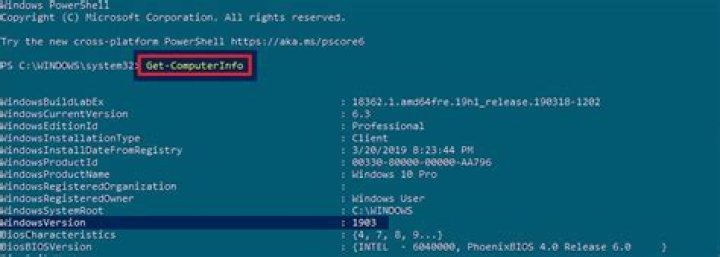
Get-ComputerInfo -Property "WindowsVersion" 
Picture 1: Above the whole output of the Get-ComputerInfo powershell invocation, without options.
Some words more
The Microsoft Windows operating system was first labelled with standard version numbers from 1 to 3.11 (read the full chapter [w])... then after some leaps and many years, in windows 10 the subsequent OS updates only incremented the build number and update build revision (UBR) number (see below).
In windows 10 the version number requested by the OP is based on the date of the most recent large build release and uses a YYMM format [2]. This version number is the one we can find e.g. via Settings panel, then System > About and we can read the Version (Shortcut Windows+I) and gives a prompter information about the OS update state.
Version[2] The version number gives you the best information on what version of Windows 10 you’re running. The number is based on the date of the most recent large build release and uses a YYMM format. For example, in the screenshot above, the “1607” version tells us that the version we’re running is from the 7th month (July) of 2016.
BTW from the command prompt you can directly ask to open winver and read the version number from the second line [3]...
winver systeminfo
In systeminfo it is available the OS version (the one with the built number, e.g 10.0.18362) that you may compare with a list similar to the above one, and the Original Install Date. I don't know if for each major upgrade the Original Install Date value is updated (Remember that YYMM gives that number). At least as minimum you can reconstruct the first installed version on your machine.
A List [4,R]
Windows 10 (1903) 10.0.18362 Windows 10 (1809) 10.0.17763 Windows 10 (1803) 10.0.17134 Windows 10 (1709) 10.0.16299 Windows 10 (1703) 10.0.15063 Windows 10 (1607) 10.0.14393 Windows 10 (1511) 10.0.10586 Windows 10 10.0.10240 Windows 8.1 (Update 1) 6.3.9600 Windows 8.1 6.3.9200 Windows 8 6.2.9200 Windows 7 SP1 6.1.7601 Windows 7 6.1.7600 Windows Vista SP2 6.0.6002 Windows Vista SP1 6.0.6001 Windows Vista 6.0.6000 Windows XP2 5.1.26003 You can read an updated version of the list on wikipedia page [R].
2Some options in PowerShell:
-
or(Get-ItemProperty 'HKLM:\SOFTWARE\Microsoft\Windows NT\CurrentVersion').ReleaseId(Get-ComputerInfo).WindowsVersion
- With alias:
or(gp 'HKLM:\SOFTWARE\Microsoft\Windows NT\CurrentVersion').ReleaseId(gin).WindowsVersion
- Save output in clipboard (ctrl+C)
or(gp 'HKLM:\SOFTWARE\Microsoft\Windows NT\CurrentVersion').ReleaseId | clip(gin).WindowsVersion | clip
- Actual Version output only: (returns
1903)for /f tokens^=^3 %i in ('Reg Query "HKLM\SOFTWARE\Microsoft\Windows NT\CurrentVersion" /v ReleaseId')do echo/%i|clip
- For add/set var in command line and send to output and clipboard (ctrl+C)
for /f tokens^=^3 %i in ('Reg Query "HKLM\SOFTWARE\Microsoft\Windows NT\CurrentVersion" /v ReleaseId')do echo/%i && set "_bildernumber=%i" echo %_bildernumber%|clip
- For add/set var in cmd/bat file and send output to clipboard (ctrl+C)
or@echo off for /f tokens^=^3 %%i in ('Reg Query "HKLM\SOFTWARE\Microsoft\Windows NT\CurrentVersion" /v ReleaseId')do echo/%%i && set "_bildernumber=%%i" echo %_bildernumber%|clip@echo off for /f tokens^=^3 %%i in ('Reg Query "HKLM\SOFTWARE\Microsoft\Windows NT\CurrentVersion" /v ReleaseId')do echo/%%i && set "_bildernumber=%%i" echo %_bildernumber%|clip
You could try winver, which provides a pop-up window showing Version, Build and/or Service Pack numbers.
Cygwin:
Reg Query 'HKLM\Software\Microsoft\Windows NT\CurrentVersion' |grep ReleaseId |sed -E 's/.* ([^ ]+)/\1/' reg queryis similar to other answersgrep ReleaseIdfinds the line with the Release ID- By using the
sed -E 's/.* ([^ ]+)/\1/'POSIX regular expression syntax,-Ematches any characters followed by a space, then captures a group of one or more non-space characters. This will get the last field on the line (without-Eit would require backslash escaping the parentheses and the plus sign) and substitute that captured group of non-space characters, which is the value we're looking for.