To create a simple working PopupWindow, we need to do the following:
popup_example.xml:
<?xml version="1.0" encoding="utf-8"?> <LinearLayout xmlns:android="" android:orientation="vertical" android:padding="10dip" android:layout_width="fill_parent" android:layout_height="wrap_content"> <TextView android:layout_width="fill_parent" android:layout_height="wrap_content" android:layout_marginTop="10dip" android:text="Test Pop-Up" /> </LinearLayout> Java code
LayoutInflater inflater = (LayoutInflater) this.getSystemService(Context.LAYOUT_INFLATER_SERVICE); PopupWindow pw = new PopupWindow(inflater.inflate(R.layout.popup_example, null, false),100,100, true); pw.showAtLocation(this.findViewById(R.id.main), Gravity.CENTER, 0, 0); My requirement is that I need a
<TEXTVIEW android:layout_height="wrap_content" android:layout_width="fill_parent" /> and a
<BUTTON android:id="@+id/end_data_send_button" android:text="Cancel"/> in my popup_example.xml. How can I handle these two components in my Java code?
8 Answers
How to make a simple Android popup window
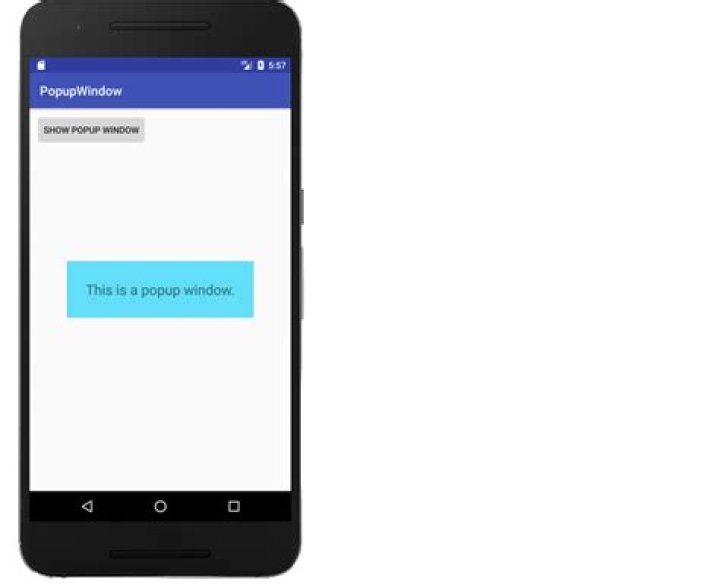
This is a fuller example. It is a supplemental answer that deals with creating a popup window in general and not necessarily the specific details of the OP's problem. (The OP asks for a cancel button, but this is not necessary because the user can click anywhere on the screen to cancel it.) It will look like the following image.

Make a layout for the popup window
Add a layout file to res/layout that defines what the popup window will look like.
popup_window.xml
<?xml version="1.0" encoding="utf-8"?> <RelativeLayout xmlns:android="" android:layout_width="wrap_content" android:layout_height="wrap_content" android:background="#62def8"> <TextView android:layout_width="wrap_content" android:layout_height="wrap_content" android:layout_centerInParent="true" android:layout_margin="30dp" android:textSize="22sp" android:text="This is a popup window."/> </RelativeLayout> Inflate and show the popup window
Here is the code for the main activity of our example. Whenever the button is clicked, the popup window is inflated and shown over the activity. Touching anywhere on the screen dismisses the popup window.
MainActivity.java
public class MainActivity extends AppCompatActivity { @Override protected void onCreate(Bundle savedInstanceState) { super.onCreate(savedInstanceState); setContentView(R.layout.activity_main); } public void onButtonShowPopupWindowClick(View view) { // inflate the layout of the popup window LayoutInflater inflater = (LayoutInflater) getSystemService(LAYOUT_INFLATER_SERVICE); View popupView = inflater.inflate(R.layout.popup_window, null); // create the popup window int width = LinearLayout.LayoutParams.WRAP_CONTENT; int height = LinearLayout.LayoutParams.WRAP_CONTENT; boolean focusable = true; // lets taps outside the popup also dismiss it final PopupWindow popupWindow = new PopupWindow(popupView, width, height, focusable); // show the popup window // which view you pass in doesn't matter, it is only used for the window tolken popupWindow.showAtLocation(view, Gravity.CENTER, 0, 0); // dismiss the popup window when touched popupView.setOnTouchListener(new View.OnTouchListener() { @Override public boolean onTouch(View v, MotionEvent event) { popupWindow.dismiss(); return true; } }); } } That's it. You're finished.
Going on
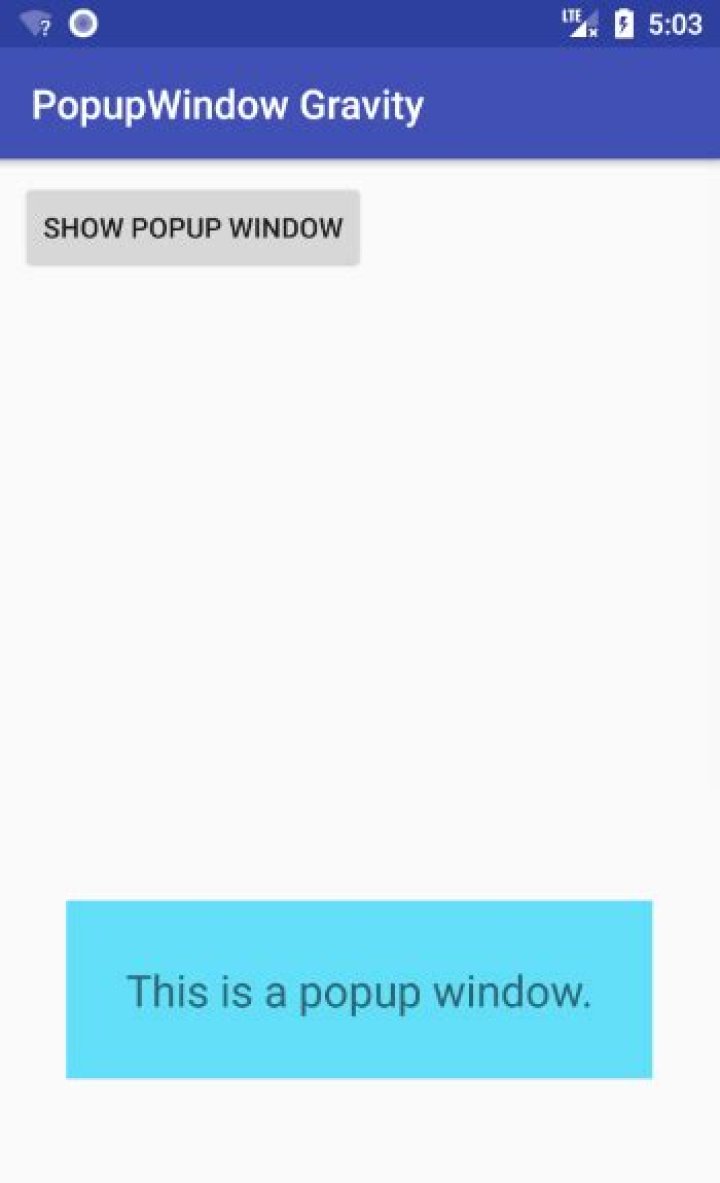
Check out how gravity values effect PopupWindow.
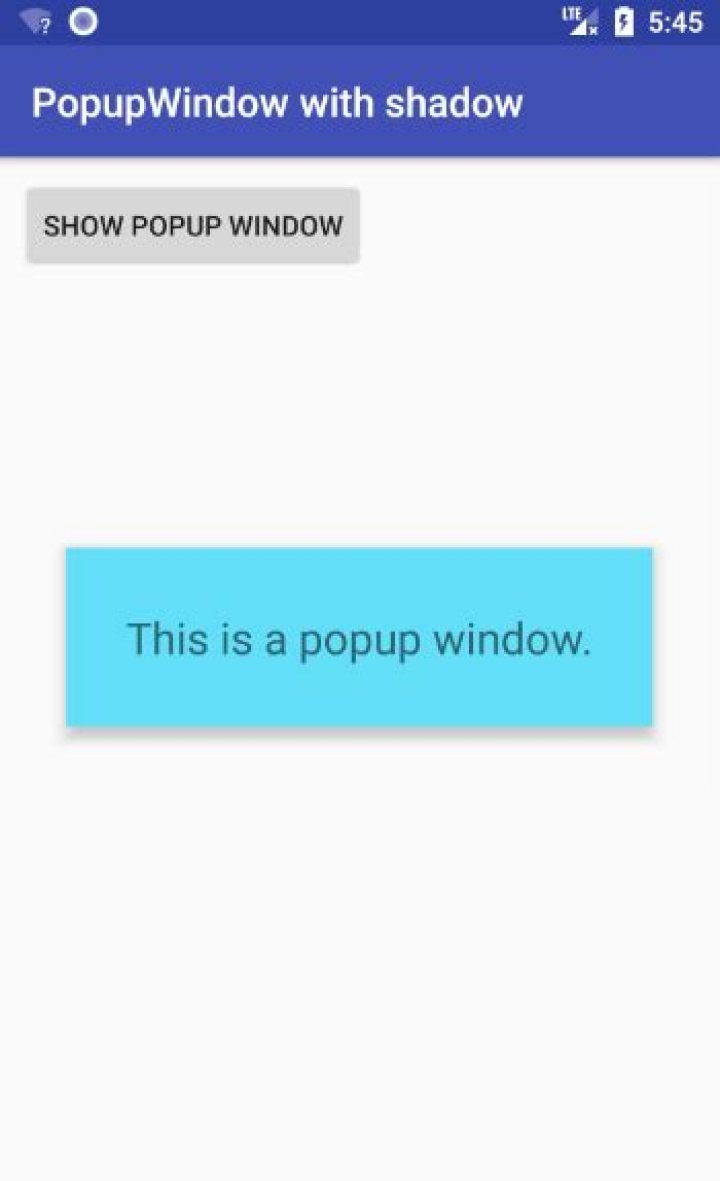
You can also add a shadow.
Further study
These were also helpful in learning how to make a popup window:
- PopupWindow documentation
- How To Create Pop Up Window In Android (YouTube video)
- Android Popup Window Example
Here, I am giving you a demo example. See this and customize it according to your need.
public class ShowPopUp extends Activity { PopupWindow popUp; boolean click = true; @Override public void onCreate(Bundle savedInstanceState) { super.onCreate(savedInstanceState); popUp = new PopupWindow(this); LinearLayout layout = new LinearLayout(this); LinearLayout mainLayout = new LinearLayout(this); TextView tv = new TextView(this); Button but = new Button(this); but.setText("Click Me"); but.setOnClickListener(new OnClickListener() { @Override public void onClick(View v) { if (click) { popUp.showAtLocation(layout, Gravity.BOTTOM, 10, 10); popUp.update(50, 50, 300, 80); click = false; } else { popUp.dismiss(); click = true; } } }); LayoutParams params = new LayoutParams(LayoutParams.WRAP_CONTENT, LayoutParams.WRAP_CONTENT); layout.setOrientation(LinearLayout.VERTICAL); tv.setText("Hi this is a sample text for popup window"); layout.addView(tv, params); popUp.setContentView(layout); // popUp.showAtLocation(layout, Gravity.BOTTOM, 10, 10); mainLayout.addView(but, params); setContentView(mainLayout); } } Hope this will solve your issue.
1are you done with the layout inflating? maybe you can try this!!
View myPoppyView = pw.getContentView(); Button myBelovedButton = (Button)myPoppyView.findViewById(R.id.my_beloved_button); //do something with my beloved button? :p I construct my own class, and then call it from my activity, overriding small methods like showAtLocation. I've found its easier when I have 4 to 5 popups in my activity to do this.
public class ToggleValues implements OnClickListener{ private View pView; private LayoutInflater inflater; private PopupWindow pop; private Button one, two, three, four, five, six, seven, eight, nine, blank; private ImageButton eraser; private int selected = 1; private Animation appear; public ToggleValues(int id, Context c, int screenHeight){ inflater = (LayoutInflater) c.getSystemService(Context.LAYOUT_INFLATER_SERVICE); pop = new PopupWindow(inflater.inflate(id, null, false), 265, (int)(screenHeight * 0.45), true); pop.setBackgroundDrawable(c.getResources().getDrawable(R.drawable.alpha_0)); pView = pop.getContentView(); appear = AnimationUtils.loadAnimation(c, R.anim.appear); one = (Button) pView.findViewById(R.id.one); one.setOnClickListener(this); two = (Button) pView.findViewById(R.id.two); two.setOnClickListener(this); three = (Button) pView.findViewById(R.id.three); three.setOnClickListener(this); four = (Button) pView.findViewById(R.id.four); four.setOnClickListener(this); five = (Button) pView.findViewById(R.id.five); five.setOnClickListener(this); six = (Button) pView.findViewById(R.id.six); six.setOnClickListener(this); seven = (Button) pView.findViewById(R.id.seven); seven.setOnClickListener(this); eight = (Button) pView.findViewById(R.id.eight); eight.setOnClickListener(this); nine = (Button) pView.findViewById(R.id.nine); nine.setOnClickListener(this); blank = (Button) pView.findViewById(R.id.blank_Selection); blank.setOnClickListener(this); eraser = (ImageButton) pView.findViewById(R.id.eraser); eraser.setOnClickListener(this); } public void showAtLocation(View v) { pop.showAtLocation(v, Gravity.BOTTOM | Gravity.LEFT, 40, 40); pView.startAnimation(appear); } public void dismiss(){ pop.dismiss(); } public boolean isShowing() { if(pop.isShowing()){ return true; }else{ return false; } } public int getSelected(){ return selected; } public void onClick(View arg0) { if(arg0 == one){ Sudo.setToggleNum(1); }else if(arg0 == two){ Sudo.setToggleNum(2); }else if(arg0 == three){ Sudo.setToggleNum(3); }else if(arg0 == four){ Sudo.setToggleNum(4); }else if(arg0 == five){ Sudo.setToggleNum(5); }else if(arg0 == six){ Sudo.setToggleNum(6); }else if(arg0 == seven){ Sudo.setToggleNum(7); }else if(arg0 == eight){ Sudo.setToggleNum(8); }else if(arg0 == nine){ Sudo.setToggleNum(9); }else if(arg0 == blank){ Sudo.setToggleNum(0); }else if(arg0 == eraser){ Sudo.setToggleNum(-1); } this.dismiss(); } } Button endDataSendButton = (Button)findViewById(R.id.end_data_send_button); Similarly you can get the text view by adding a id to it.
1LayoutInflater inflater = (LayoutInflater) SettingActivity.this.getSystemService(SettingActivity.LAYOUT_INFLATER_SERVICE); PopupWindow pw = new PopupWindow(inflater.inflate(R.layout.gd_quick_action_slide_fontsize, null),LayoutParams.MATCH_PARENT,LayoutParams.MATCH_PARENT, true); pw.showAtLocation(SettingActivity.this.findViewById(R.id.setting_fontsize), Gravity.CENTER, 0, 0); View v= pw.getContentView(); TextView tv=v.findViewById(R.id.....); This an example from my code how to address a widget(button) in popupwindow
View v=LayoutInflater.from(getContext()).inflate(R.layout.popupwindow, null, false); final PopupWindow pw = new PopupWindow(v,500,500, true); final Button button = rootView.findViewById(R.id.button); button.setOnClickListener(new View.OnClickListener() { @Override public void onClick(View v) { pw.showAtLocation(rootView.findViewById(R.id.constraintLayout), Gravity.CENTER, 0, 0); } }); final Button popup_btn=v.findViewById(R.id.popupbutton); popup_btn.setOnClickListener(new View.OnClickListener() { @Override public void onClick(View v) { popup_btn.setBackgroundColor(Color.RED); } }); Hope this help you
Edit your style.xml with:
<style name="AppTheme" parent="Base.V21.Theme.AppCompat.Light.Dialog"> Base.V21.Theme.AppCompat.Light.Dialog provides a android poup-up theme




