
- System: Ubuntu 18.04
- Webcam: Logitech C920 / C922
I use mostly the Microsoft Teams Ubuntu app (v1.4) to join work video calls. I also make Zoom and Meet work video calls on occasion.
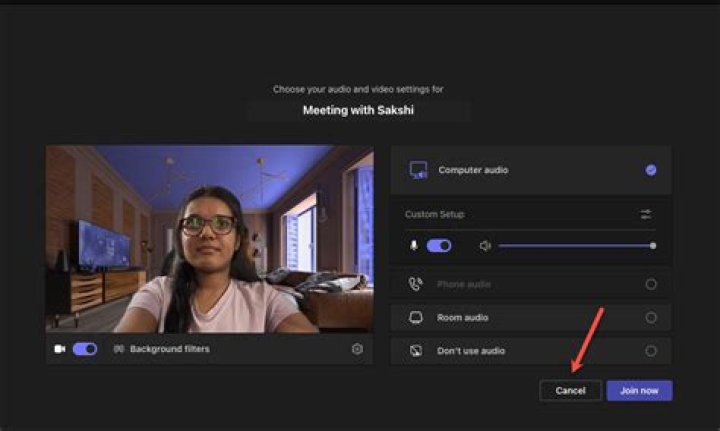
The webcam resolution during Microsoft Teams (and also Zoom and Meet) work video calls seems to be something like 16:9, which shows a lot more of my (messy working from home) background than I want.
I would like to set the aspect ratio as 4:3 and zoom in a bit so that my profile is centred on the screen. How can I do this in Ubuntu?
I installed V4L2 Test Bench from Ubuntu software and this allows me to set the aspect ratio for video within that app, but these settings do not apply to the video conferencing apps.
1 Answer
This can be done through the Video4linux v4l2-ctl command and this command needs to be run at each session. I also found that zooming works well on teams, but changing the resolution does not seem to work.
I run the below script before I start my video conferencing app. There are ways to also automatically run this script on login, but the manual process works fine for my use-case.
#!/bin/bash v4l2-ctl --set-ctrl=zoom_absolute=120 v4l2-ctl --set-fmt-video=width=640,height=480 You may want to experiment with the zoom settings - 120% zoom works for me, but may not work for you. I believe the acceptable zoom and other settings depends on webcam.