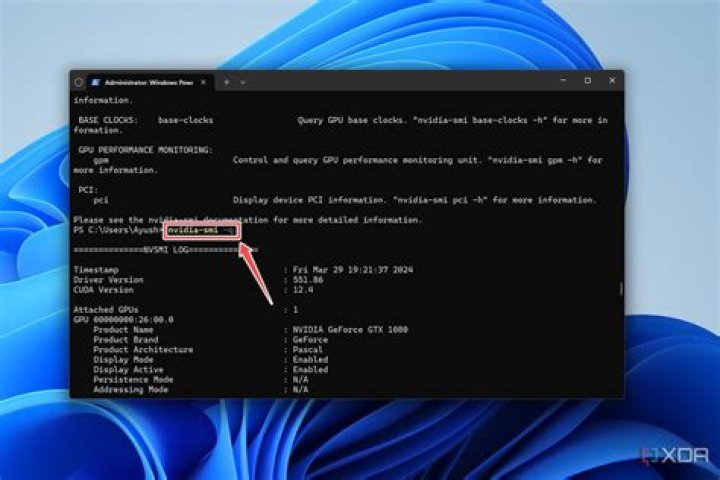

nvidia-smi executed in a Command Prompt (CMD) in Windows returns the following error
C:\Users>nvidia-smi 'nvidia-smi' is not recognized as an internal or external command, operable program or batch file. Where is it located? CUDA is installed already.
6 Answers
Nvidia-SMI is stored by default in the following location
C:\Windows\System32\DriverStore\FileRepository\nvdm*\nvidia-smi.exe
Where nvdm* is a directory that starts with nvdm and has an unknown number of characters after it.
Note: Older installs may have it in C:\Program Files\NVIDIA Corporation\NVSMI
You can move to that directory and then run nvidia-smi from there. However, the command prompt window will not persist, making it very difficult to see the information. Additionally it is challenging to determine what the nvdm* directory is as this changes and there are multiple directories of this format. To complicate matters, unlike linux, it can't be executed by the command line in a different path. It's better to find the exact location and create a shortcut that runs it in a periodic manner.
To find your exact location
- Open File Explorer (File Folder Icon on your Task Bar, Near Start / Cortana / Task View buttons).
- In the left Pane, click 'This PC'.
- In the main viewer, just to the top of the Icons, is a search bar. Type nvidia-smi.exe and hit enter. It will come up after some time.
- Right-click and choose 'Open File Location' and continue with the below instructions to make a desktop shortcut, or double click to run once (not recommended, as it runs and closes the window once complete, making it hard to see the information).
Make a shortcut that runs nvidia-smi and refreshes periodically
- Follow the above steps under 'To find your exact location'.
- Right click on nvidia-smi.exe (it may just say nvidia-smi in the viewpane) and choose create a shortcut. It will likely tell you that you can't create a shortcut here, and ask if you want to put it on your desktop. Hit yes.
- Now, on the desktop, right click on the shortcut you have just created, hit properties, and Under Shortcut > Target modify the string path to include -l < time you want it to refresh >.
For example, modify:
C:\Windows\System32\DriverStore\FileRepository\nvdm*\nvidia-smi.exe to
C:\Windows\System32\DriverStore\FileRepository\nvdm*\nvidia-smi.exe -l 5 Then hit "Apply", and then "OK".
In this example, when you open the shortcut, it will keep the command prompt open and allow you to watch your work as nvidia-smi refreshes every five seconds.
5You can add "C:\Program Files\NVIDIA Corporation\NVSMI" to PATH and than restart console.
System Properties > Advanced > Environment Variables > System Variables -> Path -> Edit > New > insert folder path with nvidia-smi
On my Windows 10 machine installed with CUDA 10.2, nvidia-smi.exe can be found at C:\Windows\System32.
Because C:\Windows\System32 is already in the windows PATH, running nvidia-smi in command prompt should now work out of the box
Go to the file explore then go to the C drive in the search bar type nvidia-smi
Wait sometimes when exe file is open right click go to the properties copy the location path
Then go to the anaconda command prompt change the working directory by using the copy path in step 2
Then write "nvidia-smi" hit enter
Click Here for more information
On Windows, you can use the Power Shell and type nvidia-smi -l 1 to GPU summary every 1 second, or nvidia-smi -lms every millisecond. Don't forget to add the CUDA environment files to PATH, as mentioned in the above suggestions.
You can try to write a .bat file for a one-click operation later.
ECHO Open folder ::my nvidia-smi folder (nvidia-smi.exe can be found on two different folders, either is ok) cd /d c:\Program Files\NVIDIA Corporation\NVSMI ::cd /d c:\Windows\System32\DriverStore\FileRepository\nvami.inf_amd64_42b7e5f6a9e28f81 ECHO NVIDIA-SMI ::use `-l < time you want it to refresh >` to keep window call nvidia-smi.exe -l 3 reference to @Hewston, the aforementioned script can be further simplified as follows:
::ECHO Open folder ::add my nvidia-smi folder to PATH variable ::cd /d c:\Program Files\NVIDIA Corporation\NVSMI ECHO NVIDIA-SMI ::use `-l < time you want it to refresh >` to keep window call nvidia-smi.exe -l 5