
Hi I usually use conda to manage my environments, but now I am on a project that needs a little more horsepower than my laptop. So I am trying to use my university's workstations which have new Intel Xeons. But I don't have admin rights and the workstation does not have conda so I am forced to work with virtualenv and pip3.
How do I generate a requirements.txt from conda that will work with pip3 and venv?
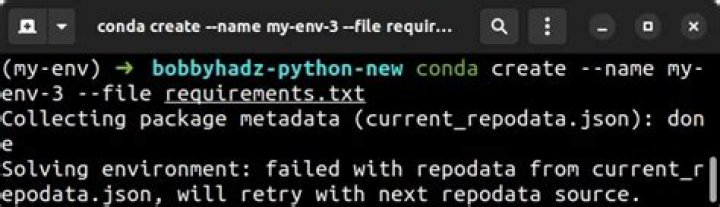
conda list -e > requirements.txt does not generate a compatible file:
= is not a valid operator. Did you mean == ? The conda output is:
# This file may be used to create an environment using: # $ conda create --name <env> --file <this file> # platform: osx-64 certifi=2016.2.28=py36_0 cycler=0.10.0=py36_0 freetype=2.5.5=2 icu=54.1=0 libpng=1.6.30=1 matplotlib=2.0.2=np113py36_0 mkl=2017.0.3=0 numpy=1.13.1=py36_0 openssl=1.0.2l=0 pip=9.0.1=py36_1 pyparsing=2.2.0=py36_0 pyqt=5.6.0=py36_2 python=3.6.2=0 python-dateutil=2.6.1=py36_0 pytz=2017.2=py36_0 qt=5.6.2=2 readline=6.2=2 scikit-learn=0.19.0=np113py36_0 scipy=0.19.1=np113py36_0 setuptools=36.4.0=py36_1 sip=4.18=py36_0 six=1.10.0=py36_0 sqlite=3.13.0=0 tk=8.5.18=0 wheel=0.29.0=py36_0 xz=5.2.3=0 zlib=1.2.11=0 I thought I would just manually change all = to == but the there are two = in the conda output. Which one to change? Surely there is an easier way?
EDIT: pip freeze > requirements.txt gives:
certifi==2016.2.28 cycler==0.10.0 matplotlib==2.0.2 matplotlib-venn==0.11.5 numpy==1.13.1 pyparsing==2.2.0 python-dateutil==2.6.1 pytz==2017.2 scikit-learn==0.19.0 scipy==0.19.1 six==1.10.0 6 Answers
As the comment at the top indicates, the output of
conda list -e > requirements.txt
can be used to create a conda virtual environment with
conda create --name <env> --file requirements.txt
but this output isn't in the right format for pip.
If you want a file which you can use to create a pip virtual environment (i.e. a requirements.txt in the right format) you can install pip within the conda environment, then use pip to create requirements.txt.
conda activate <env> conda install pip pip freeze > requirements.txt Then use the resulting requirements.txt to create a pip virtual environment:
python3 -m venv env source env/bin/activate pip install -r requirements.txt When I tested this, the packages weren't identical across the outputs (pip included fewer packages) but it was sufficient to set up a functional environment.
For those getting odd path references in requirements.txt, use:
pip list --format=freeze > requirements.txt In a conda environment with simply calling
pip freeze I got:
ipykernel @ file:///C:/ci/ipykernel_1607454116140/work/dist/ipykernel-5.3.4-py3-none-any.whl ipython @ file:///D:/bld/ipython_1612487184680/work ... Wanted format:
ipykernel==5.3.4 ipython==7.20.0 ... In an activated conda environment I had to use
pip list --format=freeze to get the correct format for generating a requirements file for people who prefer to use pip with virtual environments.
1Following the discussion, I'd like to mention that you can actually see some separation of pip and conda roles.
pip is a standard package manager, it does one thing and does it well. requirements.txt can be generated in one environment and installed by pip in a new environment.
Now there is conda output: you rightfully capture their comment which says 'we generated this list of libraries to work with conda'. Note that python itself is in the conda list and (properly) not in requirements.txt. conda replicates own installation, that is why its list of libraries is longer, and has python itself.
pip produces a list of packages that were installed on top of standard library to make the package you wrote work. Hope it helps to distinguish between the two.
Also pipenv is a newer tool, that can do both virtual environment and package management for you.
2Just in case someone is looking to generate requirements.txt from an existing project in conda, use following
Go to your project environment
conda activate <env_name>conda listgives you list of packages used for the environmentconda list -e > requirements.txtsave all the info about packages to your folderconda env export > <env_name>.ymlpip freeze
activate the conda env
conda activate flask-test
get the path of the conda env and copy it
conda list
append the copied path with lib\site-packages and use it in pip with --path option
pip freeze --path C:\Users\username\Miniconda3\envs\flask-test\lib\site-packages > requirements.txt on Linux the path is like /home/username/miniconda3/envs/flask-app/lib/python3.8/site-packages/
As mentioned in the comments above, the correct full answer is:
pip list --format=freeze > requirements.txt