 :8090: i/o timeout">
 I've been following through Confluent's official tutorial as found on YouTube
When it comes to the section (roughly starting 5'28'') about Confluent CLI, confluent login --save couldn't work without a --url flag, see the following screenshot  and by default the url is "". So I had to do confluent login --save --url "" then was prompted to type in the username and password, and then I was stuck with this Error: Get "": dial tcp :8090: i/o timeout Does anybody know how to solve this?
I'm using a Ubuntu on WSL(Windows Subsystem for Linux) on a Windows 10 PC.
1 Answer
Ok, I figured this out by myself. Upgrading Confluent solved the problem. Prior to upgrading I was on version v1.22.0, with which even confluent update wasn't an option. See the following screenshot for verification. 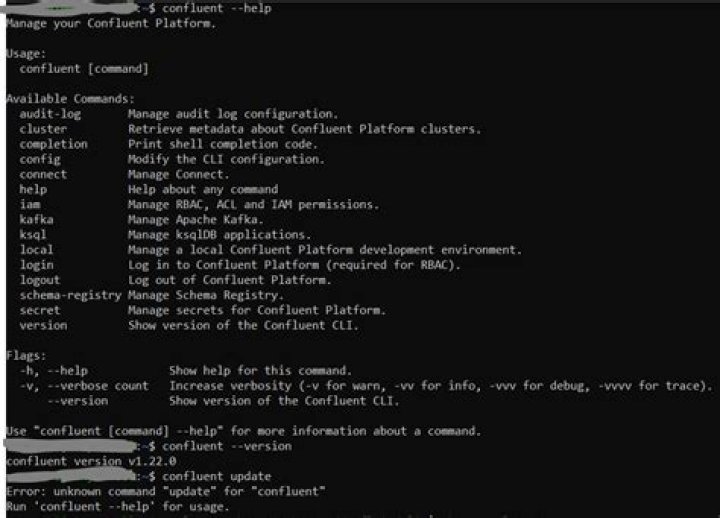
The I upgraded with the command as shown below:  If you compare before VS. after upgrading, you'll notice that some new command options were enabled, including the highlighted cloud-signup command.
The I ran the confluent cloud-signup command, was prompted to type in the following info: email, First Name, Last Name, Two-letter country code, Organization, Terms and Policy Agreement (y/n), and it told me "Error: Failed to sign up". Why? Because I had signed up all these info on UI already. So if you've never signed up on the UI before, you definitely can do this via the CLI. Since I already signed up, I ran command login. This time, with the newer version, it doesn't throw the complaint that login must be appended with the --url flag any more. And I could login without any issue. After confluent login worked out, I ran confluent login --save and Confluent writes the credentials to a netrc file it creates called "<my_home_directory>.netrc" so that in the future I don't have to manually type in the credentials again.




