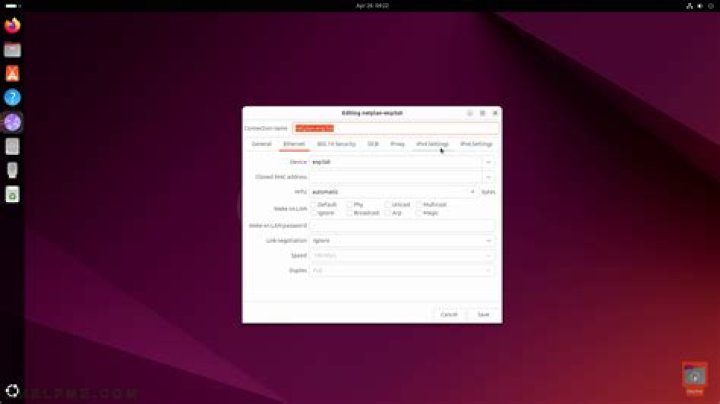

I just installed ubuntu 18.04 and cannot get access through internet through ethernet cable
Here are the command I already tried to get an idea about the problem. Is enp0s25 the name of the ethernet connection
~$ ip a 1: lo: <LOOPBACK,UP,LOWER_UP> mtu 65536 qdisc noqueue state UNKNOWN group default qlen 1000 link/loopback 00:00:00:00:00:00 brd 00:00:00:00:00:00 inet 127.0.0.1/8 scope host lo valid_lft forever preferred_lft forever inet6 ::1/128 scope host valid_lft forever preferred_lft forever 2: enp0s25: <BROADCAST,MULTICAST,UP,LOWER_UP> mtu 1500 qdisc fq_codel state UP group default qlen 1000 link/ether 18:a9:05:f0:05:13 brd ff:ff:ff:ff:ff:ff ~$ ping -c3 ping: Temporary failure in name resolution ~$ cat /etc/resolv.conf # This file is managed by man:systemd-resolved(8). Do not edit. # # This is a dynamic resolv.conf file for connecting local clients to the # internal DNS stub resolver of systemd-resolved. This file lists all # configured search domains. # # Run "resolvectl status" to see details about the uplink DNS servers # currently in use. # # Third party programs must not access this file directly, but only through the # symlink at /etc/resolv.conf. To manage man:resolv.conf(5) in a different way, # replace this symlink by a static file or a different symlink. # # See man:systemd-resolved.service(8) for details about the supported modes of # operation for /etc/resolv.conf. nameserver 127.0.0.53 options edns0 trust-ad I'm trying to solve the problem by looking at the page to manually set network settings. There, I'm ask to type:
- IP Address
- Gateway
- Netmask
Are the 3 information in the output provided and if yes what are they exactly? Is my IP Address 127.0.0.1?, What is my Gateway and Netmask?
EDIT 1
Here is the output of the following commands
~$ sudo ethtool eth0 sudo: ethtool: command not found ~$ sudo lshw -class network *-network description: Ethernet interface product: 82567LM-3 Gigabit Network Connection vendor: Intel Corporation physical id: 19 bus info: pci@0000:00:19.0 logical name: enp0s25 version: 02 serial: 18:a9:05:f0:05:13 size: 1Gbit/s capacity: 1Gbit/s width: 32 bits clock: 33MHz capabilities: pm msi bus_master cap_list ethernet physical tp 10bt 10bt-fd 100bt 100bt-fd 1000bt-fd autonegotiation configuration: autonegotiation=on broadcast=yes driver=e1000e driverversion=3.2.6-k duplex=full firmware=0.4-3 latency=0 link=yes multicast=yes port=twisted pair speed=1Gbit/s resources: irq:31 memory:f0000000-f001ffff memory:f0025000-f0025fff ioport:2100(size=32) EDIT 2
$ cat /etc/netplan/00-installer-config.yaml cat: /etc/netplan/00-installer-config.yaml: No such file or directory $ ls /etc/netplan/ 01-network-manager-all.yaml $ cat /etc/netplan/01-network-manager-all.yaml # Let NetworkManager manage all devices on this system network: version: 2 renderer: NetworkManager 2 Answers
It looks like you have a link (enp0s25: <BROADCAST,MULTICAST,UP,LOWER_UP>) so assuming there is a dhcp server configured on your network you could try to manually request an ip address:
sudo dhclient enp0s25 Did you get an IP now?
ip a If this didn't help it could be that something went wrong with the negotiation of your link speed and duplex. What is the output of:
sudo ethtool eth0 What kind of network card do you have?
sudo lshw -class network You could try the following steps:
1st create a backup copy of the original configuration file.
sudo cp /etc/netplan/01-network-manager-all.yaml{,.bak} Then modify the file. If there is DHCP server that automatically assigning IP addresses and other communication parameters to devices connected to the network - in most cases the home routers does this by default - change the configuration to this:
network: ethernets: enp0s25: dhcp4: true version: 2 renderer: networkd Note Netplain supports Netplan supports both networkd and NetworkManager as backends. In this case we choose networkd. If there is not available DHCP server, or you want to assign a static IP address, change the configuration to this:
network: ethernets: enp0s25: addresses: [192.168.1.101/24] gateway4: 192.168.1.1 nameservers: addresses: [192.168.1.1, 8.8.8.8, 8.8.4.4] version: 2 renderer: networkd Where:
192.168.1.101will be the IP address of the device and it depends on your LAN configuration.192.168.1.1is the IP address of your router and it also depends on your LAN configuration.8.8.8.8and8.8.4.4are the Google's NameServers, here we using them as backup.
Finally restart networkd.service to take effect:
sudo systemctl restart systemd-networkd.service Then check it's status:
sudo systemctl status systemd-networkd.service References:
1