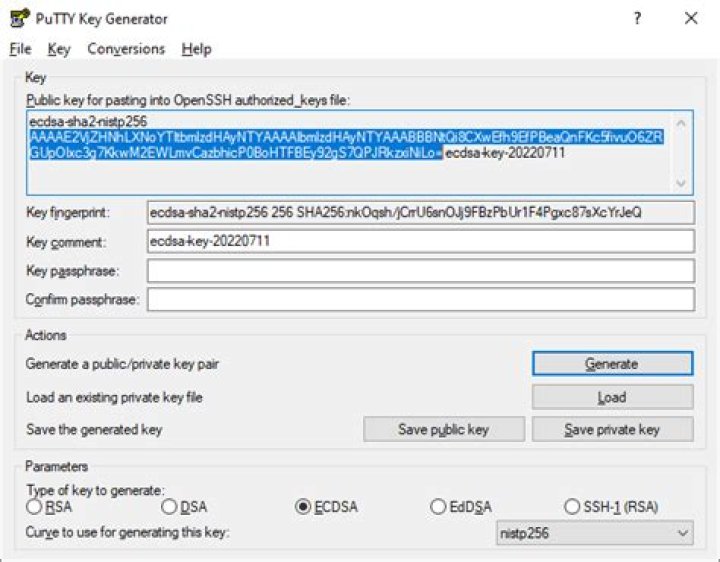

I added the public SSH key to the authorized_keys file. ssh localhost should log me in without asking for the password.
I did that and tried typing ssh localhost, but it still asks me to type in the password. Is there another setting that I have to go through to make it work?
I have followed the instructions for changing permissions:
Below is the result if I do ssh -v localhost.
debug1: Reading configuration data /home/john/.ssh/config debug1: Reading configuration data /etc/ssh/ssh_config debug1: Applying options for * debug1: Connecting to localhost [127.0.0.1] port 22. debug1: Connection established. debug1: identity file /home/john/.ssh/identity type 1 debug1: identity file /home/john/.ssh/id_rsa type -1 debug1: identity file /home/john/.ssh/id_dsa type -1 debug1: Remote protocol version 2.0, remote software version OpenSSH_4.7p1 Debian-8ubuntu3 debug1: match: OpenSSH_4.7p1 Debian-8ubuntu3 pat OpenSSH* debug1: Enabling compatibility mode for protocol 2.0 debug1: Local version string SSH-2.0-OpenSSH_4.7p1 Debian-8ubuntu3 debug1: SSH2_MSG_KEXINIT sent debug1: SSH2_MSG_KEXINIT received debug1: kex: server->client aes128-cbc hmac-md5 none debug1: kex: client->server aes128-cbc hmac-md5 none debug1: SSH2_MSG_KEX_DH_GEX_REQUEST(1024<1024<8192) sent debug1: expecting SSH2_MSG_KEX_DH_GEX_GROUP debug1: SSH2_MSG_KEX_DH_GEX_INIT sent debug1: expecting SSH2_MSG_KEX_DH_GEX_REPLY debug1: Host 'localhost' is known and matches the RSA host key. debug1: Found key in /home/john/.ssh/known_hosts:12 debug1: ssh_rsa_verify: signature correct debug1: SSH2_MSG_NEWKEYS sent debug1: expecting SSH2_MSG_NEWKEYS debug1: SSH2_MSG_NEWKEYS received debug1: SSH2_MSG_SERVICE_REQUEST sent debug1: SSH2_MSG_SERVICE_ACCEPT received debug1: Authentications that can continue: publickey,password debug1: Next authentication method: publickey debug1: Offering public key: /home/john/.ssh/identity debug1: Server accepts key: pkalg ssh-rsa blen 149 debug1: PEM_read_PrivateKey failed debug1: read PEM private key done: type <unknown> Then it asks for a passphase after the above log. Why isn't it logging me in without a password?
130 Answers
You need to verify the permissions of the authorized_keys file and the folder / parent folders in which it is located.
chmod 700 ~/.ssh chmod 600 ~/.ssh/authorized_keys For more information see this page.
You may also need to change/verify the permissions of your home directory to remove write access for the group and others.
chmod go-w ~ SELinux can also cause authorized_keys not to work. Especially for root in CentOS 6 and 7. There isn't any need to disable it though.
Once you've verified your permissions are correct, you can fix this like so:
chmod 700 /root/.ssh chmod 600 /root/.ssh/authorized_keys restorecon -R -v /root/.ssh Setting ssh authorized_keys seem to be simple, but it hides some traps I'm trying to figure.
-- SERVER --
In /etc/ssh/sshd_config, set passwordAuthentication yes to let the server temporarily accept password authentication
-- CLIENT --
consider Cygwin as Linux emulation and install & run OpenSSH
1. Generate private and public keys (client side) # ssh-keygen
Here pressing just Enter, you get default two files, "id_rsa" and "id_rsa.pub", in ~/.ssh/, but if you give a name_for_the_key, the generated files are saved in your current working directory.
2. Transfer the your_key.pub file to the target machine, ssh-copy-id user_name@host_name
If you didn't create a default key, this is the first step to go wrong ... you should use:
ssh-copy-id -i path/to/key_name.pub user_name@host_name
3. Logging ssh user_name@host_name will work only for the default id_rsa file, so here is the second trap. You need to do ssh -i path/to/key_name user@host
(Use ssh -v ... option to see what is happening.)
If the server still asks for a password then you gave something. To Enter passphrase: when you've created keys (so it's normal).
If ssh is not listening on the default port 22, you must use ssh -p port_nr.
-- SERVER -----
4. Modify file /etc/ssh/sshd_config to have
RSAAuthentication yes PubkeyAuthentication yes AuthorizedKeysFile %h/.ssh/authorized_keys (uncomment if case)
This tells ssh to accept file authorized_keys and look in the user home directory for the key_name sting written in the .ssh/authorized_keys file.
5 Set permissions on the target machine
chmod 755 ~/.ssh chmod 600 ~/.ssh/authorized_keys Also turn off pass authentication,
passwordAuthentication no
to close the gate to all ssh root/admin/....@your_domain attempts.
6. Ensure ownership and group ownership of all non-root home directories are appropriate.
chown -R ~ usernamehere chgrp -R ~/.ssh/ user ===============================================
8. Extra SSH tunnel to access a MySQL (bind = 127.0.0.1) server
6Also be sure your home directory is not writeable by others:
chmod g-w,o-w /home/USERNAME This answer is stolen from here.
2The desperate may also make sure they don't have extra newlines in the authorized_keys file due to copying file id_rsa.pub's text out of a confused terminal.
3Listing a public key in .ssh/authorized_keys is necessary, but not sufficient for sshd (server) to accept it. If your private key is passphrase-protected, you'll need to give ssh (client) the passphrase every time. Or you can use ssh-agent, or a GNOME equivalent.
Your updated trace is consistent with a passphrase-protected private key. See ssh-agent, or use ssh-keygen -p.
In the following, user is your username.
mkdir -p /home/user/.ssh ssh-keygen -t rsa touch /home/user/.ssh/authorized_keys touch /home/user/.ssh/known_hosts chown -R user:user /home/user/.ssh chmod 700 /home/user/.ssh chmod 600 /home/user/.ssh/id* chmod 644 /home/user/.ssh/id*.pub chmod 644 /home/user/.ssh/authorized_keys chmod 644 /home/user/.ssh/known_hosts Beware that SELinux can trigger this error as well, even if all permissions seem to be OK. Disabling it did the trick for me (insert usual disclaimers about disabling it).
1Look in file /var/log/auth.log on the server for sshd authentication errors.
If all else fails, then run the sshd server in debug mode:
sudo /usr/sbin/sshd -ddd -p 2200 Then connect from the client:
ssh user@host -p 2200 In my case, I found the error section at the end:
debug1: userauth_pubkey: test whether pkalg/pkblob are acceptable for RSA SHA256:6bL+waAtghY5BOaY9i+pIX9wHJHvY4r/mOh2YaL9RvQ [preauth] ==> debug2: userauth_pubkey: disabled because of invalid user [preauth] debug2: userauth_pubkey: authenticated 0 pkalg ssh-rsa [preauth] debug3: userauth_finish: failure partial=0 next methods="publickey,password" [preauth] debug3: send packet: type 51 [preauth] debug3: receive packet: type 50 [preauth] With this information I realized that my sshd_config file was restricting logins to members of the ssh group. The following command fixed this permission error:
sudo usermod -a -G ssh NEW_USER Try "ssh-add" which worked for me.
0The thing that did the trick for me finally was to make sure that the owner/group were not root, but user:
chown -R ~/.ssh/ user chgrp -R ~/.ssh/ user Issue these on the command line:
chmod 700 ~/.ssh chmod 600 ~/.ssh/authorized_keys After you do this, make sure your directory is like this:
drwx------ 2 lab lab 4.0K Mar 13 08:33 . drwx------ 8 lab lab 4.0K Mar 13 08:07 .. -rw------- 1 lab lab 436 Mar 13 08:33 authorized_keys -rw------- 1 lab lab 1.7K Mar 13 07:35 id_rsa -rw-r--r-- 1 lab lab 413 Mar 13 07:35 id_rsa.pub In my case I needed to put my authorized_keys file in .openssh.
This location is specified in /etc/ssh/sshd_config under the option AuthorizedKeysFile %h/.ssh/authorized_keys.
Another tip to remember: Since v7.0 OpenSSH disables DSS/DSA SSH keys by default due to their inherit weakness. So if you have OpenSSH v7.0+, make sure your key is not ssh-dss.
If you are stuck with DSA keys, you can re-enable support locally by updating your
sshd_configand~/.ssh/configfiles with lines like so:PubkeyAcceptedKeyTypes=+ssh-dss
Another issue you have to take care of: If your generated file names are not the default id_rsa and id_rsa.pub.
You have to create the .ssh/config file and define manually which id file you are going to use with the connection.
An example is here:
Host remote_host_name HostName 172.xx.xx.xx User my_user IdentityFile /home/my_user/.ssh/my_user_custom Make sure that the target user has a password set. Run passwd username to set one. This was required for me even if password SSH login was disabled.
Just look in file /var/log/auth.log on the server. Setting additional verbosity with -vv on the client side won't help, because the server is unlikely to offer too much information to a possible attacker.
My problem was a modified AuthorizedKeysFile, when the automation to populate /etc/ssh/authorized_keys had not yet been run.
$sudo grep AuthorizedKeysFile /etc/ssh/sshd_config #AuthorizedKeysFile .ssh/authorized_keys AuthorizedKeysFile /etc/ssh/authorized_keys/%u Make sure you've copied the whole public key to authorized_keys; the ssh rsa prefix is necessary for the key to work.
I issued sudo chmod 700 ~/.ssh and chmod 600 ~/.ssh/authorized_keys and chmod go-w $HOME $HOME/.ssh from a previous answer and it fixed my problem on a CentOS 7 box that I had messed up the permissions on while trying to get Samba shares working.
It seems like a permission problem. Usually it happens if the permission of some file/directory is not correctly set up. In most case they are ~/.ssh and ~/.ssh/*. In my case they are /home/xxx.
You can change the log level of sshd by modifying file /etc/ssh/sshd_config(search for LogLevel, and set it to DEBUG) and then check the output in file /var/log/auth.log to see what happened exactly.
This solves my problem:
ssh-agent bash ssh-add You need to verify the properties of the files.
To assign the required property, use:
$ chmod 600 ~/.ssh/sshKey $ chmod 644 ~/.ssh/sshKey.pub I use it this way.
cat ~/.ssh/id_rsa.pub| ssh user@remote-system 'umask 077; cat >>~/.ssh/authorized_keys' On that note, make sure your sshd configuration has this line:
PermitRootLogin without-password Set as the above, and then restart sshd (/etc/init.d/sshd restart).
Log out and try log in in again!
The default, I believe, is:
PermitRootLogin no In my case it's because the user's group is not set in AllowGroups of configuration file /etc/ssh/sshd_config. After adding it, everything works fine.
I have the home directory in a non-standard location and in sshd logs I have the following line, even if all permissions were just fine (see the other answers):
Could not open authorized keys '/data/home/user1/.ssh/authorized_keys': Permission denied
I have found a solution here: Trouble with ssh public key authentication to RHEL 6.5
In my particular case:
Added a new line in
/etc/selinux/targeted/contexts/files/file_contexts.homedirs:This is the original line for regular home directories:
/home/[^/]*/\.ssh(/.*)? unconfined_u:object_r:ssh_home_t:s0This is my new line:
/data/home/[^/]*/\.ssh(/.*)? unconfined_u:object_r:ssh_home_t:s0Followed by a
restorecon -r /data/and asshdrestart.
I had this problem and none of the other answers solved it, although of course the other answers were correct.
In my case, it turned out that the /root directory itself (not e.g. /root/.ssh) had the wrong permissions. I needed:
chown root.root /root chmod 700 /root Of course, those permissions should be something like that (maybe chmod 770) regardless. However, it specifically prevented sshd from working, even though /root/.ssh and /root/.ssh/authorized_keys both had correct permissions and owners.
I had this problem when I added the group of the login user to another user.
Let's say there is an SSH-login user called userA and a non-SSH-login user userB. userA has the group userA as well. I modified userB to have the group userA as well. The lead to the the described behaviour, so that userA was not able to login without a prompt.
After I removed the group userA from userB, the login without a prompt worked again.
I have had the same issues since before, but today I had to set up one new server. What I could learn in this time...
The basic process to allow authentication without a password is as follows:
On the server, validate if your home folder has the
.sshfolder. If it doesn't exist, you can create it manually with amkdircommand and then to assign the correct permissions withchmod, or otherwise you could use the same utility,ssh-keygen, to create private/public keys, but on the server for your user. This process will create the required.sshfolder.On the local machine you also need to create the private/public keys with the
ssh-keygenutility.You need to move your public key to file
.ssh/authorized_keysto the server. To achieve this, you can use thessh-copy-idutility, or you can do it manually using thecatandscpcommands.In the best of cases, this will allow connect to your server without a password.
OK, now the issues that I found today: first there are several key generation algorithms: rsa, dsa, ecdsa and ed25519 and there are many releases of OpenSSH (you can have one version on your local machine and an old version on your server):
Hint: Using ssh -v helps to see additional information when you are connecting to the server.
OpenSSH_8.2p1 Ubuntu-4, OpenSSL 1.1.1f 31 Mar 2020
debug1: Remote protocol version 2.0, remote software version OpenSSH_5.3
The error in my case today was that I was trying to use a key with a "newer" generation algorithm that was not supported by the installed version of OpenSSH on the server. When I had checked the supported algorithms, another error that I found was that the server was rejecting my algorithm:
debug1: Skipping ssh-dss key /home/user/.ssh/id_dsa - not in PubkeyAcceptedKeyTypes
After that, I had to change the algorithm of my key and then I could connect with the server successfully.
OpenSSH releases notes: Link