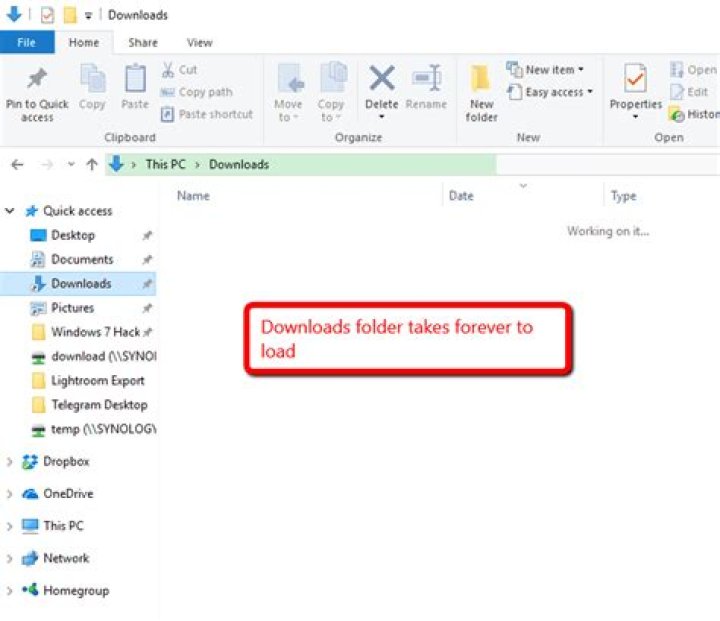

When I open my downloads folder, no files appear, just a message saying "This folder is empty". I see the address bar progress slowly creeping along, and after about thirty seconds the files and folders appear. This problem only occurs in the downloads folder. If I search for a file in the downloads folder, it comes up, and if I right click on it and select "Open File Location", everything shows up instantly. I am using Windows 8, but I think I had a similar problem once in Windows 7. Sadly I can't remember how I fixed it.
16 Answers
By default, the Downloads folder tries to index files as Pictures, which is taking a long time.
From here:
- Right-click your "Downloads" folder.
- Go to "Customize".
- Select "Document" or "General items" from the dropdown.
- Choose "Also apply this template to all subfolders".
- Click "OK".
This occurs as windows tries to optimize your download folder as a video folder or music folder or something other.It takes time when windows tries to draw icons for all the items in folder.So the fix will be to specifically tell windows to optimize the folder for general items.for this :
- right click and open
Properties - select
Customizetab - select
Optimize for General Itemsfrom the drop-down menu
Remove "size" from the columns in windows explorer. I find it takes the computer a long time to figure out file sizes.
Also change the view of the search results to "details". I think it defaults to "content" which also has lots of file details like size.
The same happened to me.
Right click on the background of the folder
Properties
Customize tab
Optimize for Documents
DONE!
Two things to try if optimizing for general items does not do the trick:
- Delete the desktop.ini hidden file in the Downloads folder
- Kill Explorer task in Task Manager, then open a new Explorer window.
I think I figured out how to make this fix permanent.
Create a new folder on your desktop.
Drag all of the files in your “Download” folder to the new folder on your desktop.
Then delete the “Downloads” folder.
Then rename the folder on your desktop “Downloads”.
Then drag and drop the new “Downloads” folder to where the old “downloads” folder was.
Thats it. Your Done. The new “downloads” folder shouldn’t have any presets as to whats in the folder, or whats being downloaded into the folder.