While I was trying to find out why the main disk is performing a form of unexpained "thrashing"(while there was no RAM issue), freezing up apps temporarily, I found a relevant error in the logs:
"The driver detected a controller error on \Device\Harddisk1\DR1"
and I'm trying to find which drive it is.
However, from device manager and disk management, the main disk is "0" and there are informational mentions in the logs of dr0 when I enable/disable write caching so it does recognize 0 as different from dr1.
However, the computer has no other disk that I know of and if I open it up while it does have a space for it (laptop), it has no connections for a new one.
I wonder if it's a 'hidden' device of some sort or a problem with the manufacturer's blocking of connections.
In any case I'd like to find out which that device is precisely.
On device manager, DVD drive is mentioned as 'CD ROM 0" when I use 'Populate' in the Volumes tab of its properties and similarly HDD reports disk 0. I still wonder though if for some reason the dvd drive is considered as disk 1 but there's no confirmation of it anywhere. Any other devices such as USB drives etc. are shown as 2, 3, 4 etc. on drive management.
Also looking in HKEY_LOCAL_MACHINE I can only see HKEY_LOCAL_MACHINE\HARDWARE\DEVICEMAP\Scsi\Scsi Port 0\Scsi Bus 0\Target Id 0\Logical Unit Id 0 as PhysicalDrive2 which is a bit weird now that I think of it. That location also confirms the model of the main known drive.
When changing write caching settings \Device\Harddisk0\DR0 is reported on logs (as an information of the change) so \Device\Harddisk0\DR0 is considered by the system different from \Device\Harddisk1\DR1.
67 Answers
Run the following PowerShell command as Administrator:
Get-PhysicalDisk | Select -Prop DeviceId,FriendlyName,SerialNumber This will show output like:
DeviceId FriendlyName SerialNumber -------- ------------ ------------ 1 ST1000DM003-9YN162 S1D2RPMB 5 ST1000DM003-1CH162 Z1D3CPP3 2 ST1000DM003-9YN162 S1D34BYN 0 Corsair Force LS SSD 144381700001017402C2 4 WDC WD10EFRX-68PJCN0 WD-WCC4J9CC8112 3 Samsung SSD 950 PRO 256GB 0025_3853_61B0_3DD0. The DeviceId corresponds to the N in the \Device\HardDiskN path.
This command is useful when you are using Storage Spaces, which can prevent the physical disks from appearing in the tools referenced in the other answers, like DiskPart.
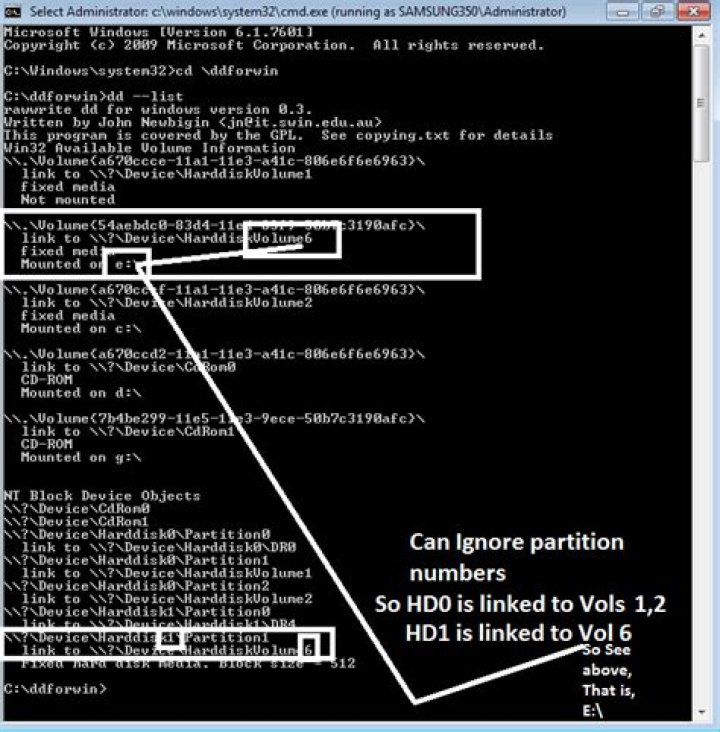
2This "dd" utility worked for me. But it must be run as administrator to include the */Harddisk/DRx mappings!
dd --list <--- as administrator It provides a report that allows tracing between the various naming schemes and includes the DRn types.
The mappings is not completely obvious but if one assumes that the NT Block Device Objects are listed in order I think the correct drive can be inferred.
If you have unique drive sizes, it is simple since the report directly shows the size for each DRn.
Update 1/23/2015: Adding sample output. This system just has one physical 512GB drive with 6 partitions and a CDRom.
rawwrite dd for windows version 0.5. Written by John Newbigin <> This program is covered by the GPL. See copying.txt for details Win32 Available Volume Information \\.\Volume{a502c160-1241-4338-a345-b76f4a973d9f}\ link to \\?\Device\HarddiskVolume5 fixed media Mounted on \\.\c: \\.\Volume{c8a5d58a-7083-440b-a5c1-e262ca3a9d7d}\ link to \\?\Device\HarddiskVolume6 fixed media Mounted on \\.\g: \\.\Volume{9d1b0246-5f39-4ef8-9016-ef83d03d7255}\ link to \\?\Device\HarddiskVolume4 fixed media Mounted on \\.\x: \\.\Volume{4ca2b56b-0778-4a61-8979-6ad9fa1df45f}\ link to \\?\Device\HarddiskVolume7 fixed media Mounted on \\.\y: \\.\Volume{d20ed74c-0607-11e4-8256-8086f2c4e4ff}\ link to \\?\Device\HarddiskVolume8 removeable media Mounted on \\.\e: \\.\Volume{570d1087-e7b4-11e3-824c-806e6f6e6963}\ link to \\?\Device\CdRom0 CD-ROM Mounted on \\.\d: \\.\Volume{d20edf99-0607-11e4-8256-8086f2c4e4ff}\ link to \\?\Device\ClvtDrv0 CD-ROM Mounted on \\.\s: (This section is only present when run as admin)
NT Block Device Objects \\?\Device\CdRom0 size is 2147483647 bytes \\?\Device\Harddisk0\Partition0 link to \\?\Device\Harddisk0\DR0 <--------------------------- DR0 Fixed hard disk media. Block size = 512 size is 512110190592 bytes \\?\Device\Harddisk0\Partition1 link to \\?\Device\HarddiskVolume1 \\?\Device\Harddisk0\Partition2 link to \\?\Device\HarddiskVolume2 Fixed hard disk media. Block size = 512 size is 41943040 bytes \\?\Device\Harddisk0\Partition3 link to \\?\Device\HarddiskVolume3 Fixed hard disk media. Block size = 512 size is 134217728 bytes \\?\Device\Harddisk0\Partition4 link to \\?\Device\HarddiskVolume4 \\?\Device\Harddisk0\Partition5 link to \\?\Device\HarddiskVolume5 \\?\Device\Harddisk0\Partition6 link to \\?\Device\HarddiskVolume6 \\?\Device\Harddisk0\Partition7 link to \\?\Device\HarddiskVolume7 \\?\Device\Harddisk1\Partition0 link to \\?\Device\Harddisk1\DR1 \\?\Device\Harddisk1\Partition1 link to \\?\Device\HarddiskVolume8 Virtual input devices /dev/zero (null data) /dev/random (pseudo-random data) - (standard input) Virtual output devices - (standard output) Added by barlop
I will just include a pic that illustrates somewhat 
This can be found in Sysinternals WinObj tool (run as Admin):
open in the tree: {Device\Harddisk[N]}.
note volumes mapping above and then re-check in {GLOBAL??"}: sort by SymLink column and see there which \Device\HarddiskVolume[N] maps to which disk letter.
You can also do this as administrator:
C:\windows\system32>diskpart Microsoft DiskPart version 6.1.7601 Copyright (C) 1999-2008 Microsoft Corporation. On computer: COMPUTERNAME DISKPART> list disk Disk ### Status Size Free Dyn Gpt -------- ------------- ------- ------- --- --- Disk 0 Online 476 GB 11 GB Disk 1 Online 59 GB 0 B DISKPART> sel disk 1 Disk 1 is now the selected disk. DISKPART> list part Partition ### Type Size Offset ------------- ---------------- ------- ------- * Partition 1 Primary 59 GB 0 B I was hunting for \device\harddisk1\dr2
This will be the 2nd disk listed in diskpart:
DISKPART> list disk Disk ### Status Size Free Dyn Gpt -------- ------------- ------- ------- --- --- Disk 0 Online 476 GB 3072 KB Disk 1 Online 2794 GB 0 B Disk 2 Online 2794 GB 7168 KB Disk 3 Online 3726 GB 7168 KB DISKPART> sel disk 1 Disk 1 is now the selected disk. DISKPART> detail disk WD My Book 1130 USB Device Disk ID: 0002DCC8 Type : USB Status : Online Path : 0 Target : 0 LUN ID : 0 Location Path : UNAVAILABLE Current Read-only State : No Read-only : No Boot Disk : No Pagefile Disk : No Hibernation File Disk : No Crashdump Disk : No Clustered Disk : No Volume ### Ltr Label Fs Type Size Status Info ---------- --- ----------- ----- ---------- ------- --------- -------- Volume 3 H Partition 2794 GB Healthy Notice "WD My Book 1130 USB Device" and the "H" under Ltr.
\device\harddisk1\dr2 is drive H.
1The recommended Microsoft way is to:
- launch diskmgmt.msc
- Right click gray portion of the basic or dynamic disk whose disk number matches the "Harddisk#" in the error message
- click properties
You now have the properties opened of the device displaying identifying information.
Props goes to lazy256 for finding this link
- HKEY_LOCAL_MACHINE\Hardware\Devicemap\Atdisk (for IDE-based devices)
- HKEY_LOCAL_MACHINE\Hardware\Devicemap\SCSI (for Atapi-compliant or SCSI devices)