I have received warning popup box "You are currently using the RemoteFX 3D Video Adapter. We no longer support this adapter ..." after I installed new graphic card.
I tried to open link provided in this message:
But it seems it describes a Windows update which supposed to disable this feature. Not how to disable it by hand.
Googling yielded two results - Remove-VMRemoteFx3dVideoAdapter - which is not applicable in my case - I have Hyper-V running on my machine but I have no VMs. And this command works with VMs.
Another one - Disable-VMRemoteFXPhysicalVideoAdapter - it requires name. So I ran get first:
PS C:\Windows\system32> Get-VMRemoteFXPhysicalVideoAdapter WARNING: We no longer support the RemoteFX 3D video adapter. If you are still using this adapter, you may become vulnerable to security risks. Learn more () Id : pci#ven_10de&dev_1d01&subsys_375d1458&rev_a1#4&2ae1b128&0&0019 Name : NVIDIA GeForce GT 1030 GPUID : 4318_7425_928846936_161 TotalVideoMemory : 36392450048 AvailableVideoMemory : 36392450048 DedicatedSystemMemory : 0 DedicatedVideoMemory : 2078662656 SharedSystemMemory : 34313787392 Enabled : False CompatibleForVirtualization : True DirectXVersion : 12.1 PixelShaderVersion : 5.0 DriverProvider : NVIDIA DriverDate : 2019-07-24 02:00:00Z DriverInstalledDate : 2019-07-24 02:00:00Z DriverVersion : 26.21.14.3200 DriverModelVersion : 2.6 CimSession : CimSession: . ComputerName : xxxxx IsDeleted : False then:
PS C:\Windows\system32> Disable-VMRemoteFXPhysicalVideoAdapter -Name "NVIDIA GeForce GT 1030" WARNING: We no longer support the RemoteFX 3D video adapter. If you are still using this adapter, you may become vulnerable to security risks. Learn more () My OS is W10 v 2004 build 19041.572 and Windows Update shows that everything is up to date..
How do I make sure this "RemoteFX 3D" is securely disabled?
13 Answers
I also kept receiving that popup. I do not have any VM running but I do have WSL2 running, which it does on top of Hyper-V (plus Docker using WSL2, I do not know if this plays a role in it).
Here is what I did :
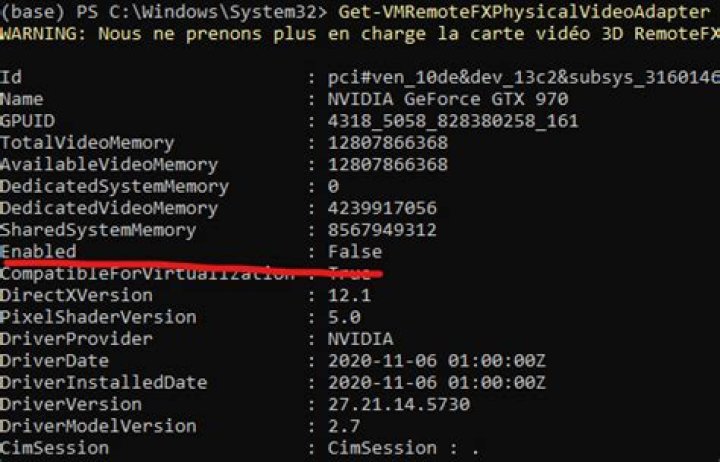
- Get the name of the video card. Here I could see that the driver was enabled.
Get-VMRemoteFXPhysicalVideoAdapter 
- Disable RemoteFX adapter. Obviously, provide it with the name of your own card.
Disable-VMRemoteFXPhysicalVideoAdapter -Name "NVIDIA Geforce GTX 970" Now I cannot really check if this worked because the popup only appears very not-often, but it does show disabled :
After reading @Mickael's answer, this worked for me (at an Admin Powershell prompt):
Get-VMRemoteFXPhysicalVideoAdapter | ?{$_.Enabled} | Disable-VMRemoteFXPhysicalVideoAdapter I just had my first experience with this: the Microsoft link has a tidbit - it seems MS will eventually remove the adapter from Windows in March 2021, and it seems disabling is the best we can do for now. But I am still looking for a manual deletion method.
Removal: RemoteFX vGPU will be removed from all applicable Windows platforms in the March 2021 Windows security updates (March 9, 2021)
In the mean time, I found this one liner in PS appears to disable the feature:
Get-VMRemoteFXPhysicalVideoAdapter | Disable-VMRemoteFXPhysicalVideoAdapter