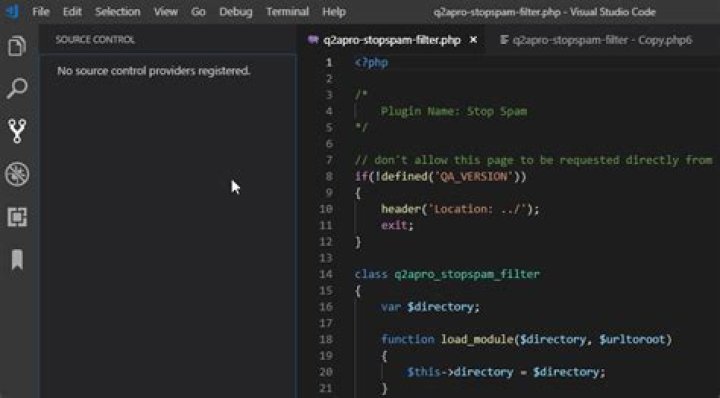
Is there a Compare feature like the Plugin for Notepad++?
212 Answers
right click on first file and select

then right click on second file and select
Screencast:
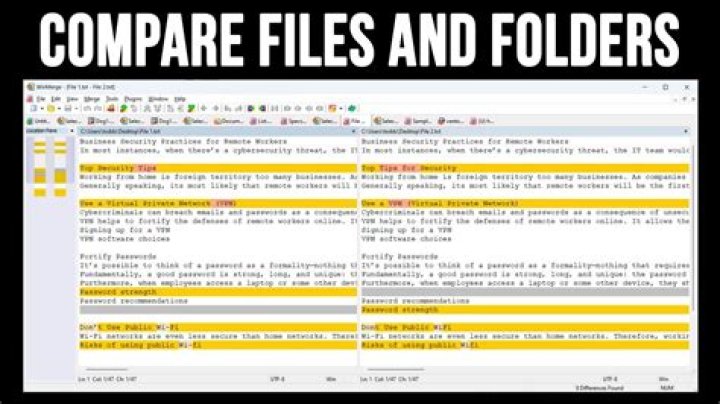
You can compare files from the explorer either from the working files section or the folder section. You can also trigger the global compare action from the command palette.
- Open a folder with the files you need to compare,
- Select two using SHIFT
- Right click "Compare Selected"
I have Visual Studio Code version 1.27.2 and can do this:
Compare two files
- Drag and drop the two files into Visual Studio Code
- Select both files and select Select for Compare from the context menu
- Then you see the diff
- With Alt+F5 you can jump to the next diff
Compare two in-memory documents or tabs
Sometimes, you don't have two files but want to copy text from somewhere and do a quick diff without having to save the contents to files first. Then you can do this:
- Open two tabs by hitting Ctrl+N twice:
- Paste your first text sample from the clipboard to the first tab and the second text sample from the clipboard to the second tab
- Select the first document Untitled-1 with Select for Compare:
- Select the second document Untitled-2 with Compare with Selected:
- Then you see the diff:
Here is my favorite way, which I think is a little less tedious than the "Select for Compare, then Compare With..." steps.
- Open the left side file (not editable)
F1Compare Active File With...- Select the right side file (editable) - You can either select a recent file from the dropdown list, or click any file in the Explorer panel.
This works with any arbitrary files, even ones that are not in the project dir. You can even just create 2 new Untitled files and copy/paste text in there too.
4Another option is using command line:
code -d left.txt right.txt Note: You may need to add code to your path first. See: How to call VS Code Editor from command line
In your terminal type:
code --diff file1.txt file2.txt A tab will open up in VS Code showing the differences in the two files.
There is plugin called Partial Diff which helps to compare text selections within a file, across different files, or to the clipboard.
4If you want to compare file in your project/directory with an external file (which is by the way the most common way I used to compare files) you can easily drag and drop the external file into the editor's tab and just use the command: "Compare Active File With..." on one of them selecting the other one in the newly popped up choice window. That seems to be the fastest way.
I found a flow which is fastest for me, by first associating a keyboard shortcut Alt+k to "Compare Active File With..." (#a). (Similar to wisbucky's answer but further improved and more step-wise.)
Then, to compare two files:
- Open or focus file B (will be editable in compare view by default). E.g. by drag-drop from File Explorer to VS Code's center.
- Open or focus file A.
- Press
Alt+k, a quick open menu will be shown with file B focused. - Press
Enter.
Result: file A on left and file B on right. (Tested on VS Code 1.27.1)
Remarks
#a - to do so, press Ctrl-k Ctrl-s to show Keyboard Shortcuts, type compare on the top search box, and double click the "Keybinding" column for "Compare Active File With...", press Alt+k then Enter to assign it.
Here's a link to marketplace for extension. Extension "compareit" helps to compare two files wich you can choose from your current project and other directory on your computer or clipboard.
1Right click on 1st file click "Select for compare".
Click 2nd file click "Compare with selected"
In my case, I was trying to use compare option for files in open editor of VS code, however open editor wasn't visible. In such a case, to access open editor, click on 3 dots next to explorer and check the open editors option.