I have both TypeScript and HTML files in my project, in both files tabs are converted to spaces.
I want to turn the auto-conversion off and make sure that my project has only tabs.
Edit:
With this setting it seems to work in HTML files but not in TypeScript files.
{ "editor.insertSpaces": false } 13 Answers
There are 3 options in .vscode/settings.json:
// The number of spaces a tab is equal to. "editor.tabSize": 4, // Insert spaces when pressing Tab. "editor.insertSpaces": true, // When opening a file, `editor.tabSize` and `editor.insertSpaces` will be detected based on the file contents. "editor.detectIndentation": true editor.detectIndentation detects it from your file, you have to disable it. If it didn't help, check that you have no settings with higher priority. For example when you save it to User settings it could be overwritten by Workspace settings which are in your project folder.
Update:
To access these settings, you can open File » Preferences » Settings, click the Manage cog icon at the bottom left, or use the keyboard shortcut:
CTRL+, (Windows, Linux)
⌘+, (Mac)
Update:
Now you have an alternative to editing those options manually.
Click on selector Spaces:4 at the bottom-right of the editor:
![Ln44, Col . [Spaces:4] . UTF-8 with BOM . CTRLF . HTML . :)](/uploads/ln44-col--spaces4_720.jpg)
EDIT:
To convert existing indentation from spaces to tabs hit Ctrl+Shift+P and type:
>Convert indentation to Tabs This will change the indentation for your document based on the defined settings to Tabs.
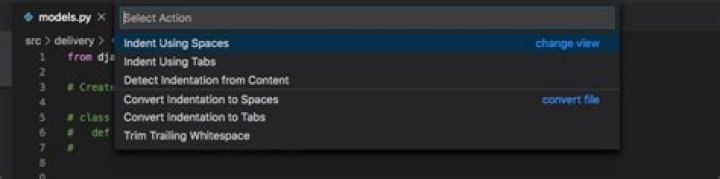
3To change tab settings, click the text area right to the Ln/Col text in the status bar on the bottom right of vscode window.
The name can be Tab Size or Spaces.
A menu will pop up with all available actions and settings.

Ctrl+Shift+P, then "Convert Indentation to Tabs"
3If you want to use tabs instead of spaces
Try this:
- Go to
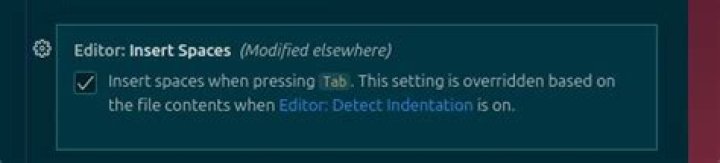
File➤Preferences➤Settingsor just press Ctrl + , - In the Search settings bar on top insert
editor.insertSpaces - You will see something like this: Editor: Insert Spaces and it will be probably checked. Just uncheck it as show in image below
- Reload Visual Studio Code (Press
F1➤ typereload window➤ press Enter)
If it doesn't worked try this:
It's probably because of installed plugin JS-CSS-HTML Formatter
(You can check it by going to File ➤ Preferences ➤ Extensions or just pressing Ctrl + Shift + X, in the Enabled list you will find JS-CSS-HTML Formatter)
If so you can modify this plugin:
- Press F1 ➤ type
Formatter config➤ press Enter (it will open the fileformatter.json) - Modify the file like this:
4| "indent_size": 1, 5| "indent_char": "\t" ——| 24| "indent_size": 1, 25| "indentCharacter": "\t", 26| "indent_char": "\t", ——| 34| "indent_size": 1, 35| "indent_char": "\t", 36| "indent_character": "\t" - Save it (Go to
File➤Saveor just press Ctrl + S) - Reload Visual Studio Code (Press F1 ➤ type
reload window➤ press Enter)
Check this from official vscode setting:
// Controls whether `editor.tabSize#` and `#editor.insertSpaces` will be automatically detected when a file is opened based on the file contents. "editor.detectIndentation": true, // The number of spaces a tab is equal to. This setting is overridden based on the file contents when `editor.detectIndentation` is on. "editor.tabSize": 4, // Config the editor that making the "space" instead of "tab" "editor.insertSpaces": true, // Configure editor settings to be overridden for [html] language. "[html]": { "editor.insertSpaces": true, "editor.tabSize": 2, "editor.autoIndent": false } In my case, the problem was JS-CSS-HTML Formatter extension installed after january update. The default indent_char property is space. I uninstalled it and the weird behavior stops.
Below settings are worked well for me,
"editor.insertSpaces": false, "editor.formatOnSave": true, // only if you want auto fomattting on saving the file "editor.detectIndentation": false Above settings will reflect and applied to every files. You don't need to indent/format every file manually.
File -> Preferences -> Settings or just press Ctrl + , and search for spaces, then just deactivate this option:
I had to reopen the file so the changes would take effect.
- Highlight your Code (in file)
- Click Tab Size in bottom righthand corner of application window
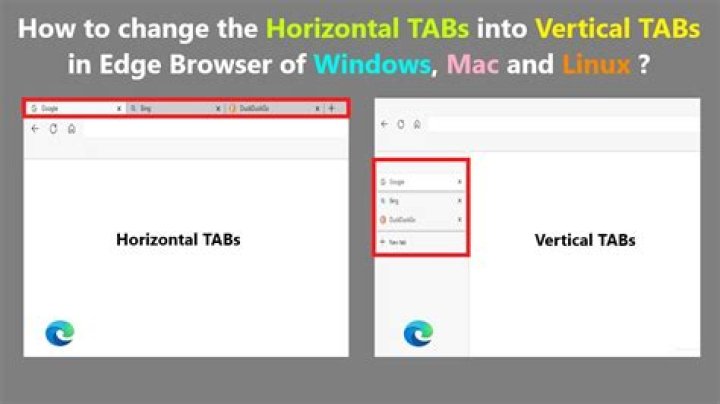
- Select the appropriate Convert Indentation to Tabs
If you want to change tabs to spaces in a lot of files, but don't want to open them individually, I have found that it works equally as well to just use the Find and Replace option from the left-most tools bar.
In the first box (Find), copy and paste a tab from the source code.
In the second box (Replace), enter the number of spaces that you wish to use (i.e. 2 or 4).
If you press the ... button, you can specify directories to include or ignore (i.e. src/Data/Json).
Finally, inspect the result preview and press Replace All. All files in the workspace may be affected.
Set this to false if you are using .sass files and it's giving you the Expected tabs, was spaces error:
"editor.detectIndentation": false ... then select your block of code and indent it by pressing the tab key and indent it back by pressing the shift + tab key.
{ "editor.insertSpaces": true } True works for me.
In my case it was about unchecking
Prettier: Use Tabs
on VSCode settings