I have a group of VMs under a Resource Group. I have created an automation runbook to schedule switching on and off the VMs. The runbook type is PowerShell Workflow and runtime version is 5.1. The runbook code is:
workflow VM-On-Off-ScheduleCode { Param( [Parameter(Mandatory=$true)] [String] $TagName, [Parameter(Mandatory=$true)] [String] $TagValue, [Parameter(Mandatory=$true)] [Boolean] $PowerStat ) # Ensures you do not inherit an AzContext in your runbook Disable-AzContextAutosave -Scope Process # Connect to Azure with system-assigned managed identity $AzureContext = (Connect-AzAccount -Identity).context # Set and store context $AzureContext = Set-AzContext -SubscriptionName $AzureContext.Subscription -DefaultProfile $AzureContext $vms = Get-AzResource -ResourceType -TagName $TagName -TagValue $TagValue Foreach -Parallel ($vm in $vms){ if($PowerStat){ Start-AzVM -Name $vm.Name -ResourceGroupName $vm.ResourceGroupName; Write-Output "Starting $($vm.Name)"; } else{ Stop-AzVM -Name $vm.Name -ResourceGroupName $vm.ResourceGroupName -Force; Write-Output "Stopping $($vm.Name)"; } } } The 3 parameters it requires are Tag Name, Tag Value, and a Boolean where True means VMs to be switch on and False means to be switched off. I have checked multiple times that the Tag Name and Value are properly configured in all the VMs.
The issue I am facing is that whenever it runs via a schedule, most of the times one or two VMs are not switched on/off. There is no pattern in this exception as one day there could be 1 VM, another day it could be 3 VMs, and also the VMs may not be same always. I have checked for Error and found none. I have run the code in the testing pane and found it to be working perfectly. I will be greatful if anyone can resolve my issue.
My expectation is all the said VMs should switch on or off without any exception
11 Answer
There might be an issue with the system identity. When executed on a schedule, the runbook may not be able to connect to Azure using the system-assigned managed identity. You can try using a user-assigned managed identity instead of a system-assigned managed identity to resolve the issue.
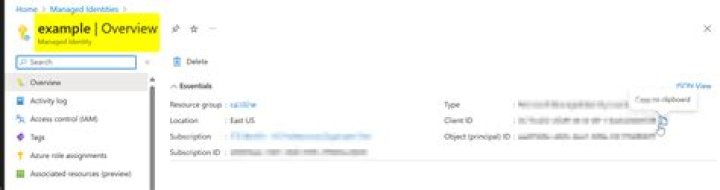
Created a user managed identity and connected as shown:
$AzureContext = (Connect-AzAccount -Identity -AccountId "UserclientID").context $AzureContext = Set-AzContext -SubscriptionName $AzureContext.Subscription -DefaultProfile $AzureContext workflow new { Param( [Parameter(Mandatory=$true)] [String] $TagName, [Parameter(Mandatory=$true)] [String] $TagValue, [Parameter(Mandatory=$true)] [Boolean] $PowerState ) $AzureContext = (Connect-AzAccount -Identity -AccountId "Userclient_ID").context $AzureContext = Set-AzContext -SubscriptionName $AzureContext.Subscription -DefaultProfile $AzureContext $vms = Get-AzResource -ResourceType -TagName $TagName -TagValue $TagValue Foreach -Parallel ($vm in $vms){ if($PowerState){ Start-AzVM -Name $vm.Name -ResourceGroupName $vm.ResourceGroupName; Write-Output "Starting $($vm.Name)"; } else{ Stop-AzVM -Name $vm.Name -ResourceGroupName $vm.ResourceGroupName -Force; Write-Output "Stopping $($vm.Name)"; } } } As showed in the image, obtain the user client ID from the set-up user managed identity.

Output:
I tested the two scenarios in which the powerstate is running and vice versa. It worked as expected.
Below are the few concerns for these kind of issues:
- Include a
timeoutfor the VM. Because it is possible that the VMs are timing out if they take longer than intended to start or stop. So, by adding timeout with thestart-AZVM, you can increase the VM's timeout value. - Once the job running is completed, check the job logs under
Process Automation >> Jobsin theautomation account. It can sometimes help to identify the cause.
If still the issue persists, you can schedule start/stop VM's by triggering with Azure functions as clearly given in this article by @Charbel Nemnom.
1