Sorry if this question looks familiar: I tried solutions proposed by google searches but they either are not working or are too technical for me.
I messed with cups a few days ago, I don't recall exactly how and why but I ended up deleting some cups files.
I have un-installed and re-installed cups several time, through the software center and using the terminal and I also reinstalled cups-daemon but nothing changes.
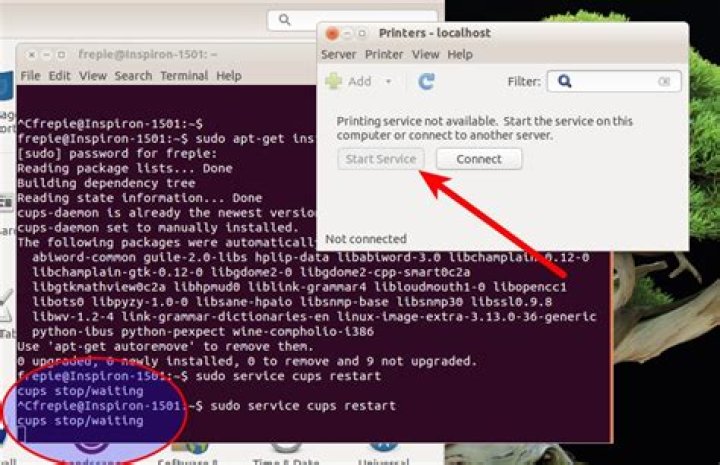
Now, my local printer won't work. I get the message "printing service not available. Start service on this computer or connect to another server". The "start service" button is "greyd out" 
I tried to restart the service through the terminal with
sudo service cups restart to which the shell replies:
cups stop/waiting and then nothing happens, as if the shell was "waiting" for something the happen. I have to do ctrl-c to get the prompt back.
I tried the troubleshoot instructions in the help menu and it says that "The CUPS print spooler does not seem to be running. To correct this, choose "System->Administration->Services from the main menu and look for the "cups" service"
I do not know where is this "System->Administration->Services" is in Ubuntu 14.04 lts
I also tried:
sudo /etc/init.d/cups start which yielded
cupsd: Child exited with status 1 2 Answers
I had a similar problem (lubuntu 16.04) with 'printing services being unavailable'. This condition prevented the system from listing the local USB printer for selection. This was overcome installing CUPS:
sudo apt-get install cups Next bounce the service:
sudo /etc/init.d/cups restart Finally, restart the machine.
I did not need to install CUPS on my instance of Ubuntu 16.04.
0I found a solution: I found a virgin content of cupsd.conf on a forum. So I created a new cupsd.conf file by doing:
gksudo gedit /etc/cups/cupsd.conf and copied the following cupsd.conf virgin content below
# # # Sample configuration file for the CUPS scheduler. See "man cupsd.conf" for a # complete description of this file. # # Log general information in error_log - change "warn" to "debug" # for troubleshooting... LogLevel warn # Deactivate CUPS' internal logrotating, as we provide a better one, especially # LogLevel debug2 gets usable now MaxLogSize 0 # Administrator user group... SystemGroup lpadmin # Only listen for connections from the local machine. Listen localhost:631 Listen /var/run/cups/cups.sock # Show shared printers on the local network. Browsing Off BrowseOrder allow,deny BrowseAllow all BrowseLocalProtocols CUPS dnssd BrowseAddress @LOCAL # Default authentication type, when authentication is required... DefaultAuthType Basic # Restrict access to the server... <Location /> Order allow,deny </Location> # Restrict access to the admin pages... <Location /admin> Order allow,deny </Location> # Restrict access to configuration files... <Location /admin/conf> AuthType Default Require user @SYSTEM Order allow,deny </Location> # Set the default printer/job policies... <Policy default> # Job-related operations must be done by the owner or an administrator... <Limit Send-Document Send-URI Hold-Job Release-Job Restart-Job Purge-Jobs Set-Job-Attributes Create-Job-Subscription Renew-Subscription Cancel-Subscription Get-Notifications Reprocess-Job Cancel-Current-Job Suspend-Current-Job Resume-Job CUPS-Move-Job CUPS-Get-Document> Require user @OWNER @SYSTEM Order deny,allow </Limit> # All administration operations require an administrator to authenticate... <Limit CUPS-Add-Modify-Printer CUPS-Delete-Printer CUPS-Add-Modify-Class CUPS-Delete-Class CUPS-Set-Default CUPS-Get-Devices> AuthType Default Require user @SYSTEM Order deny,allow </Limit> # All printer operations require a printer operator to authenticate... <Limit Pause-Printer Resume-Printer Enable-Printer Disable-Printer Pause-Printer-After-Current-Job Hold-New-Jobs Release-Held-New-Jobs Deactivate-Printer Activate-Printer Restart-Printer Shutdown-Printer Startup-Printer Promote-Job Schedule-Job-After CUPS-Accept-Jobs CUPS-Reject-Jobs> AuthType Default Require user @SYSTEM Order deny,allow </Limit> # Only the owner or an administrator can cancel or authenticate a job... <Limit Cancel-Job CUPS-Authenticate-Job> Require user @OWNER @SYSTEM Order deny,allow </Limit> <Limit All> Order deny,allow </Limit> </Policy> # Set the authenticated printer/job policies... <Policy authenticated> # Job-related operations must be done by the owner or an administrator... <Limit Create-Job Print-Job Print-URI> AuthType Default Order deny,allow </Limit> <Limit Send-Document Send-URI Hold-Job Release-Job Restart-Job Purge-Jobs Set-Job-Attributes Create-Job-Subscription Renew-Subscription Cancel-Subscription Get-Notifications Reprocess-Job Cancel-Current-Job Suspend-Current-Job Resume-Job CUPS-Move-Job CUPS-Get-Document> AuthType Default Require user @OWNER @SYSTEM Order deny,allow </Limit> # All administration operations require an administrator to authenticate... <Limit CUPS-Add-Modify-Printer CUPS-Delete-Printer CUPS-Add-Modify-Class CUPS-Delete-Class CUPS-Set-Default> AuthType Default Require user @SYSTEM Order deny,allow </Limit> # All printer operations require a printer operator to authenticate... <Limit Pause-Printer Resume-Printer Enable-Printer Disable-Printer Pause-Printer-After-Current-Job Hold-New-Jobs Release-Held-New-Jobs Deactivate-Printer Activate-Printer Restart-Printer Shutdown-Printer Startup-Printer Promote-Job Schedule-Job-After CUPS-Accept-Jobs CUPS-Reject-Jobs> AuthType Default Require user @SYSTEM Order deny,allow </Limit> # Only the owner or an administrator can cancel or authenticate a job... <Limit Cancel-Job CUPS-Authenticate-Job> AuthType Default Require user @OWNER @SYSTEM Order deny,allow </Limit> <Limit All> Order deny,allow </Limit> </Policy> # # I saved it and then restarted the service with
sudo service cups restart and that did the trick.
1