So I have too many meetings (like everyone else) and some I attend if I have time and they're booked as "tentative".
I've also turned on auto-accept and decline of meetings (one of the reasons why I have too many meetings) but I'd like Outlook to accept meetings tentatively when there is another tentative meeting in the same spot (it now just rejects the meeting)
I tried googling and rummaging through the Registry but didn't find much, so turning to a sister site of my main site for help... :-)
P.S. Running Outlook 2013, but if a solution exists for a more recent version, I'll wait for the new version to be deployed...
71 Answer
Use this procedure :
Open Outlook, and then click the File tab.
Click Options and then Calendar in the left sidebar.
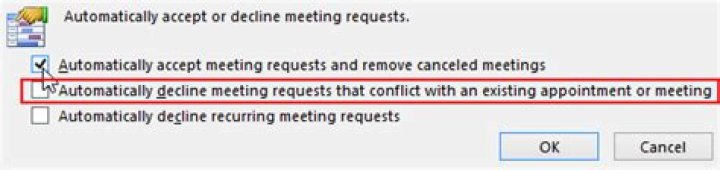
Click the Auto-Accept, Decline button in the Automatic Accept or Decline section.
You have already marked as checked the option of Automatically Accept Meeting Requests and Remove Canceled Meetings, so leave it this way.
Mark as unchecked the option of Automatically Decline Meeting Requests That Conflict With an Existing Appointment or Meeting, which you currently have as checked.
Click OK twice to save the settings and close the dialog box.

It seems that the poster is up against a bug in Outlook 2013, where following the above advice causes the meetings to be accepted permanently and not tentatively. Updating to Outlook 2016 might fix this problem, or might not (I can't test as I'm not using Outlook).
In such a case one might need to resort to a VBA macro. Below is one possibility :
Sub AutoAcceptMeetings(oRequest As MeetingItem) If oRequest.MessageClass <> "IPM.Schedule.Meeting.Request" Then Exit Sub End If Dim oAppt As AppointmentItem Set oAppt = oRequest.GetAssociatedAppointment(True) Dim oResponse Set oResponse = oAppt.Respond(olMeetingTentative, True) oResponse.Display '.Send End Sub To use the above macro, open Outlook's VBA editor (Alt+F11), expand Microsoft Office Outlook Objects, then double-click on ThisOutlookSession. Type or paste the above code into the module, then create the rule with the run script Action and select this script.
As I'm not using Outlook, you might need to experiment with the above until you get it right.
References :
- How to use Outlook's VBA Editor
- Outlook VBA reference
- Autoaccept a Meeting Request using Rules
- Outlook Respond Method
- Outlook rule to auto accept / decline meetings