
find /coe/informatica/v712_OMJ/AONE/SrcFiles/Archive -name *AccessOne_DF_BIFs.txt|cut -f8 -d "/"|cut -c 1-12 > /coe/informatica/v712_OMJ/AONE/TgtFiles/ExtendedAOneWeeklySource/WeeklyDeltaFileLoadIDList.dat please let me know the use of
cut -f8 -d and -name *AccessOne_DF_BIFs.txt //this is a file name in unix box 6 Answers
Re: the use of "cut -f8 -d" and "find -name"
cut -f8 -d "/" That gives you the eight field in a string delimited by "/". So on a string like "a/b/c/d/e/f/g/h/i/j" it will give you "h"
find /coe/informatica/v712_OMJ/AONE/SrcFiles/Archive -name *AccessOne_DF_BIFs.txt The -name option specifies the pattern to match for. The whole command above will recursively search for all files within the Archive directory that ends with "AccessOne_DF_BIFs.txt"
This is what the whole command does:
- find /coe/informatica/v712_OMJ/AONE/SrcFiles/Archive -name *AccessOne_DF_BIFs.txt - recursively look for all "AccessOne_DF_BIFs.txt" files within the Archive directory
- cut -f8 -d "/" - From the output of the previous command, extract the eight field delimitted by "/"
- cut -c 1-12 - Extract only the first 12 characters
- > /coe/informatica/v712_OMJ/AONE/TgtFiles/ExtendedAOneWeeklySource/WeeklyDeltaFileLoadIDList.dat - Write out the results into the WeeklyDeltaFileLoadIDList.dat file
Re: Windows replacement
My DOS-fu and PowerShell-fu is severely lacking, so I can't help you there. However, you can use the same commands on windows if you used Cygwin or MSYS. Do note however that the paths to your files will be different when accessed from within Cygwin/MSYS. If you wish to use windows directory structures (e.g. C:\my\windblows\directory), then you may have a better chance with MSYS.
~ Update ~
re: equivalent command in DOS
Had a go during coffee break and this seems to work for me.
DOS-fu:
@echo off :: Source directory set SRCDIR="C:\coe\informatica\v712_OMJ\AONE\SrcFiles\Archive" :: Pattern to match set TARGET="*AccessOne_DF_BIFs.txt" :: Set output file set OUTFILE="C:\coe\informatica\v712_OMJ\AONE\TgtFiles\ExtendedAOneWeeklySource\WeeklyDeltaFileLoadIDList.dat" :: Store current working directory so we can send user back set PWD=%cd% :: Move to source directory so our "dir" command will work cd %SRCDIR% :: Reset previous output file del %OUTFILE% :: This is where the script actually starts FOR /F "usebackq tokens=8 delims=\" %%a IN (`dir %TARGET% /s/b`) DO ( set X=%%a echo %X:~0,13% ) >> %OUTFILE% :: Send user back to where he/she was cd %PWD% Not quite the one-liner that you can get with Unix 'find' and 'cut', but it gets the same job done (I hope) using only built-in DOS directives.
The FOR loop is what does the job. The rest are mostly there to make the script more readable.
Note that "echo %X:~0,13%" is not a typo and ought to be equivalent to "cut -c 1-12".
I bet there are cleaner and more elegant ways to do it. This was my first attempt at DOS-fu so be nice.
Sources:
1Can you install one of the unix-alike packages such as Cygwin?
Or maybe install a scripting language such as Perl?
Does that command of yours actually work? Maybe missing a -print from the find.
find -name xxx look for the specified file name
cut -f 8 -d "/" split up into fields delimited by /, take the 8th one
Such things are not so smooth in raw Windows command line, hence the recommendation to install a nicer scripting environment.
1To substitute cut type in DOS command "help for"
look at syntax:
FOR /F "eol=; tokens=2,3* delims=, " %i in (myfile.txt) do @echo %i %j %k instead (myfile.txt) specify *AccessOne_DF_BIFs.txt
to make it recursive use loop
You can find a port of common Unix utilities here on SourceForge (including find and cut).
There is not out-of-the-box way to do this on Windows that I know of.
for ports of *nix tools to windows, use the ones from GNU
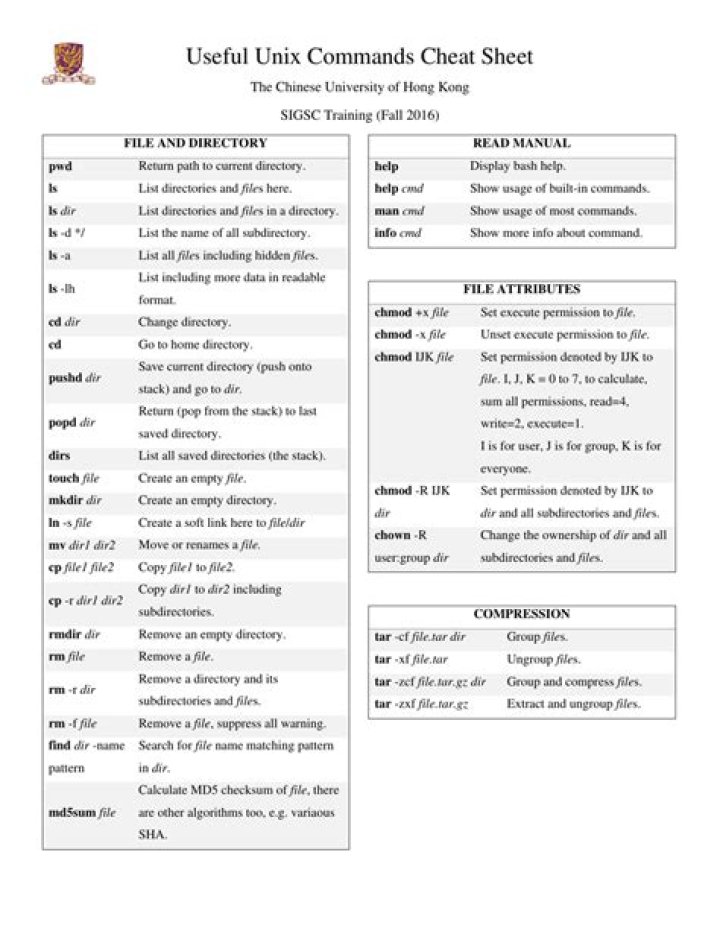
I don't know about these particular commands but this is my reference for commands :