I have a table in Excel. It is 2 pages long, but only half-page wide. Is there a way to print both parts of this table on one page, so one next to another? I don't want to move the data, I would like to know whether this is possible through the printing or page settings.
5 Answers
Something you can try:
(This assumes you're using ISO A4 paper and Office 2007+, but the general idea is sound for other occasions.)
Change the paper size to A5 portrait, select only the columns with data and select Page layout -> Print Area -> Set print area.
In the print pane, change the scaling options to fit all columns in one page. Then change printer properties to print the two A5 sheets on one A4.
2Switch to Page Break Preview. If you do not like the designate pages, then move the lines and Excel will print it as you dictate.
If it ends up crunching too much horizontal data, go to the print preview and in the setup switch to landscape mode. The main point is that you can tell excel exactly how to print your cells.
3You could use an amazing Excel function very few people know about. Don't know why it's been kept such a secret but it's a very nifty feature!
Excel Camera Tool
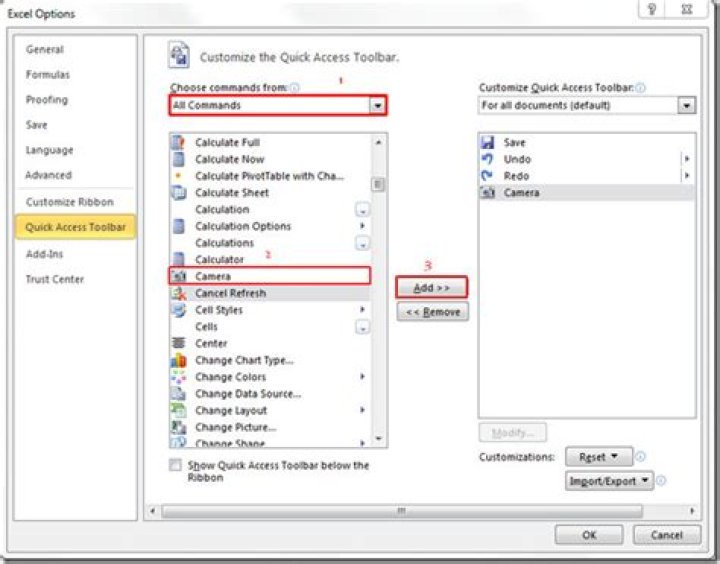
To use the Camera tool, you need to customise your toolbars.
In Excel 2007, this looks something like this (image from Chandoo):

In Excel 2010 you can add it to your Quick Access Toolbar:
Select the range you want to appear in the right "column", then click the Camera tool button. The cursor will change to a cross. Now click wherever you want your right "column" to appear.
You should get something like this.
Position as you like, and remove the border (if you want) by right-clicking the image and selecting Format Picture.
Now set your print area to be the left and right columns (excluding the rows below your left column).
What makes the Camera Tool so Great?
The wonderful thing about the camera image is that it's not static - if your data changes, the camera image will also change, automatically. It's a great tool!
Brilliant for complex layouts
For simple scenarios like this, it may be overkill but if you have several areas you want to display next to each other (especially with different column widths, row heights etc) the Camera tool really comes into its own.
4A lot of people keep saying the same thing, but it isn't the answer you seek. Try this if you are like me and had to figure it out yourself. Go to the Page Layout tab, if you have the more modern day office. Highlight what you want to fit onto 1 page. Now look for the tiny arrow just to the right of Page Setup and click it. Page Setup pops up. Select the option "Fit to: ? page(s) wide by ? tall". In this area, choose 1 each box. Click OK. Now print, and make sure before you ok that it will print onto 1 page. I had to discover this on my own and had no help, because everywhere I looked, I couldn't find the answer. Hope this works for you. SW
Your best option is to change the settings in the printer. Set the area you wish to print in page layout_print area. Print Preview_Page Setup and choose the Portrait or Landscape mode and fit to pages. You may have to play with how many pages tall to get the print to a readable size on the print. Choose Options at the bottom right on the Page Setup dialog box. My printer has a tab called "Finishing". Here I can select how many pages per sheet and the page order. I chose 4 pages per sheet (because it is either 2, 4, 6, etc. and I have 3 pages) and then a page order of Right, then down. I printed in both portrait and landscape mode to see which was best. My printer is HP LaserJet Professional M1212nf MFP.