I have an SVG file created from Powerpoint that I now want to edit in Inkscape. When opening and saving that file in Inkscape, with no modification, the file size goes from 120kB to 170kB (I'm saving it as plain SVG, not Inkscape SVG).
As far as I can tell, this is because the SVG generated by Inkscape is pretty printed, and therefore has a lot of useless whitespace. Is there a way to save an SVG file without the pretty print?
For example, this part of the original file:
<linearGradient x1="272" y1="618" x2="272" y2="643" gradientUnits="userSpaceOnUse" spreadMethod="reflect"><stop offset="0" stop-color="#D2D2D2"/><stop offset="0.5" stop-color="#C8C8C8"/><stop offset="1" stop-color="#C0C0C0"/></linearGradient> is saved as
<linearGradient spreadMethod="reflect" gradientUnits="userSpaceOnUse" y2="159" x2="272" y1="134" x1="272"> <stop stop-color="#D2D2D2" offset="0" /> <stop stop-color="#C8C8C8" offset="0.5" /> <stop stop-color="#C0C0C0" offset="1" /> </linearGradient> 1 Answer
Is there a way to save an SVG file without the pretty print?
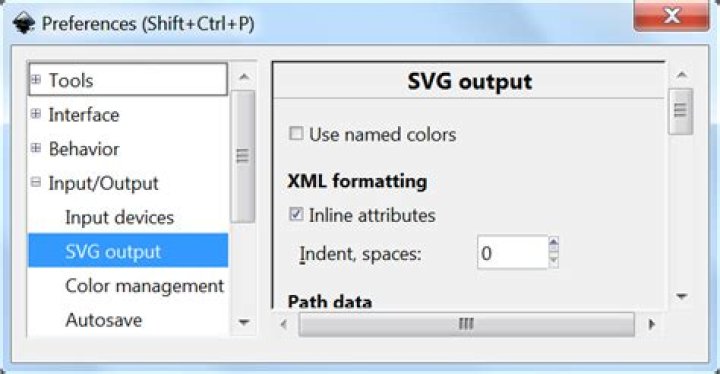
With caveats, you may want to look at the XML formatting options under the SVG ouput preferences:
ex. XML formatting
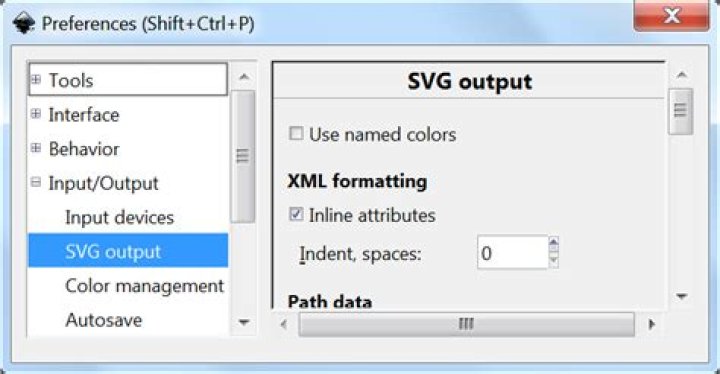
These options should be available via Edit → Preferences → Input/Output → SVG output → XML Formatting. Note that Edit → Preferences is also available via Ctrl+Shift+P (as indicated).
Marking the option for Inline attributes (above) should keep ex.:
<linearGradient spreadMethod="reflect" gradientUnits="userSpaceOnUse" y2="159" x2="272" y1="134" x1="272"> <stop stop-color="#D2D2D2" offset="0" /> <stop stop-color="#C8C8C8" offset="0.5" /> <stop stop-color="#C0C0C0" offset="1" /> </linearGradient> as ex.:
<linearGradient x1="272" y1="618" x2="272" y2="643" gradientUnits="userSpaceOnUse" spreadMethod="reflect"><stop offset="0" stop-color="#D2D2D2"/><stop offset="0.5" stop-color="#C8C8C8"/><stop offset="1" stop-color="#C0C0C0"/></linearGradient> Caveats
Some small overhead may still be applied to files edited with Inkscape simply because Inkscape may save files in a slightly different format than the original (even with "plain"
.svg).Regarding leading whitespace, etc., "whole"
.svgtags may be indented for pretty printing e.g.:<g> <path fill="#FFFFFF" stroke="#F1F2F2" stroke-width="3" stroke-miterlimit="10" d="M314.267,104.257h-0.006H314.267z"/>
If I am not mistaken, adjusting Indent, spaces doesn't currently seem to have any effect on.svg files that already have pretty printing for ex. tags (i.e. it seems like this option is only applied to new files).
If you want to ensure that leading whitespace, etc. is removed, you should probably use either a text editor or script to remove them manually.
You could use a text editor such as Notepad++ to open the
.svgfile and select Edit → Blank Operations → Trim Leading Space to remove leading spaces. You could also use Edit → Line Operations → Remove Empty Lines to remove any blank lines.You could write a script to do the above operations with one or more
.svgfiles in a given directory. For instance, a short example in Python 3:
ex. reduce_svg_files.py
# Remove leading spaces and blank lines from a set of text files (e.g. ".svg" # files) in a directory with Python. # Preserves '\n' (linefeed) line endings (for file size considerations) by # reading/writing files as "binary". # This script would be run in the same directory as the original files. # --- Imports --- import os import os.path import sys # --- Variables --- # Where are the original files located? root_dir = '.\\' # What is the directory/path to write any reduced files to? mini_directory_name = 'mini' mini_output_directory = os.path.join(root_dir, mini_directory_name) # What file extension should the script work with? ext = '.svg' # What suffix should be added to the end of any reduced files? mini_suffix = ' - mini' # --- Main --- try: # Create the directory specified by "mini_output_directory", as needed. os.makedirs(mini_output_directory, exist_ok=True) # Read the directory contents (files and folder names) of "root_dir". directory_items = os.listdir(root_dir) # For every directory item returned... for directory_item in directory_items: # If that item is a file that also ends with "ext"... if os.path.isfile(directory_item) and directory_item.endswith(ext): # Create a list to hold the reduced contents of the file. svg_contents = [] # Read the contents of the original file. with open(directory_item, 'rb') as svg_file: # For each line in the file... for svg_line in svg_file: # Remove any leading spaces, etc. with ".lstrip()" and # store each "cleaned" line in svg_contents[] (from above). svg_contents.append(svg_line.lstrip()) # Then... # Remove the "ext" from the original file name by replacing it # with "nothing". mini_title = directory_item.replace(ext, '') # Add "mini_suffix" and then the "ext" back to the stripped # file name to create the name for the reduced file. mini_file = mini_title + mini_suffix + ext # Create the full path to where the reduced file should be # stored. mini_path = os.path.join(mini_output_directory, mini_file) # Write the reduced file to this path. with open(mini_path, 'wb') as mini_output_path: mini_output_path.writelines(svg_contents) # If there is a problem working with the OS while running the script, catch any # error then quit. except OSError as err: print('') print(err) sys.exit() Note that both of the options above preserve formatting by retaining line endings. As you point out in the comments, if line endings aren't a concern, you can perform (roughly) the same two steps above in Notepad++ with one operation as Edit → Blank Operations → Remove Unnecessary Blank and EOL (turning any .svg file contents into a single text string with spaces).
If you wish to remove the spaces between tags as well, you can use the Python script above and change:
svg_contents.append(svg_line.lstrip()) to just:
svg_contents.append(svg_line.strip()) Be aware, however, that this second option could cause any .svg output files to be rendered incorrectly (and thus unreadable) if each line doesn't consist of "whole" <tag> elements (i.e. make certain the original .svg file contents looks like your desired contents, not the undesirable "element list" in your original question).