$ adb --help -s SERIAL use device with given serial (overrides $ANDROID_SERIAL) $ adb devices List of devices attached emulator-5554 device 7f1c864e device $ adb shell -s 7f1c864e error: more than one device and emulator 14 Answers
Use the -s option BEFORE the command to specify the device, for example:
adb -s 7f1c864e shell adb -d shell (or adb -e shell).
This command will help you in most of the cases, if you are too lazy to type the full ID.
4
-d- Direct an adb command to the only attached USB device. Returns an error when more than one USB device is attached.
-e- Direct an adb command to the only running emulator. Returns an error when more than one emulator is running.
Another alternative would be to set environment variable ANDROID_SERIAL to the relevant serial, here assuming you are using Windows:
set ANDROID_SERIAL=7f1c864e echo %ANDROID_SERIAL% "7f1c864e" Then you can use adb.exe shell without any issues.
I found this question after seeing the 'more than one device' error, with 2 offline phones showing:
C:\Program Files (x86)\Android\android-sdk\android-tools>adb devices List of devices attached SH436WM01785 offline SH436WM01785 offline SH436WM01785 sideload If you only have one device connected, run the following commands to get rid of the offline connections:
adb kill-server adb devices To install an apk on one of your emulators:
First get the list of devices:
-> adb devices List of devices attached 25sdfsfb3801745eg device emulator-0954 device Then install the apk on your emulator with the -s flag:
-> adb -s "25sdfsfb3801745eg" install "C:\Users\joel.joel\Downloads\release.apk" Performing Streamed Install Success Ps.: the order here matters, so -s <id> has to come before install command, otherwise it won't work.
Hope this helps someone!
The best way to run shell on any particular device is to use:
adb -s << emulator UDID >> shell For Example: adb -s emulator-5554 shell This gist will do most of the work for you showing a menu when there are multiple devices connected:
$ adb $(android-select-device) shell 1) 02783201431feeee device 3) emulator-5554 2) 3832380FA5F30000 device 4) emulator-5556 Select the device to use, <Q> to quit: To avoid typing you can just create an alias that included the device selection as explained here.
3User @janot has already mentioned this above, but this took me some time to filter the best solution.
There are two Broad use cases:
1) 2 hardware are connected, first is emulator and other is a Device.
Solution : adb -e shell....whatever-command for emulator and adb -d shell....whatever-command for device.
2) n number of devices are connected (all emulators or Phones/Tablets) via USB/ADB-WiFi:
Solution: Step1) run adb devices THis will give you list of devices currently connected (via USB or ADBoverWiFI)
Step2) now run adb -s <device-id/IP-address> shell....whatever-command no matter how many devices you have.
Example
to clear app data on a device connected on wifi ADB I would execute:
adb -s 172.16.34.89:5555 shell pm clear com.package-id
to clear app data connected on my usb connected device I would execute:
adb -s 5210d21be2a5643d shell pm clear com.package-id
For Windows, here's a quick 1 liner example of how to install a file..on multiple devices
FOR /F "skip=1" %x IN ('adb devices') DO start adb -s %x install -r myandroidapp.apk If you plan on including this in a batch file, replace %x with %%x, as below
FOR /F "skip=1" %%x IN ('adb devices') DO start adb -s %%x install -r myandroidapp.apk Running adb commands on all connected devices
Create a bash (adb+)
adb devices | while read line do if [ ! "$line" = "" ] && [ `echo $line | awk '{print $2}'` = "device" ] then device=`echo $line | awk '{print $1}'` echo "$device $@ ..." adb -s $device $@ fi done use it with
adb+ //+ command
2Create a Bash (tools.sh) to select a serial from devices (or emulator):
clear; echo "===================================================================================================="; echo " ADB DEVICES"; echo "===================================================================================================="; echo ""; adb_devices=( $(adb devices | grep -v devices | grep device | cut -f 1)#$(adb devices | grep -v devices | grep device | cut -f 2) ); if [ $((${#adb_devices[@]})) -eq "1" ] && [ "${adb_devices[0]}" == "#" ] then echo "No device found"; echo ""; echo "===================================================================================================="; device="" // Call Main Menu function fxMenu; else read -p "$( f=0 for dev in "${adb_devices[@]}"; do nm="$(echo ${dev} | cut -f1 -d#)"; tp="$(echo ${dev} | cut -f2 -d#)"; echo " $((++f)). ${nm} [${tp}]"; done echo ""; echo " 0. Quit" echo ""; echo "===================================================================================================="; echo ""; echo ' Please select a device: ' )" selection error="You think it's over just because I am dead. It's not over. The games have just begun."; // Call Validation Numbers fxValidationNumberMenu ${#adb_devices[@]} ${selection} "${error}" case "${selection}" in 0) // Call Main Menu function fxMenu; *) device="$(echo ${adb_devices[$((selection-1))]} | cut -f1 -d#)"; // Call Main Menu function fxMenu; esac fi Then in another option can use adb -s (global option -s use device with given serial number that overrides $ANDROID_SERIAL):
adb -s ${device} <command> I tested this code on MacOS terminal, but I think it can be used on windows across Git Bash Terminal.
Also remember configure environmental variables and Android SDK paths on .bash_profile file:
export ANDROID_HOME="/usr/local/opt/android-sdk/" export PATH="$ANDROID_HOME/platform-tools:$PATH" export PATH="$ANDROID_HOME/tools:$PATH" Here's a shell script I made for myself:
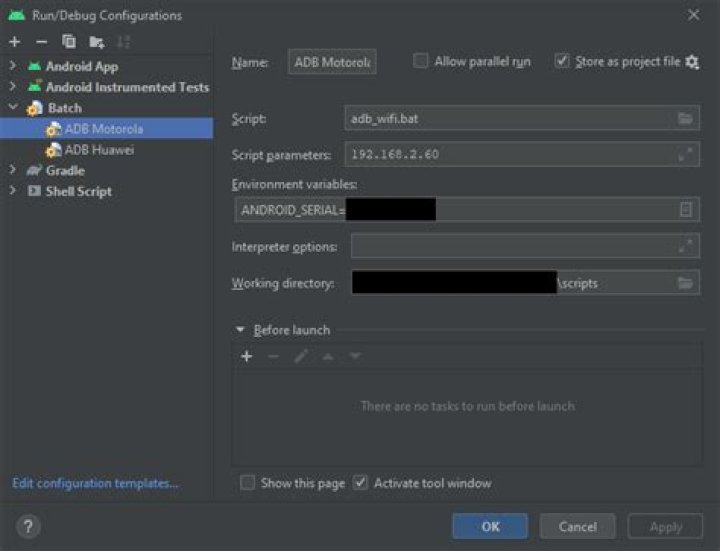
#! /bin/sh for device in `adb devices | awk '{print $1}'`; do if [ ! "$device" = "" ] && [ ! "$device" = "List" ] then echo " " echo "adb -s $device $@" echo "------------------------------------------------------" adb -s $device $@ fi done For the sake of convenience, one can create run configurations, which set the ANDROID_SERIAL:
Where the adb_wifi.bat may look alike (only positional argument %1% and "$1" may differ):
adb tcpip 5555 adb connect %1%:5555 The advance is, that adb will pick up the current ANDROID_SERIAL.
In shell script also ANDROID_SERIAL=xyz adb shell should work.
This statement is not necessarily wrong:
-s SERIAL use device with given serial (overrides $ANDROID_SERIAL) But one can as well just change the ANDROID_SERIAL right before running the adb command.
One can even set eg. ANDROID_SERIAL=192.168.2.60:5555 to define the destination IP for adb.
This also permits to run adb shell, with the command being passed as "script parameters".
you can use this to connect your specific device :
* adb devices -------------- List of devices attached 9f91cc67 offline emulator-5558 device example i want to connect to the first device "9f91cc67"
* adb -s 9f91cc67 tcpip 8080 --------------------------- restarting in TCP mode port: 8080 then
* adb -s 9f91cc67 connect 192.168.1.44:8080 ---------------------------------------- connected to 192.168.1.44:8080 maybe this help someone