I want to increase mouse sensitivity beyond the limits set in Windows 7 Control Panel. I found various mouse sensitivity settings in regedit under HKEY_CURRENT_USER\Control Panel\Mouse.
Can I increase mouse speed and senstivity there (which is limited in control panel)?
25 Answers
In regedit, there are three settings in the registry correlated to changes in the speed setting of mouse control panel:
HKEY_CURRENT_USER\Control Panel\Mouse\MouseSpeed HKEY_CURRENT_USER\Control Panel\Mouse\MouseThreshold1 HKEY_CURRENT_USER\Control Panel\Mouse\MouseThreshold2 The MouseSpeed key maxes at 2 from control panel, and increasing this above 2 will cause the mouse to slow down, since it doesn't accept values above 2.
The mouse speed is a multiplier for MouseThreshold1 and MouseThreshold2, which correlate to acceleration.
To increase mouse sensitivity to maximum:
- Set
MouseSpeedto2. - Set
MouseThreshold1to0. - Set
MouseThreshold2to0.
You may want to set MouseThreshold1 and MouseThreshold2 a little higher than 0 if your pointer becomes a little too jumpy on the screen, but make sure that MouseThreshold2 is greater or equal to MouseThreshold1, and all three of these are integer values.
As MoE bis said, you need to edit the mouse acceleration curve. This refers to the registry keys
HKEY_CURRENT_USER\Control Panel\Mouse\SmoothMouseXCurve HKEY_CURRENT_USER\Control Panel\Mouse\SmoothMouseYCurve You can of course edit these values with the built-in registry editor, but it is more convenient to use the CustomCurve (direct download, archive link) application. This requires .NET Framework 4.0 or newer.
Screenshot:
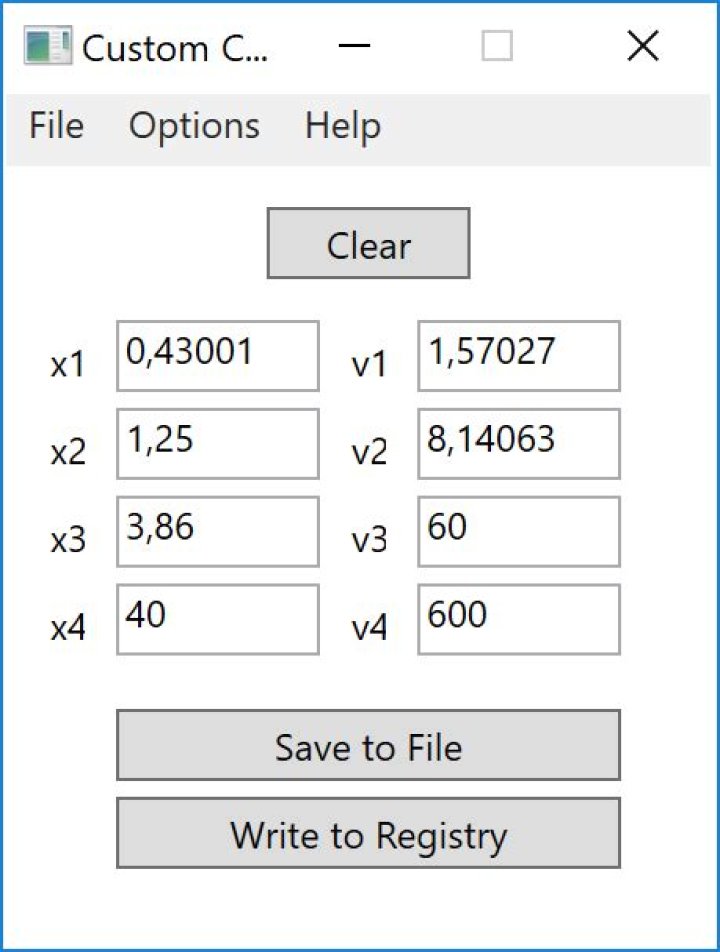
I quote the short guide from the website:
Generally speaking:
- The X value of a point represents how fast you move the mouse.
- The Y value represents how much the cursor moves in response.
For a more in-depth explanation about the mouse acceleration curve, see this article.
2The existing answers either do not work in Windows 10 or have no meaning, belonging to the old days when DPI was around 400, and Microsoft was making efforts to enhance its IntelliPoint software beyond hardware capabilities. Even when they work, these configuration parameters may at most set mouse sensitivity to the hardware's maximum, but not beyond that.
Today, the mouse tracking technology has advanced to a point that it doesn't make any sense for the consumer to understand, examining so many variables from which very few are under user control.
To be convinced, you may listen to this video of a Logitech engineer explaining DPI:

Dots per inch (DPI) stays the single most important parameter under user control for changing the measure of sensitivity. Almost all mouses sold today have about 1600 DPI. Gaming mouses usually have 4000 DPI or more, and can be increased/decreased by pressing a button on the mouse.
DPI is more of a marketing ploy for gaming mouse. In fact, many competitive first-person shooter game players set their mouse DPI to 1200 or even 800, because lower DPI gives you precision/sensitivity.
The most one can do for increasing mouse sensitivity is to get a sophisticated high-DPI mouse with a sophisticated driver externalizing adjustable parameters and the ability to define multiple usage profiles to account for the different conditions when employing different software products. Such mouses can usually change profiles at the press of a button, thus changing mouse sensitivity (among others).
2- Run
regedit.exefrom the Windows search bar - Go to
HKEY_CURRENT_USER\Control Panel\Mouse - Change
MouseSensivityto 20 (10 = normal, 20 = twice as fast) - Restart your PC
After being unable to obtain the desired mouse pointer acceleration via Control Panel or by simply using the registry to increase MouseSpeed to 2, then by further experimentation with the above, I found that if I used Control Panel (Run control.exe) to reduce the mouse pointer speed to low, and then went to Computer\HKEY_CURRENT_USER\Control Panel\Mouse and changed MouseSpeed to 2, and restarted C:\Windows\explorer.exe (I use Process Explorer to right click on it),
and then went back to Control Panel>Mouse and increased the mouse pointer speed to the highest, then that resulted in the most acceleration. Even though the registry (after F5 refresh) now says MouseSpeed is 1.
Do not ask me why this works!