I got ZIP file(s), which contains files, which filenames are in some encoding. Let's say I know encoding of those filenames, but I still dont know how to properly decompress them.
Here is example file, it contains one file "【SSK字幕组】The Vampire Diaries 吸血鬼日记S06E12.ass"
I know used encoding is GB18030 (Chinese)
Question is - how to unpack that file in FreeBSD using unzip or other CLI utility to get proper encoded filename? I tried everything what I could, but result was never good. Please help.
I tried on OSX:
MBP1:test 2ge$ bsdtar xf gb18030.zip MBP1:test 2ge$ ls %A1%BESSK%D7%D6Ļ%D7顿The Vampire Diaries %CE%FCѪ%B9%ED%C8ռ%C7S06E12/ gb18030.zip MBP1:test 2ge$ cd %A1%BESSK%D7%D6Ļ%D7顿The\ Vampire\ Diaries\ %CE%FCѪ%B9%ED%C8ռ%C7S06E12/ MBP1:%A1%BESSK%D7%D6Ļ%D7顿The Vampire Diaries %CE%FCѪ%B9%ED%C8ռ%C7S06E12 2ge$ ls %A1%BESSK%D7%D6Ļ%D7顿The Vampire Diaries %CE%FCѪ%B9%ED%C8ռ%C7S06E12.ass* MBP1:%A1%BESSK%D7%D6Ļ%D7顿The Vampire Diaries %CE%FCѪ%B9%ED%C8ռ%C7S06E12 2ge$ find . | iconv -f gb18030 -t utf-8 . ./%A1%BESSK%D7%D6L抬%D7椤縏he Vampire Diaries %CE%FC血%B9%ED%C8占%C7S06E12.ass MBP1:%A1%BESSK%D7%D6Ļ%D7顿The Vampire Diaries %CE%FCѪ%B9%ED%C8ռ%C7S06E12 2ge$ convmv -r -f gb18030 -t utf-8 --notest . Skipping, already UTF-8: ./%A1%BESSK%D7%D6Ļ%D7顿The Vampire Diaries %CE%FCѪ%B9%ED%C8ռ%C7S06E12.ass Ready! I tried similar with unzip, but I get similar problem.
Thanks, now trying on FREE BSD, where I am connecting using SSH from OSX (Terminal):
# locale LANG= LC_CTYPE="C" LC_COLLATE="C" LC_TIME="C" LC_NUMERIC="C" LC_MONETARY="C" LC_MESSAGES="C" LC_ALL=C The first thing, I would like to is to proper show Chinese names. I changed
setenv LC_ALL zh_CN.GB18030 setenv LANG zh_CN.GB18030 Then I downloaded file and try to "ls" to see proper characters, but not luck. So I think I have to solve first Chinese locale to verify when I get proper result, actually I can compare it. Can you also help me please with this?
13 Answers
Here's what I do on Ubuntu 16.04 to unzip a zip in any encoding, as long as I know what that encoding is. The same method should work on FreeBSD because it only relies on widely available unzip tool.
I double-check the exact name of the encoding, as to not misspell it:
I simply run
$ unzip -O <encoding> <filename> -d <target_dir>or
$ unzip -I <encoding> <filename> -d <target_dir>choosing between
-Oor-Iaccording to instructions here:$ unzip -h UnZip 6.00 of 20 April 2009, by Debian. Original by Info-ZIP. ... -O CHARSET specify a character encoding for DOS, Windows and OS/2 archives -I CHARSET specify a character encoding for UNIX and other archives ...which means that I simply try
-Oand it should work, because not a lot of people would create a.zipfile in Unix...
So, for your specific example:
The exact encoding name is
GB18030.I use the
-Oflag and:$ unzip -O GB18030 gb18030.zip -d target_dir Archive: gb18030.zip creating: target_dir/【SSK字幕组】The Vampire Diaries 吸血鬼日记S06E12/ inflating: target_dir/【SSK字幕组】The Vampire Diaries 吸血鬼日记S06E12/【SSK字幕组】The Vampire Diaries 吸血鬼日记S06E12.ass... it works.
Method 1 : use unar utility
sudo apt-get install unar unar -e gb18030 gb18030.zip Method 2 : Use a python script to unzip the file (reference )
#!/usr/bin/env python # -*- coding: utf-8 -*- # unzip-gbk.py import os import sys import zipfile import argparse parser = argparse.ArgumentParser() parser.add_argument("--encoding", help="encoding for filename, default gbk") parser.add_argument("-l", help="list filenames in zipfile, do not unzip", action="store_true") parser.add_argument("file", help="process file.zip") args = parser.parse_args() print "Processing File " + args.file file=zipfile.ZipFile(args.file,"r"); if args.encoding: print "Encoding " + args.encoding for name in file.namelist(): if args.encoding: utf8name=name.decode(args.encoding) else: utf8name=name.decode('gbk') pathname = os.path.dirname(utf8name) if args.l: print "Filename " + utf8name else: print "Extracting " + utf8name if not os.path.exists(pathname) and pathname!= "": os.makedirs(pathname) data = file.read(name) if not os.path.exists(utf8name): fo = open(utf8name, "w") fo.write(data) fo.close file.close() The example gb18030.zip will extract the following file
【SSK字幕组】The Vampire Diaries 吸血鬼日记S06E12 【SSK字幕组】The Vampire Diaries 吸血鬼日记S06E12/【SSK字幕组】The Vampire Diaries 吸血鬼日记S06E12.ass On most POSIX filesystems the filename is just a series of bytes and it's up to userspace to make any sense of it. You can use this to your advantage.
First, extract the archive using
bsdtar, since theunziptool seems to mangle the file names, while bsdtar will extract them raw. (I'm testing this on Linux. I guess FreeBSD just calls ittar.)$ bsdtar xf gb18030.zipVerify that tools like
iconvcan successfully decode the names:$ find . | iconv -f gb18030 -t utf-8(Note that this only affects the
findoutput, not files themselves.)Finally use
convmvto convert the file names to UTF-8:$ convmv -r -f gb18030 -t utf-8 --notest .(Note: I had to install Encode::HanExtra from CPAN for the GB18030 support, and manually add
use Encode::HanExtra;to /usr/bin/convmv even though it's supposed toIn case
convmvis unavailable, script it:$ find . -depth | while read -r old; do old=./$old; head=${old%/*}; tail=${old##*/}; new=$head/$(echo "$tail" | iconv -f gb18030 -t utf-8); [ "$old" = "$new" ] || mv "$old" "$new"; done(At least on Linux, this has an advantage in that
iconvis almost always available, and it always supports gb18030.)
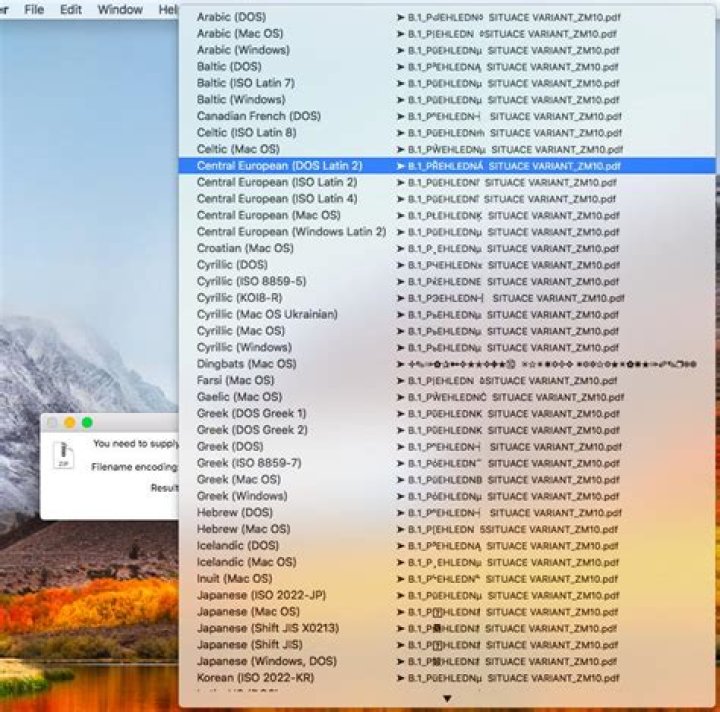
On OS X, you can use a GUI application called The Unarchiver. It can be installed using Mac App Store or Homebrew Cask:
brew cask install the-unarchiver When you open a ZIP file with it, the application lets you choose the appropriate encoding using preview of a filename from the archive.

7z supports charset ID with a switch -scs, e.g.:
7z x -scs903 some.zip where 903 is 中文簡體 charset. A longer list of charset IDs can be found here.
2Use 7z to extract the file
7z x yourfile.zip After that, convert the encoding of those filenames yourself:
convmv --notest -f from_encoding -t utf-8 -r your_extracted_folder/ This works for me.. from_encoding in my case is tis-620 (which is a Thai encoding), you need to find an appropriate encoding of your language. A popular one usually solves the problem but if the file name is still unreadable then try changing from_encoding to other things such as windows-1252 or shift-jis (Japanese) or whatever, you can list the available encoding using command:
convmv --list iconv --list This is very simple "how to solve" method for me.
I just used 7zip and it managed to pick the right encoding – something that standard zip couldn't do.
However, I used it on Windows, with the GUI tool. Maybe the command line 7z will work for you, too.
Shell sh oneline script with iconv:
for f in /path/*.txt; do mv $f `echo $f | iconv -f 866 -t UTF-8`; done Script above is loop doing iterate through whilecard and move files from one codepage (866) to another (utf8).
Same and with reading while-card from pipe line:
echo * | for f in `read f&&echo $f`; do mv $f `echo $f | iconv -f 866 -t UTF-8`; done There is no output except access rights denied if any. Also warning is possible when filename is the same in both codepage, because it appears as move file to same path.
1Wrote a patch for unzip fixing this issue:
unar never turn me down:
brew install unar unar -e GBK *.zip Since unzip is mangling the encoding of non-ascii file, the simplest workaround, as mentioned in other answers, is to switch to 7z and specifically to 7za which worked as expected on mac:
7za x '*.zip' 👆Note the use of quotes — this prevents expansion by the shell (bash, zsh, etc) and delegates the expansion to
7za.
Also, depends on your use case, but with 7za there was no need to explicitly specify the encoding — unlike unzip, it managed to infer the correct encoding.
python3 script to unpack cp866 archive:
#!/usr/bin/python3 from zipfile import ZipFile import os import sys def extract(filepath, directory = '', listonly = False): with ZipFile(filepath, 'r') as zip: for name in zip.namelist(): data = zip.read(name) unicode_name = name.encode('cp437').decode('cp866') type = "DIR" if zip.getinfo(name).is_dir() else "FILE" print(type, unicode_name) if listonly: continue if zip.getinfo(name).is_dir(): continue unicode_name = directory + '/' + unicode_name dirpath = os.path.dirname(unicode_name) if not os.path.exists(dirpath): os.makedirs(dirpath) f = open(unicode_name, 'wb') f.write(data) return 0 kwargs = {} i = 1 while i < len(sys.argv): arg = sys.argv[i] if arg[0] != '-': kwargs['filepath'] = arg elif arg == '-l': kwargs['listonly'] = True elif arg == '-h': kwargs['usage'] = True elif arg == '-d': i += 1 kwargs['directory'] = sys.argv[i] i += 1 argc = len(kwargs) if argc > 3: print("Error: Max. 3 args expected,", argc, "are given.") exit(1) print("Arguments given:", kwargs) if "usage" in kwargs: print(""" Usage: %s [OPTIONS] FILEPATH") Options: -l - list files only -d - output directory """ % sys.argv[0]) exit(1) ret = extract(**kwargs) exit(ret) Example:
❯ ./unzip Budget_2020.zip -d dir Arguments given: {'filepath': 'Budget_2020.zip', 'directory': 'dir'} FILE Исполнение бюджета 2020 г/Исполнение бюджета 2020 года.pdf DIR Исполнение бюджета 2020 г/Приложения к Заключению/ FILE Исполнение бюджета 2020 г/Приложения к Заключению/01_Прил_к Заключению Доходы.xls FILE Исполнение бюджета 2020 г/Приложения к Заключению/02_Прил_к Заключению ГП.xlsx FILE Исполнение бюджета 2020 г/Приложения к Заключению/03_Прил_к Заключению ГП ГРБС.xlsx FILE Исполнение бюджета 2020 г/Приложения к Заключению/04_Прил_к Заключению ГП ИНД.pdf With 7zip, You can specify the encoding to use with the -mcp switch.
To extract simplified Chinese zip files with GB18030 encoding (Code page 54936)
7z e -mcp=54946 zipname.zip