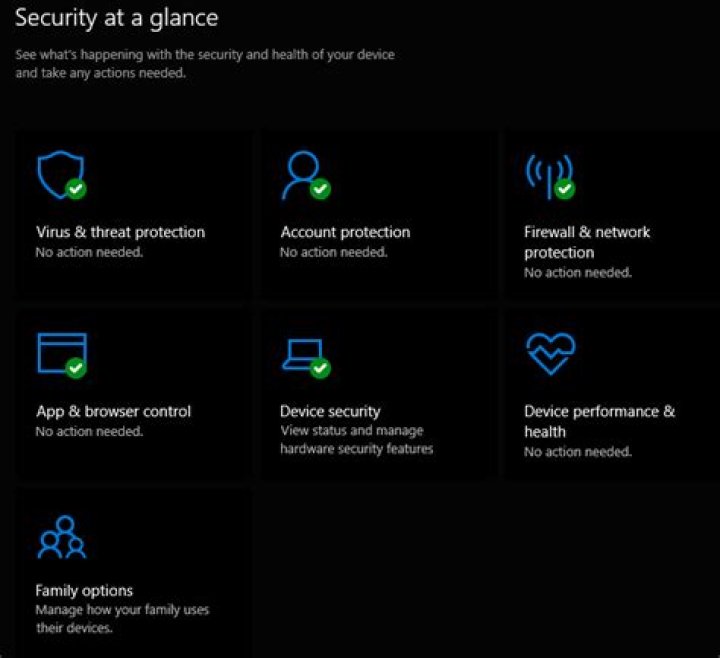
How can I check and make sure that all Windows Defender shields and protection are on/active and that everything has a green tick:

via the Windows 10's command prompt?
Edit #1:
Per @JG7's and @harrymc's answer, I tried Get-MpComputerStatus command in powershell, however I received this error output:
Get-MpComputerStatus : A general error occurred that is not covered by a more specific error code. At line:1 char:1 + Get-MpComputerStatus + ~~~~~~~~~~~~~~~~~~~~ + CategoryInfo : NotSpecified: (MSFT_MpComputerStatus:ROOT\Microsoft\...pComputerStatus) [Get-MpComputerSta tus], CimException + FullyQualifiedErrorId : HRESULT 0x800106ba,Get-MpComputerStatus 1 Answer
Use PowerShell to get the Windows Defender status information.
The command to use is Get-MpComputerStatus. It reports the status of Windows Defender services, signature versions, last update, last scan, and more.
This is the output of the command (as copied from the above link):
PS C:\> Get-MpComputerStatus AMEngineVersion : 1.1.9700.0 AMProductVersion : 4.3.9463.0 AMServiceEnabled : True AMServiceVersion : 4.3.9463.0 AntispywareEnabled : True AntispywareSignatureAge : 0 AntispywareSignatureLastUpdated : 7/30/2013 3:01:45 AM AntispywareSignatureVersion : 1.155.1107.0 AntivirusEnabled : True AntivirusSignatureAge : 0 AntivirusSignatureLastUpdated : 7/30/2013 3:01:45 AM AntivirusSignatureVersion : 1.155.1107.0 BehaviorMonitorEnabled : True ComputerID : A69DA5B8-06B3-4A00-B2C1-D18ED66BAD40 ComputerState : 0 FullScanAge : 4294967295 FullScanEndTime : FullScanStartTime : IoavProtectionEnabled : True LastFullScanSource : 0 LastQuickScanSource : 2 NISEnabled : False NISEngineVersion : 2.1.9700.0 NISSignatureAge : 0 NISSignatureLastUpdated : 7/30/2013 1:30:46 PM NISSignatureVersion : 106.0.0.0 OnAccessProtectionEnabled : True QuickScanAge : 0 QuickScanEndTime : 7/30/2013 1:50:24 PM QuickScanStartTime : 7/30/2013 1:49:15 PM RealTimeProtectionEnabled : True RealTimeScanDirection : 0 For more information see Manage Windows Defender using PowerShell.
5