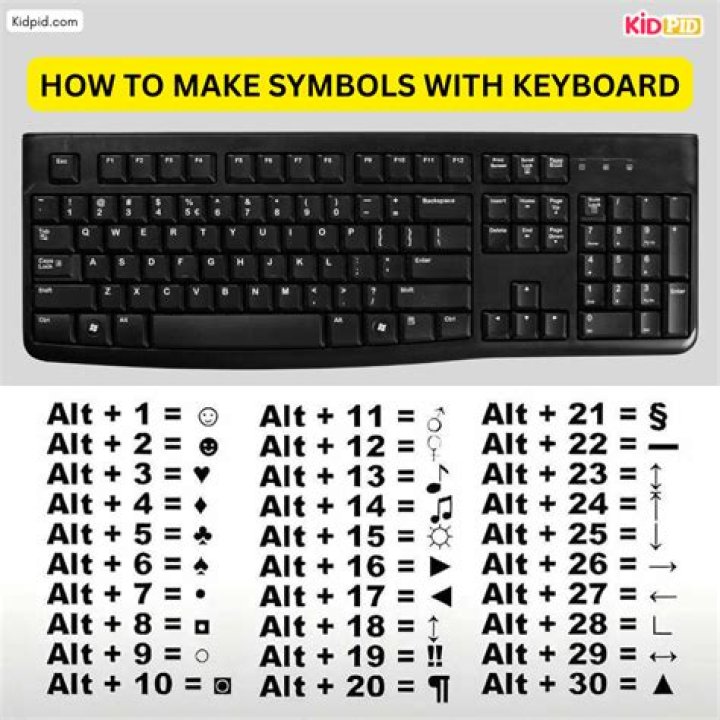
I am using Windows7 Pro and my Keyboard looks like below

What I need is, I am pressing SHIFT + Symbl for Symbols like !@#$%^&*
Is there any way to change the keyboard setting by only pressing the key for symbols and Shift + Num for Numbers like 12345 ???
1 Answer
Normally, you could do this by making some modifications in Registry's key mapping, but since your case involves keys combinations (Shift + number), you can't do it that way.
So, give this a try:
Download AutoHotkey. It's a program that allows making key macros and more complex key remapping, amongst other cool stuff.
Then go to to the Desktop (or wherever you want), right-click, and then choose
New > AutoHotkey Script.Right-click the file you just created, and choose
Edit Script. This will open the script file with the Notepad. Erase all its content and paste the following:#NoEnv ; Recommended for performance and compatibility with future AutoHotkey releases. ; #Warn ; Enable warnings to assist with detecting common errors. SendMode Input ; Recommended for new scripts due to its superior speed and reliability. SetWorkingDir %A_ScriptDir% ; Ensures a consistent starting directory. *1::! *2::" *3::§ *4::$ *5::send `% *6::& *7::/ *8::( *9::) *0::= $+1::send 1 $+2::send 2 $+3::send 3 $+4::send 4 $+5::send 5 $+6::send 6 $+7::send 7 $+8::send 8 $+9::send 9 $+0::send 0
Note that the symbols on each keyboard may vary, so keep in mind that the structure is
originalkey::replacement. For example, you have question mark (?) on your number 0, instead of the equal sign (=), you should write*0::?instead of*0::=
- Save the script and open it (this time by left double-clicking it), and you're done! Every time you want to stop the script, just go to the notification icons, right-click the AutoHotkey icon, and choose "Exit".
Enjoy!