
I have a file that's created by a program, and apparently an interaction with the system and Google Backup & Sync somehow scrambles the owner and permissions of the file. (The owner shows up as either "Unknown" or "Unable to display current owner", depending on where I look at it.)
I need to reclaim ownership of the file.
The standard method (from the File Explorer right click, Properties, Security tab, Advanced, Change Owner) doesn't work because I don't have permission to do that. Basically I need super user access on my own system so I can override what the OS thinks and actually administrate the file.
Anyone got a clue? Rebooting seems to clear the issue but that's a crappy solution. I have a Cygwin shell on this system if that helps. I'd prefer to not have to download any special utilities unless the source is very trustworthy.
Edit The problem re-occured. So far I'm not able to set the owner of the offending files:
C:\Users\Brenden>icacls "C:\Users\Brenden\Google Drive\proj\tempj8\build \classes\quicktest\AbstractTest.class" /SETOWNER "%username%" /c C:\Users\Brenden\Google Drive\proj\tempj8\build\classes\quicktest\AbstractTest.class: Access is denied. Successfully processed 0 files; Failed processing 1 files C:\Users\Brenden> This command fails too:
C:\WINDOWS\system32>takeown /F "C:\Users\Brenden\Google Drive\proj\tempj8\build\classes\quicktest\AbstractTest.class" ERROR: Access is denied. C:\WINDOWS\system32> 2 Answers
Try:
Taking ownership of a file or folder from command line
Open an elevated Command Prompt window.
To do so:
a. Go to > Start > All Programs > Accessories
b. Right-click on Command Prompt, and then click Run as Administrator.
c. Type the following command and press Enter key:
takeown /f [path to folder] /r /d y d. Then assign the Administrators group Full Control Permissions for the folder, use this command and hit Enter key:
icacls [path to folder] /grant administrators:F /T The /T parameter is added so that the operation is carried out through all the sub-directories and files within that folder.
2I've had an issue with file ownership before.
Follow this tutorial. It worked like a charm for me.
Open File Explorer, and then locate the file or folder you want to take ownership of.
Right-click the file or folder, click Properties, and then click the Security tab.
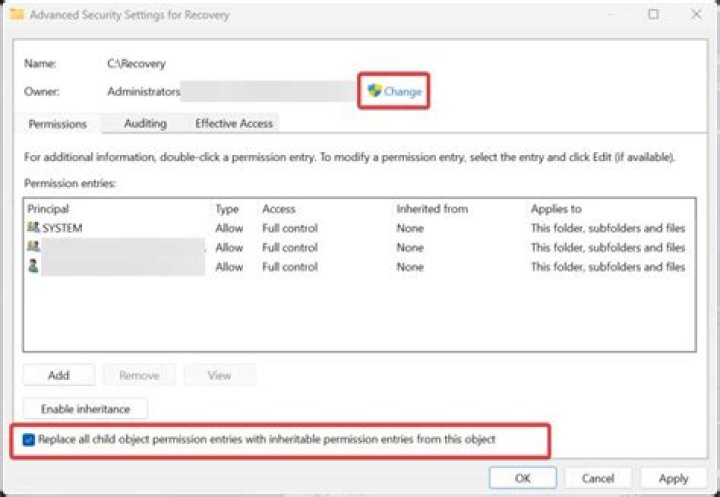
Click the Advanced button. The "Advanced Security Settings" window will appear. Here you need to change the Owner of the key. Click the Change link next to the "Owner:" label
The Select User or Group window will appear. Select the user account via the Advanced button or just type your user account in the area which says 'Enter the object name to select' and click OK.
Optionally, to change the owner of all subfolders and files inside the folder, select the check box "Replace owner on subcontainers and objects" in the "Advanced Security Settings" window. Click OK to change the ownership.
Now you need to provide full access to the file or folder for your account. Right-click the file or folder again, click Properties, and then click the Security tab.
Click the Add button. The "Permission Entry" window will appear on the screen:
Click "Select a principal" and select your account:
Set permissions to "Full control":
Click OK.