I'm trying to use Windows 7 firewall to block all outgoing and incoming traffic, from all IP's and for all protocals, except for UDP to and from one particular IP address.
The reason why is because I am using a VPN over UDP, and so no other traffic is necessary so I'd like to shut it all down.
My configuration blocks all outgoing traffic, but also it blocks traffic going out to the IP I want to be able to access. I can't for example ping the allowed IP address (notice I have it set as any protocol allowed, so ping should work). I get 'General Failure' when I try to ping it.
I figured having the allow rule at the top of the list would make it work but it doesn't. Am I missing something here?
2 Answers
The proper way to accomplish this is to configure Windows Firewall to block all outgoing traffic by default, and then only allow the outgoing connection(s) you want.
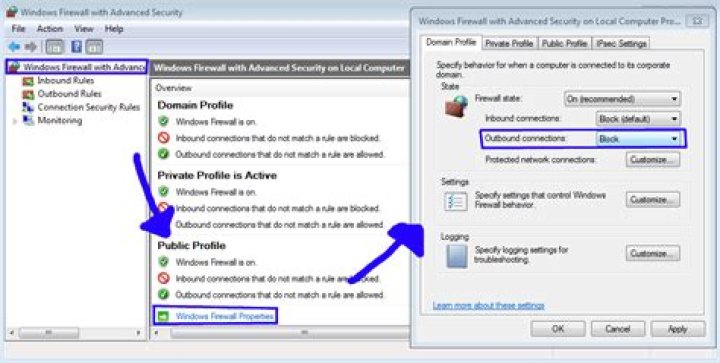
To do that, click on Windows Firewall with Advanced Security in the left pane, and choose Windows Firewall Properties from the right pane. Next to Outbound connections, choose Block. Then, click OK.
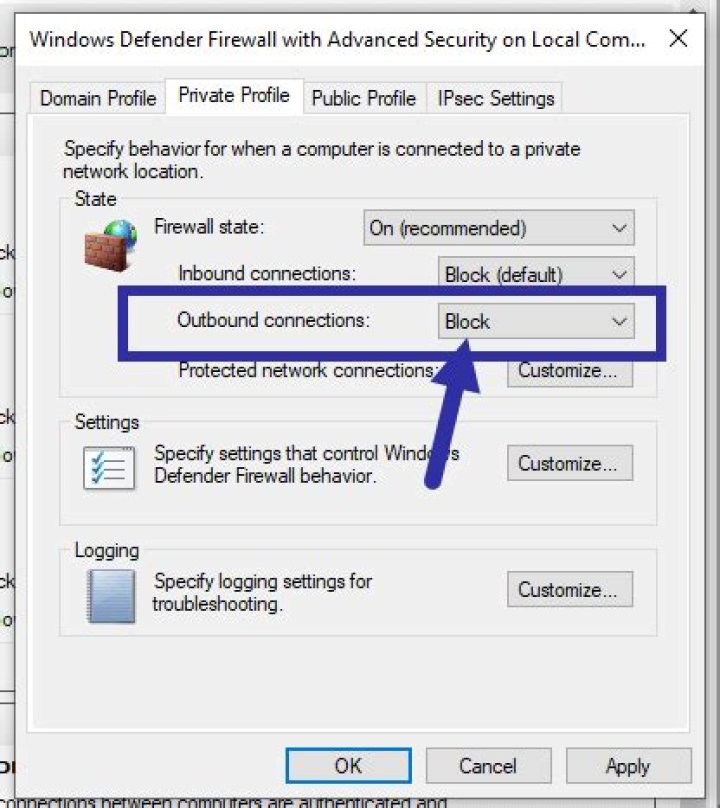
Once you've done that, just delete the block all outgoing traffic rule and you should be all set.
2You can do this with IPSec.
- Click Start and type MMC then select the MMC from the list.
- Click File -> Add/Remove Snap-In -> Add the IP Security Policy Snap-In and Click Ok
- Right Click on the middle section and click "Create IP Security Policy"
- Follow through the first wizard with the defaults giving the name/description you want.
- With the Windows that opens after the first wizard click "Add..."
- Click "Next" x3 and then click "Add..."
- Give the name of "Block All" or something similar. Click "Add..."
- Run through that wizard keeping all the defaults and click "OK"
- Select "Block All" and click "Next" and then "Add..." again
- Follow the wizard giving the name of "Block" and select "Block" as the action.
- Repeat Steps 5-10 selecting the proper source/destination/protocol and selecting "Permit" in Step 10.