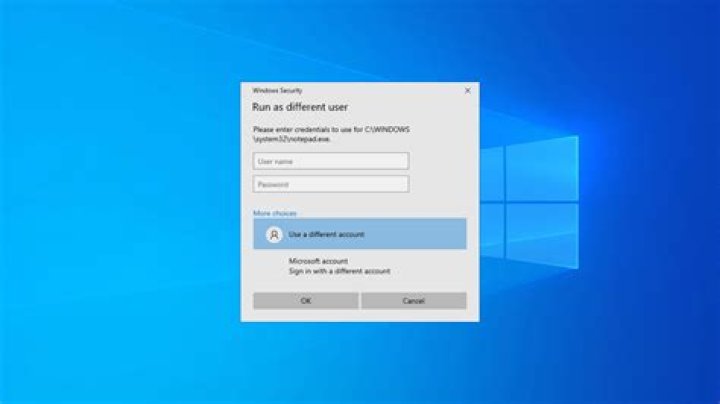
Running an application as a different user (e.g. domain admin account) from the start menu (by shift + right-clicking the application) used to be an option in Windows 7 & XP.
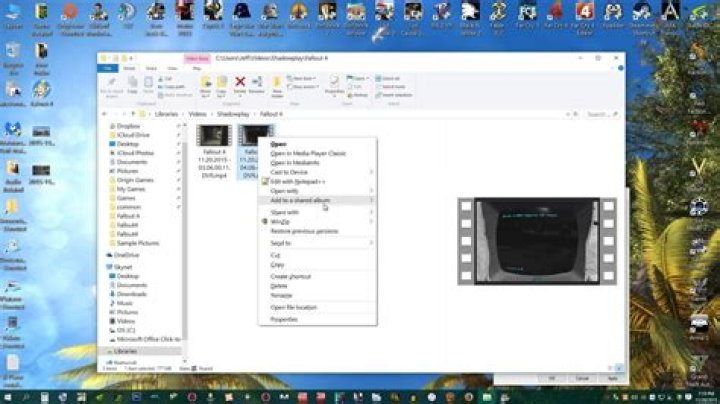
However, I can't find that option in Windows 10. The workaround seems to be either 1) to find the application in Windows Explorer (shift + right-click) or 2) use runas.exe from the command line.
However, in order to use those workarounds, I have look up the executable name first. It's a bit difficult because I don't have the name of every RSAT tool or executable name memorized.
(e.g. "Active Directory Users and Computers" is dsa.msc, "Routing and Remote Acces" is rrasmgmt.msc)
Is there a simpler way to do this?
04 Answers
- Open Registry Editor by pressing Windows + R key combination, type in
regeditand press Enter. If prompted by UAC, click on Yes to continue. - Go to
HKEY_CURRENT_USER\Software\Policies\Microsoft\Windows\Explorer- If you do not find this key, then right click and add the Explorer key under Windows and add DWORD valueShowRunasDifferentuserinStart - In right-side pane, right click on
ShowRunasDifferentuserinStartkey and then click Modify. - Enter
1as the value in Value data box - Click Ok to save the setting.
- Close Registry Editor. Restart the system.
After rebooting, you should have the "Run as different user option", sometimes under the "More" drop down.
I've done this on several domain joined and non domain joined PCs, works like a charm.
Source: windows10update.com
1You just right click on the shortcut.

You can also create a shortcut and use "runas" same as any version of Windows as explained in this answer by Chris Dwyer
- Right-click > New > Shortcut
- For Target, type "runas /user:ComputerName\administrator program.exe"
.....
To create a shortcut using the runas command
.....
You can also use StartIsBack++ to get the functionality again.
If a program like StartIsBack++ cannot be used you can enable the behavior with the by setting the Start Menu and Taskbar Show "Run as different user" command on Start group policy to Enabled
There is another (probably new) solution to enable this functionality, which is far more simple than the other ones offered. Simply navigate to the Settings > Update & security > For developers, and under the Windows Explorer one can see a list of things that can be applied.
That list of things that you may apply, might be a little hard to understand at the first look, but I believe it works like this: If it is grayed-out, then it means that that particular thing is already like that (enabled), and hitting the Apply will enable the ones that are not grayed-out and are currently selected.
Following that description I've just made up, if one wants to enable just the Change policy to show Run as different user in Start, he/she has to remove the checks from all the others and hit the Apply.
And finally, here's a screenshot of the particular setting I am talking about:
As long as the Secondary Logon service (seclogon) is running, the following code blocks permit a combination of Batch and VBScript files to automate the task. the batch file uses relative path references to allow the files to be places into any path that allows at least read permission by the current and selected user accounts. Both files should be located within the same path. The use of ShellExecute with a verb of runasuser causes Windows to bring up a prompt to allow the user to select from any logon method allowed by the host computer.
This process can be added to a users startup processes so that it occurs once logged into a computer system.
Batch file: {RunAsUser}{CMD}.cmd
@Echo Off If "%~1" NEQ "/CALLBACK" Goto :label_Process_Run_As_User :::::::::::::::::::::::::::::::::::::::::::::::::::::::::::::::::::::::::::::::: REM Start the process once running as designated user :::::::::::::::::::::::::::::::::::::::::::::::::::::::::::::::::::::::::::::::: cd C:\ start "" %~dp0cmd.lnk Goto :EOF :label_Process_Run_As_User :::::::::::::::::::::::::::::::::::::::::::::::::::::::::::::::::::::::::::::::: REM Section below verifies if Secondary Login is available :::::::::::::::::::::::::::::::::::::::::::::::::::::::::::::::::::::::::::::::: REM Query [Secondary Logon] sc query seclogon 1> nul 2> nul || ( Goto :label_Missing_Secondary_Login ) REM Check to see if [Secondary Logon] service is not disabled sc qc seclogon | Find /i "START_TYPE" | Find /i "DISABLED" 1> nul 2> nul && ( Set flg.SecLog.Enabled=F ) || ( Set flg.SecLog.Enabled=T ) REM Check to see if [Secondary Logon] service is Running sc queryex seclogon | Find /i "STATE" | Find /i "RUNNING" 1> nul 2> nul && ( Set flg.SecLog.Running=T ) || ( Set flg.SecLog.Running=F ) REM Determine if action should work If /i "%flg.SecLog.Enabled%:%flg.SecLog.Running%" EQU "F:F" Goto :label_Secondary_Login_Unavailable :::::::::::::::::::::::::::::::::::::::::::::::::::::::::::::::::::::::::::::::: REM Section below starts the RunAsUser process :::::::::::::::::::::::::::::::::::::::::::::::::::::::::::::::::::::::::::::::: REM System configuration was validateed and RunAsUser will commence Set "str.SELF=%~0" WSCRIPT /E:VBSCRIPT "%~dp0RunAsUser.txt" Goto :EOF :::::::::::::::::::::::::::::::::::::::::::::::::::::::::::::::::::::::::::::::: REM Section below provides written notices to user for error conditions :::::::::::::::::::::::::::::::::::::::::::::::::::::::::::::::::::::::::::::::: :label_Secondary_Login_Unavailable Echo. Echo Unable to utilize the Secondary Logon system service because it is disabled. Echo. pause Goto :EOF :label_Missing_Secondary_Login Echo. Echo Unable to find the Secondary Logon system service Echo. pause Goto :EOF VBScript file: RunAsUser.txt
'------------------------------------------- ' ' Launch Process RunAsUser CreateObject("Shell.Application").ShellExecute CreateObject("WScript.Shell").Environment("PROCESS")("str.SELF"), "/CALLBACK", "", "runasuser", 1 ' ' Display a message box to pause script msgbox "Enter username or select Certificate for account" & vbCrLf & "On the windows dialog that will popup." & vbCrLf & vbCrLf & "Click OK once process opens", vbokonly ' ' Quit the script On Error Resume Next Window.Close ' HTA Must be Closed Through the Window Object Err.Clear Wscript.Quit ' VBS Must be Closed Through the Wscript Object Err.Clear On Error Goto 0 ' ' ----------------------------------------------------------------------