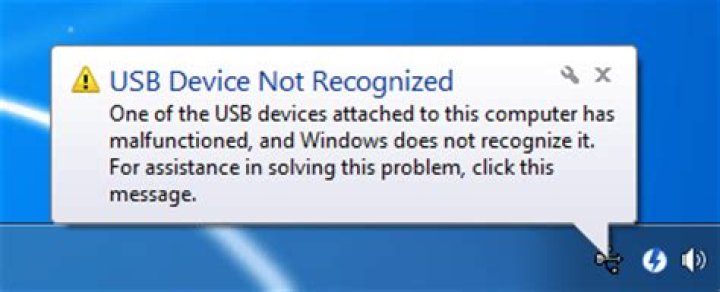
I'm getting this message, when I plugin a new USB device such as 3G modem or a mouse (into any port).
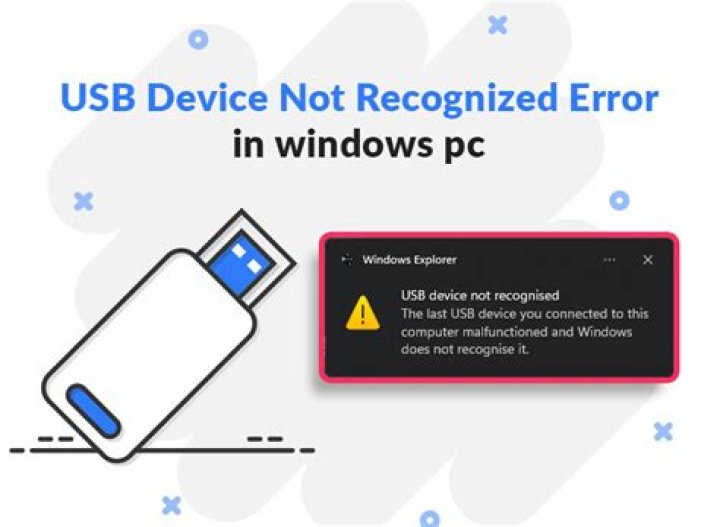
When I reboot leaving it in the same port, all works OK.
If I unplug it and plug it in again, I'm getting the same message again, the device doesn't work and Windows hangs when I try to reboot or shutdown.
I have a freshly installed Windows 7 (the same edition) on a secondary disk, and there is no such problem there.
Any ideas, how to solve this problem without a complete reinstall of the system?
57 Answers
I solved a similar problem. My USB system had become very ill: although existing drivers would work fine, as soon as I moved any USB device to another port or installed a new device or tried, horror, to reinstall a device, Windows would refuse with "USB device not recognized". Within a couple of hours, my system was reachable by Remote Desktop only -- no USB at all worked.
The solution in my case was:
- To observe that
C:\Windows\inf\(= %SYSTEMROOT%\INF) did not containusb.inf - To head over to the thread to find out how to reinstall the missing files (most posts in this thread are of marginal interest)
- I used the variation: peruse
C:\Windows\inf\setupapi.dev.logor its historical versions to figure out whichC:\Windows\System32\DriverStore\FileRepositorycontains the originalusb.inf:
In that previous version of the log, I looked for the string "usb.inf". This allowed me to figure out that it was originally copied into C:\Windows\inf from:
C:\Windows\System32\DriverStore\FileRepository\usb.inf_amd64_neutral_153b489118ee37b8This is of course system dependent. I copied both usb.inf and usb.pnf from there to C:\Windows\inf.
That's all it took in my case.
2These are the options listed at Microsoft for the issue of USB ports made non-responsive by removing or connecting USB devices:
1: Use Device Manager to scan for hardware changes
2: Restart the computer
3: Disable and re-enable the USB controller.
Since rebooting every time you want to connect or disconnect a USB device seems like a lame solution, I'd probably try reinstalling the USB controllers:
1First, disconnect all USB devices, even your USB mouse. Then:
- Press "Ctrl + Esc" to open the Start Menu.
- Type Device Manager in the Search bar and press "Enter". Click Continue if necessary.
- In Device Manger, press Tab and use "Up" and "Down" to move the highlight to "Universal Serial Bus Controllers".
- Press "Right" and expand it.
- Press "Down" to move to the first item and press "Delete" to remove it.
- Repeat the step 5 and uninstall all items under "Universal Serial Bus Controllers".
- Reboot.
I would first suggest to compare in Device Manager the USB driver on both versions of Windows 7, the "bad" and the "clean". If they are not the same, this can explain the difference.
Secondly, I would suggest booting the "bad" version in Safe mode. If the problem now disappears, then the cause is some installed product. Use Autoruns to turn off stuff in bunches and rebooting until you find the guilty product.
[EDIT]
As you have said that Device Manager hangs forever, your computer really seems to be in a bad shape.
The only solution to avoid complete re-installation may be to refresh Windows by doing Startup Repair in Windows 7. This will only refresh Windows and leave alone all installed applications and their settings. You will need a Windows boot DVD of the same service-pack level as your installed system.
If your Windows installation is too messed-up so that Startup Repair fails, you will need to reinstall Windows from scratch, recommended with a reformat of the hard disk. So ensure you have backups of all your data, and installation media for all your products including serials. On some computers you receive a boot CD that allows you to restore the system to its state as when bought.
Did they used to work? If not, then perhaps you have a bad USB hub/controller. If they did, then unless there was a short-circuit or something to damage the hub/controller, it should be possible to fix it.
I have seen this with a few different kinds of devices. In most cases, there was nothing actually wrong with the device. (Which makes me feel really bad about spending $27CAD to ship my QX3 back to Intel in the USA in exchange for a check for $24CAD. >:-|)
There’s a few things to try before assuming the device is at fault. You said the problem is not device-specific, so the first two options are more likely to help unless you somehow have a bunch of bad USB devices.
Ensure that the cables are all correctly connected. Sometimes the cables (including the ones that connect from the ports on the front or back of the case to the motherboard) can come loose a bit, thus disrupting the connection.
Clean the pins. The metal pins on the USB connector (on both the device/cable and the port) can accumulate a patina (especially in humid conditions), which disrupts the signal. Use a cotton swab with water/soap/alcohol or something to clean them off, thus restoring their electrical connection. I usually just resort to lightly scrubbing them with a cardboard Emory board.
Open a command-prompt (
cmd.exe), typeset devmgr_show_nonpresent_devices=1followed bydevmgmt.msc. In the Device Manager, select View->Show hidden devices. Now find the device that is giving you problems, right-click it and select Uninstall. Disconnect the device, reboot, and connect it when Windows has completely loaded.Run Windows Update to see if it can detect the device and/or if there is a newer driver available.
Some USB devices are not compatible with USB power management in some operating systems. There is tickmark in USB hub properties for that.
Well if you getting USB device not recognized error something like this:
The full post is here: (Which have 8 methods in total to fix your problem)

These are the methods which can help you fix this error:
Method 1: Disable Fast Startup
1.Press Windows Key + R then type "powercfg.cpl" and hit OK.
2.Click on Choose what the power buttons do in the top-left column.
3.Next, click on Change settings that are currently unavailable.
4.Uncheck Turn on Fast startup under Shutdown settings.
5.Now click Save changes and Restart your PC.
Method 2: Change the USB Selective Suspend Settings
1.Press Windows Key + R then type "powercfg.cpl" and hit OK.
2.Next, click on Change plan settings on your currently select power plan.
3.Now click Change advanced power settings.
4.Navigate to USB settings and expand it, then expand USB selective suspend settings.
5.Disable both On battery and Plugged in settings.
6.Click Apply and Restart your PC.
The above methods must have fixed USB device not recognized by Windows error.
Some extra notes:
1) You can also disable USB power saving using a registry key:
[HKEY_LOCAL_MACHINE\SYSTEM\CurrentControlSet\Services\USB] "DisableSelectiveSuspend"=dword:00000001
2) Other method is: diagnose & solve USB problems with Windows troubleshooter
- Open “Troubleshooting” from Control Panel.
- Change the “View By” option to “Small icons” and click “Troubleshooting”.
- Under “Hardware and Sound” section, click “Configure a device”.