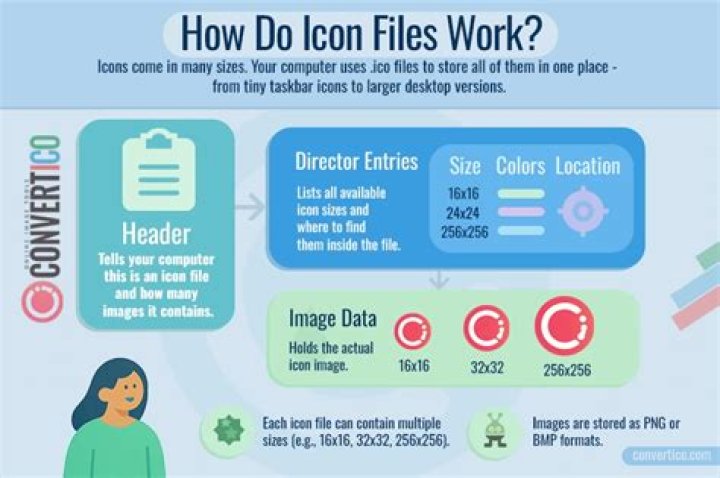

I have seen .ico icons that have different images for multiple sizes, eg. 16x16, 32x32, 48x48, 128x128, 256x256. On Windows, how can I create an icon file that supports multiple sizes in this way, given I have existing .ico files for each size? Please note that I'm hoping to do this to 200+ files, so doing it from cmd would be ideal.
09 Answers
ImageMagick (Windows/Mac/Linux) contains a command-line tool called convert that can be used for many things, including packing multiple images in one icon:
convert 16.png 32.png 48.png 128.png 256.png -colors 256 icon.ico The previous command takes 5 PNG images, and combines them into a single .ico file.
Unlike the other answers, this method can easily be used in batch scripts to automatically generate several icon files. In one of my projects, I have a single vector image (SVG), and use Inkscape to generate png's of various sizes, followed by convert to create a icon container. This is a reduced example (in a bash script):
#!/bin/bash for size in 16 32 48 128 256; do inkscape -z -e $size.png -w $size -h $size icon.svg >/dev/null 2>/dev/null done convert 16.png 32.png 48.png 128.png 256.png -colors 256 icon.ico Better command for ImageMagick:
convert in.jpg -define icon:auto-resize=16,48,256 -compress zip out.ico You can do this for free in GIMP. There are brief instructions for doing this here.
To quote:
- Open your image in Gimp
- Make your canvas square
- Resize your layer to the image
- Scale the layer to the largest size in your .ico file like 64 pixels
- Duplicate the layer
- Scale the duplicate layer to the next size
- Keep duplicating / scaling for all the sizes you want in your .ico file
- Save as .ico
In your case, you could either start with the largest image and scale down for each duplicated image, or you could just add new layers and import the specific icon images you wanted into that layer.
3Here’s the accepted answer by Rob W, with a trivial adaptation to avoid having to type the sizes (16, 32, etc.) more than once:
#!/bin/bash files=() for size in 16 32 48 128 256; do inkscape -z -e "$size.png" -w "$size" -h "$size" logo.svg > /dev/null 2> /dev/null files+=("$size.png") done convert "${files[@]}" -colors 256 favicon.ico unlink "${files[@]}" Here logo.svg represents the input (source) image, from which we create smaller files of the desired sizes (16.png, 32.png, etc.) which we then combine into the output (result) icon file, favicon.ico. You can change the list of sizes in line 3, e.g., to "16 24 32 48 64 72 128", and the convert command will automatically adapt accordingly, because this script uses the technique described by G-Man in his answer here to build an array of filenames. And finally we unlink (remove) the PNG files created in line 4, using the array of filenames again.
I’ve noticed that the command:
convert logo.svg -define icon:auto-resize=16,48,256 -compress zip favicon.ico (equivalent to the one presented in user400747’s answer) actually scaled bitmap image (lost quality) and layers background lost transparency.
2You might try Matthias Benkmann's png2ico. It is free and can pack multi size png's into a single ico file.
1Windows batch file, which creates multiple sized .PNGs and merge them to one .ICO file:
@echo off set inkScape="C:\SOFTWARE\GRAPHIC\INKSCAPE\inkscape.exe" set imageMagick="C:\SOFTWARE\DEVELOPER\IMAGEMAGICK\magick.exe" set fileName=favicon set importType=svg set exportType=png set exportDpi=300 set imageSizes=(16 24 32 48 57 60 64 70 72 76 96 114 120 128 144 150 152 180 192 196 256 300 320 400 450 460 480 512 600) for %%s in %imageSizes% do ( %inkScape% -z -f %~dp0%fileName%.%importType% -w %%s -h %%s -e %~dp0%fileName%-%%sx%%s.%exportType% -d %exportDpi% echo CREATED: %fileName%-%%sx%%s.%exportType% set e=%fileName%-%%sx%%s.%exportType% call :concat (e) ) %imageMagick% %exportFileNames%"%~dp0%fileName%.ico" echo MERGED IN: %fileName%.ico pause goto :eof :concat (e) ( set exportFileNames=%exportFileNames%"%~dp0%e%" ) If you don't need the .PNG files, you can delete (or remove) them by del FILE or you save all PNGs inside a directory you can remove (after %imageMagick% %exportFileNames%"%~dp0%fileName%.ico").
Hope it helps somebody. :)
It is my opinion that Axialis IconMaker is the best solution to icon problems. There's a 30 day trial that will probably solve the problem for you.
I have used Axialis for so many years and on so many projects, I can attest that it is a really worthwhile product. You won't need 30 days! Ha!
You must use a third-party icon-editing program because MSPaint only supports a single icon per file. There are a couple of threads here with recommendations for icon editors, some free, some commercial.
Once you settle on an icon editor, the method of adding icon formats will vary but generally be similar (you click a button or select a menu item to add a new format). Most programs will let you import an icon file when adding an icon format/size, but most also let you create a new format/size from the existing one by re-sizing it.
If you choose to use the create-from-existing option when adding a new format/size, make sure to create them from the largest icon format you have already available since it will have the most data for the re-sizing algorithm to work with. Also, make sure to use a version with transparency when creating an XP/Vista icon since most programs are not great at creating the alpha channel from scratch.
2I made a script for windows and I saved it as png2icon.bat. as a side note, you need to download imagemagick, and put its path into your path environment variable, then you can easily use this script.
@echo off setlocal enableDelayedExpansion set sizes[5]=16x16 set sizes[4]=32x32 set sizes[3]=48x48 set sizes[2]=64x64 set sizes[1]=128x128 set sizes[0]=256x256 set newnames[0]="zero" (for /L %%i in (0,1,5) do ( set newnames[%%i]="%1_!sizes[%%i]!.png" magick convert "%1" -resize !sizes[%%i]! PNG24:!newnames[%%i]! )) magick convert !newnames[0]! !newnames[1]! !newnames[2]! !newnames[3]! !newnames[4]! !newnames[5]! icon.ico del !newnames[0]! !newnames[1]! !newnames[2]! !newnames[3]! !newnames[4]! !newnames[5]! Usage:
png2icon YOUR_FILE.png