I want make a .gif animated picture from a given set of .jpg pictures.
I would prefer to do it from the command line, so command line tools would be very welcome.
16 Answers
You can use ImageMagick package. Install it using the command:
sudo apt-get install imagemagick Now you can create a gif from number of pictures(jpg) using:
convert -delay 20 -loop 0 *.jpg myimage.gif To complete @Maythux answer:
To avoid generating a very large file, you can use -resize option:
In my case, I have 4608x3456 images and the generated gif was more than 300M for 32 images
convert -resize 20% -delay 20 -loop 0 *.jpg myimage.gif or
convert -resize 768x576 -delay 20 -loop 0 *.jpg myimage.gif Take care of *.jpg
*.jpg sucks a bit when dealing with numeric values, you may generate a gif with unsorted pics.
$ ls|cat 21-33-26_1.jpg 21-33-26_10.jpg // <--- this one 21-33-26_2.jpg 21-33-26_3.jpg 21-33-26_4.jpg 21-33-26_5.jpg 21-33-26_6.jpg 21-33-26_7.jpg 21-33-26_8.jpg 21-33-26_9.jpg 21-33-28_1.jpg // <--- should be here 21-33-28_2.jpg 21-33-28_3.jpg ... As the shots were taken very quickly (10/s) they all have the same modification time and you can't trick using ls -t for example. On ubuntu you can use ls -v instead, something like:
convert -resize 768x576 -delay 20 -loop 0 `ls -v` myimage.gif Sorting numerically is quite tricky on Mac OS X though, I guess you'll need to build a custom script.
4ffmeg solution + test data
As of Ubuntu 18.10, ffpmeg 4.0.2-2, ImageMagick 6.9.10-8, I have found that ffmpeg is much faster than ImageMagick, and uses much less memory.
The simplest conversion command is:
ffmpeg \ -framerate 60 \ -pattern_type glob \ -i '*.png' \ -r 15 \ -vf scale=512:-1 \ out.gif \ ; You can get my test data with:
wget -O opengl-rotating-triangle.zip unzip opengl-rotating-triangle.zip cd opengl-rotating-triangle 
The test data was generated with: and contains 256 1024x1024 PNG images.
And here is another test data that you can generate directly in your browser right now!

The important ffmpeg options I want to highlight are:
-pattern_type glob: convenient way to select images-framerate 60: assume 60 FPS on input images, and output the same FPS.ffmpegcannot know otherwise, since there is no FPS data is in images as there is is in video formats.The 256 input frames take about 4 seconds to finish.
-r 15: optional. Pick one every 4 images so reduce size (4 == 60 / 15).With it,
identify out.gifsays that the GIF contains only 64 frames.It still takes 4 seconds to play, so the delay is altered to make things match.
-vf scale=512:-1: optional. Set the width, scale height proportionally, usually to reduce size and save space.
See also:
- video from images:
- GIF from video: How to create an animated GIF from MP4 video via command line?
ImageMagick vs ffmpeg benchmark
To get ImageMagick to work, I first had to modify its disk and memory limits at /etc/ImageMagick-6/policy.xml as explained at:
I compared the commands:
/usr/bin/time -v convert *.png -deconstruct -delay 1.6 out-convert.gif /usr/bin/time -v ffmpeg \ -framerate 60 \ -pattern_type glob \ -i '*.png' \ out-ffmpeg.gif \ ; The commands were constructed to produce outputs that are as close as possible to make the comparison valid:
/usr/bin/time -v: used to find the maximum memory usage as explained at:-deconstruct: GIF images can contain just the minimal modified rectangle from the previous frame to make the GIF smaller.ffmpegcalculates those diffs by default, but ImageMagick does not, unless-deconstructis used.You will basically want to use that option every time with ImageMagick.
We can observe the difference with:
identify out.gifWith the compressed version, all frames have smaller sizes than the initial one, e.g.:
out.gif[0] GIF 1024x1024 1024x1024+0+0 8-bit sRGB 256c 16.7865MiB 0.010u 0:00.010 out.gif[1] GIF 516x516 1024x1024+252+257 8-bit sRGB 256c 16.7865MiB 0.010u 0:00.010 out.gif[2] GIF 515x520 1024x1024+248+257 8-bit sRGB 256c 16.7865MiB 0.010u 0:00.010In this example, the second frame is only
516x516instead of the full 1024x1024, and is placed at an offset of252+257. It therefore contains just the middle triangle.See also: how can I resize an animated GIF file using ImageMagick?
-delay: value that matches the 60FPS offfmpeg. Should not matter for conversion performance, but I don't want to risk it.
The output GIFs have about the same size and look visually identical.
We get for ImageMagick:
Elapsed (wall clock) time (h:mm:ss or m:ss): 0:56.16 Maximum resident set size (kbytes): 2676856 and for ffmpeg:
Elapsed (wall clock) time (h:mm:ss or m:ss): 0:04.41 Maximum resident set size (kbytes): 97172 from which we see that:
- ImageMagick used 2.6Gb of RAM and took about 1 minute
- ffmpeg used 100Mb of RAM and took 4 seconds
Test hardware: Lenovo ThinkPad P51 laptop, Intel Core i7-7820HQ, 32GB(16+16) DDR4 2400MHz SODIMM, 512GB SSD PCIe TLC OPAL2.
2Instead of modifying file names you can use globbing to get your shell to expand file names
convert -resize 50% -delay 10 -loop 0 image_{0..99}.jpg output.gif GIMP
You can easily do this with GIMP. First install it if it's not installed already with
sudo apt-get install gimp Creating the gif
From GIMP go to File -> Open as Layers to open all the png's on their own layer.
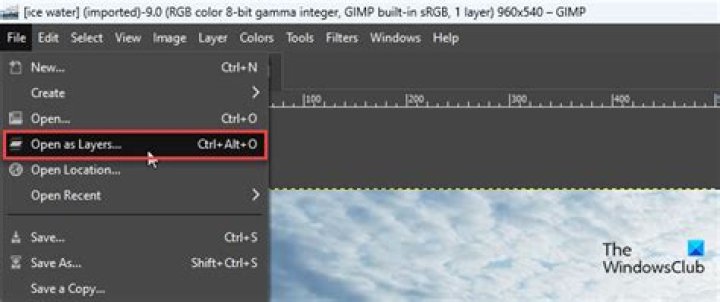
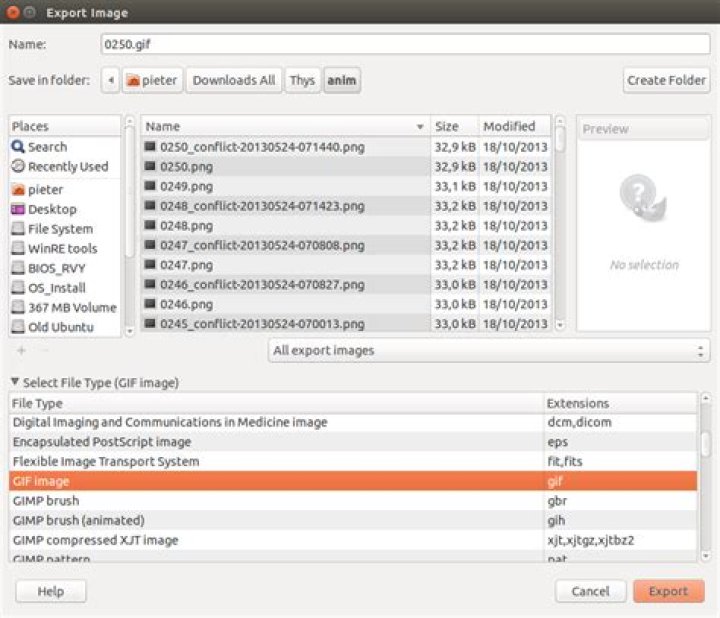
From here you can perform edits on the layers and, once done, go to File -> Export As. From the dialog be sure to set the file type to GIF.

From there you will go to the GIF export options. Tick the 'As Animation' option and set the parameters as required.
To change the delay between frames
Modify the name of the layers, and include the delay in milliseconds between parenthesises, like this: (1500ms)
To preview the animation before exporting
Click "Filters" menu, then "Animation", then "Animation Playback".
1You can use a program called convert included in the imagemagick package. It is command line driven, but very easy to use. Install it either through the software center, or go to a command prompt and type
sudo apt-get install imagemagick Now to create the .gif.
convert -delay 100 -size 100x100 xc:SkyBlue \ -page +5+10 balloon.gif -page +35+30 medical.gif \ -page +62+50 present.gif -page +10+55 shading.gif \ -loop 0 animation.gif *Note the above example is straight from Image Magick Examples
2