I recently installed Ubuntu Server edition 13.10 (Saucy Salamander). But I have run into a bit of problem.
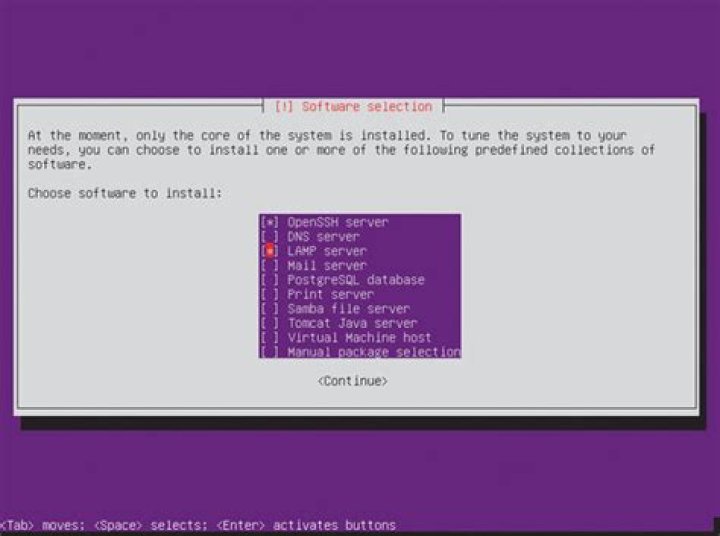
At the end of the installation, it asks about several extra packages whether you want them or not, like OpenSSH server and virtual machine host. Here's what I'm looking at:

Now, my problem is that I can't remember if I have checked the "virtual machine host" checkbox. How do I check if my server has the corresponding packages?
What packages come with the virtual machine host?
114 Answers
Are you looking to know about all dpkg commands with options? Have a read from the below link.
15 dpkg commands to Manage Debian based Linux Servers
To List all Installed Packages
Here less is a simple text reader used to scroll through the list of packages in a new buffer that opens in the existing terminal window. The list will not be mixed with other terminal commands and output. Hit q to return to the terminal prompt. See man less for more info.
dpkg -l | less To check whether a package is installed or not:
dpkg -l {package_name} dpkg -l vlc To check if the package is installed or not (for example, vlc). If installed, launch the package:
dpkg -l | grep vlc Show the location where the package is installed. The -S (capital S) stands for "search"
sudo dpkg -S {package_name} sudo dpkg -S skype To use Grep to search:
dpkg -l | grep {keywords} dpkg -l | grep pdf apt -qq list PACKAGE can also be used for checking whether the PACKAGE is installed.
If installed it'll print something like (with [installed] at the end of the line):
$ apt -qq list awscli awscli/stable,now 1.4.2-1 all [installed] If not installed the output will be:
$ apt -qq list awscli awscli/stable 1.4.2-1 all Use dpkg
This command is the Debian package manager.
You can list all the installed packages with
dpkg -l You can see details for a specific package with
dpkg -p packagename And to learn if it is installed, use
dpkg -s packagename | grep Status You can learn which package contains the software you want with
apt-cache search name* In your case you should use this command to search the package name you want
apt-cache search virtual machine host I've found a way to check for package installation with just dpkg-query command and no pipes.
I searched for such solution while writing a task for ansible playbook.
You can do something like this:
/usr/bin/dpkg-query --show --showformat='${db:Status-Status}\n' '<your package name>' This is just one another way to do the thing.
2Simpler solution:
There is now an apt list command that lists available packages, and the --installed command will show only installed packages. You can also search for a specific package with
apt list <package> Or to see only the matching installed packages
apt list <package> --installed There are also the --upgradeable and --all-versions flags.
If you do not know the exact package name, you can use apt search followed by part of it to see a list of related packages. This will allow you to use a partial name or regex term(s) to filter a list of available packages, but it does not have the nifty flags for filtering that apt list has.
Also see man apt for more information.
I am writing a new answer as Tasksel 'Task names' DO NOT show up in dpkg or apt queries. Meaning the other answers are incomplete (or wrong).
"I can't remember If I have checked the 'virtual machine host' checkbox.."
Check if there is an asterisk by the name after re-running sudo tasksel (or an ' i ' if running tasksel --list-tasks).
If you do not see this, then you probably do not have the 'tasksel meta-package' installed.
"..How do I check if my server has the corresponding packages?"
If you want to find out what is installed under the Virtual Machine Host tasksel meta-package:
tasksel --list-tasks (in your case tasksel --list-tasks | grep virt is enough)
This gives the proper task name and an indication as to whether it is installed.
In your case this tasksel name is virt-host.
"What packages come with the virtual machine host?"
From the last command, find the tasksel task name. This is needed for the next command:
tasksel --task-packages virt-host This lists the individual Tasksel meta-package (denoted by appended '^') that make up the name. In your case it's virt-host^.
Once you find proper meta-name you can use apt:
apt show virt-host^ | grep "Package:" (or apt-cache show ... if apt show doesn't work.)
This will show all packages making up the given meta package.
Then:
dpkg -l {each individual pkg name listed above} This will tell you if the individual package is installed/uninstalled (noted by 2nd letter: 'i' status means installed). Do this for all packages listed under the task/meta package.
This should answer the original questions.
Side note: /usr/share/tasksel/descs/ubuntu-tasks.desc also holds descriptions of Tasksel meta-packages. If you: grep "virt" /usr/share/tasksel/descs/ubuntu-tasks.desc it will show the proper APT meta-package name. (In your case this is ubuntu-virt-server). You can also use apt commands with this meta-name.
If you are wanting to remove tasksel packages, this gets into the weeds a bit. Please consult this Ask Ubuntu answer or any number of other answers out there.
Please note that "meta" apt packages do not match Tasksel package names. Please consult the Tasksel Community Page for more info.
0Use tasksel (sudo apt-get install tasksel if you don't already have it) and run tasksel --list-tasks.
tasksel will print out a list of the tasks, and there will be an i next to each task that is installed, and a u next to each task that is not installed.
If you wish to install the task, use tasksel install <task>. The name of the task you are looking for is virt-host.
The software selection items are called "tasks".
1I created a little script with which you can automatically install from a list of packages or applications or simply check if they are already installed:
#!/bin/bash apt -qq list YOUR_LIST_GOES_HERE | grep -v "installed" | awk -F/ '{print $1}' > /root/list.txt packages=$(cat /root/list.txt) grep -q '[^[:space:]]' < /root/list.txt CHECK_LIST=$? if [[ $CHECK_LIST -eq 1 ]]; then echo "Your packages are already installed" else echo "Installing packages" apt-get install -y $packages fi Hope it helps someone.
1Check if some packages are installed and install missing ones otherwise
pkgs='hello certbot' install=false for pkg in $pkgs; do status="$(dpkg-query -W --showformat='${db:Status-Status}' "$pkg" 2>&1)" if [ ! $? = 0 ] || [ ! "$status" = installed ]; then install=true break fi done if "$install"; then sudo apt install $pkgs fi Similar technique previously mentioned at:
2Another (not necessarily better) way: see whether the field APT-Manual-Installed appears in apt show <pkgname>. If it is absent then the package isn't installed. Unfortunately it's not shown in apt-cache show <pkgname>.
As always, the apt is for interactive use and not recommended for scripting.
For example, if I know or I want to confirm that mysql is installed use:
apt list --installed | grep mysql
the --installed part is mandatory to confirm that is installed
Knowing that I don't have postgresql installed, so:
apt list --installed | grep postgresql
returns empty/nothing
If I execute without --installed
apt list | grep postgresql
it returns everything about postgresql package names and repository available
In global try apt list --installed vs apt list the latter is bigger than the former about the results returned, the difference is about of course what is installed or not, and what is available
The command (checking that python3-pip is installed):
dpkg --get-selections python3-pip and the output (yes, is installed):
python3-pip install and with a missing package:
dpkg --get-selections some-missing-package dpkg: no packages found matching some-missing-package In my scripts I simply use the dpkg -s <pkgname> | grep installed command then I test the exit code $?: if 0 means the package is installed otherwise if 1 the package isn't installed.
E.g.
> dpkg -s nano | grep installed > echo $? # $? is 0, package "nano" is installed > dpkg -s foobar | grep installed > echo $? # $? is 1, package "foobar" is not installed update:
Better than parsing dpkg output, is to use dpkg-query output. The command below prints installed by itself if the package is installed:
dpkg-query --show --showformat='${db:Status-Status}\n' package-name Again to suppress errors:
dpkg-query --show --showformat='${db:Status-Status}\n' package-name 2>/dev/null original:
Based on feedback from josch in order for a package to be fully installed it should appear with a ii next to it. So a command to find out would be:
# if it prints the package, it is installed dpkg -l package-name | grep -E '^ii\s' Now in case it is not installed at all, dpkg can print an error, in case it was never installed in the past.
dpkg-query: no packages found matching
We can filter appropriately to only get the information that we need.
The following prints installed if the package is installed, nothing otherwise.
( ( dpkg -l package-name 2>&1 ) | grep -E '^ii' > /dev/null ) && echo installed