I've been using Ms Word 2013 for a while, and suddenly in one of my documents, this has appeared..(See pic below)
note- If I create a new document it's not in the new one

Added
I don't yet know how it went into that mode.
It has been pointed out in comment that I can click that "tab" where it says header and footer tools, and then I can click "close".
Then though what happens is the image I have in my document gets greyed out and I see no cursor. Then when I double click in the document, I get the cursor and the image is no longer greyed out but I am in that header footer mode again.
Here is an example, see header and footer mode is closed but the image is greyed out and the cursor if it's even there, isn't going within or before the text above the circle picture, even when I click in that text.
I notice now that the cursor is actually going to the bottom of the page
pic still greyed out
It's as if maybe somehow the text and pictures are stuck in a giant header that is taking up the whole of the first page and can't easily be edited at the same time as the rest of the document can.
I never normally mess with headers/footers at all.
61 Answer
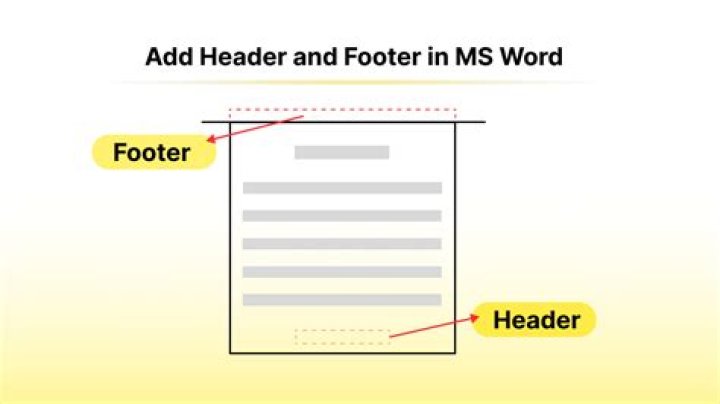
It looks like you're currently in the header/footer editing mode. It automatically switches into that mode if you double-click the header or footer area.
To go back to the normal editing mode you need to click the Header & Footer Tools tab and then click the the Close Header and Footer button. Alternatively double-clicking somewhere on the page outside of the header and footer areas would normally have the same effect.
Some or all of the existing content in your document is probably within the header so you would need to move it into the main area. To fix this please follow the steps below.
- Ensure you are currently still in header/footer editing mode. If not then double-click the greyed out content and it will go back into that mode.
- Press Ctrl + A followed by Ctrl + X to extract all the text and images
- Exit the header/footer editing mode as described earlier
- Use Ctrl + V to insert the content back into the main area of the document