I know I could use %userprofile%\Documents, but this only works if the Documents folder is still in the default location. I am looking for something that works even if the user has changed the location (i.e., from the Location tab in Documents Properties.)
4 Answers
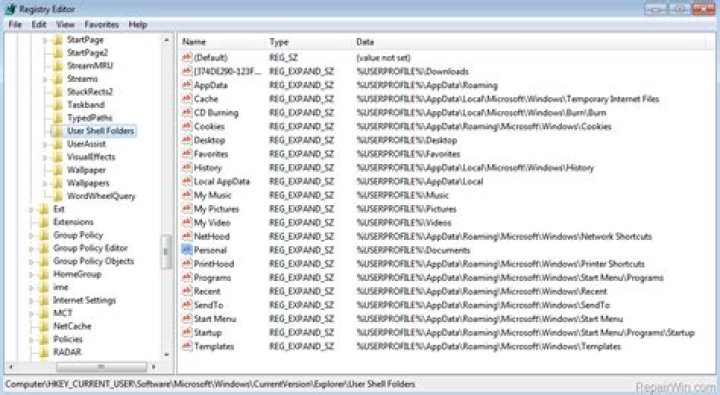
Why not read this information where it is registered directly in the Windows registry:
HKCU\SOFTWARE\Microsoft\Windows\CurrentVersion\Explorer\User Shell Folders

@echo off && setlocal enabledelayedexpansion set "_Key_HKCU_Path=HKCU\SOFTWARE\Microsoft\Windows\CurrentVersion\Explorer\User Shell Folders" set "_Folders_Refer={374DE290-123F-4565-9164-39C4925E467B},Documments,Desktop,Favorites,My Music,My Pictures,My Video,Personal,Programs,Start Menu,Startup" (for %%i in ("!_Folders_Refer:,=","!")do call :^) %%~i) && endlocal && goto :EOF :^) for /f tokens^=3* %%i in ('%__APPDIR__%reg.exe query "!_Key_HKCU_Path!"^|find/i "%~1" ')do <con: set "_user_path=%%i%%j" && cmd /v/c "echo\!_user_path:REG_EXPAND_SZ=! && exit /b" - Outputs results:
C:\Users\ecker\Downloads C:\Users\ecker\Desktop C:\Users\ecker\Favorites C:\Users\ecker\Music C:\Users\ecker\Pictures C:\Users\ecker\Videos C:\Users\ecker\Music C:\Users\ecker\Pictures C:\Users\ecker\Videos C:\Users\ecker\Music C:\Users\ecker\Pictures C:\Users\ecker\Videos C:\Users\ecker\Documents C:\Users\ecker\AppData\Roaming\Microsoft\Windows\StartMenu\Programs C:\Users\ecker\AppData\Roaming\Microsoft\Windows\StartMenu\Programs\Startup C:\Users\ecker\AppData\Roaming\Microsoft\Windows\StartMenu\Programs C:\Users\ecker\AppData\Roaming\Microsoft\Windows\Start Menu C:\Users\ecker\AppData\Roaming\Microsoft\Windows\StartMenu\Programs\Startup C:\Users\ecker\AppData\Roaming\Microsoft\Windows\StartMenu\Programs\Startup
For just Personal/Documents folder:
@echo off && setlocal enabledelayedexpansion set "_Key=HKCU\SOFTWARE\Microsoft\Windows\CurrentVersion\Explorer\User Shell Folders" for /f tokens^=3 %%i in ('%__APPDIR__%reg.exe query "!_Key!"^|find/i "Personal"')do <con: call set "_docs_folder=%%~i" if exist "!_docs_folder!\My_File.docx" ( echo\!_docs_folder!\My_File.docx echo\File exist ) else ( echo\!_docs_folder!\My_File.docx echo\File do not exist ) endlocal && goto :EOF - Output results:
C:\Users\ecker\Documents Obs.: 1 Use <con: call with set "_docs_folder=%%~i" to expand the full path in variable %%~i (%UserProfile%\Documents) to C:\Users\ecker\Documents
Obs.: 2 Your code (powershell with bat/cmd) works very well (for username/folder without space), and it can also be written that way:
@echo off for /f tokens^=* %%a in ('powershell -co [Environment]::GetFolderPath('Personal'^) ')do set "docs_folder=%%a" & if exist "%docs_folder%\*.*" echo\"%docs_folder%\*.*"
Consider using all (*) tokens, because tokens^=* ensures that all characters in the loop variable (%%i) are taken to compose the value in the variable, including the standard delimiters, such as space (for example), and if the username contains any, without tokens^=*, only the first token will actually be used (by default), and in its output/variable will be missing additional characters.
Some further reading:
[√] Set
[√] CMD /?
[√] For Loop
[√] For /F Loop
I figured out a way that works for me:
for /f usebackq %%a in ( `powershell -command "[Environment]::GetFolderPath('Personal')"` ) do (set "docs_folder=%%a") echo %docs_folder% In Windows 10, better to use PowerShell:
You can query the Registry:
(Get-ItemProperty 'HKCU:\Software\Microsoft\Windows\CurrentVersion\Explorer\User Shell Folders').Personal - or - $Key = 'HKCU:\Software\Microsoft\Windows\CurrentVersion\Explorer\User Shell Folders' (gp $Key).Personal Or query the Shell:
(New-Object -ComObject Shell.Application).Namespace("shell:Personal").Self.Path Output:
PS C:\> (Get-ItemProperty 'HKCU:\Software\Microsoft\Windows\CurrentVersion\Explorer\User Shell Folders').Personal C:\Users\keith\Documents PS C:\> PS C:\> (New-Object -ComObject Shell.Application).Namespace("shell:Personal").Self.Path C:\Users\keith\Documents PS C:\> @Tim
Your browser(s) store your default downloads location. For example, in Chrome v83, I can find my downoads folder by searching in... C:\Users\UserName\AppData\Local\Google\Chrome\User Data\Default\Preferences
Look for "default_directory" (including the double quotes).
In my case, my default downloads location is E:\DNLDS and I found the following string in my Preferences file:
"default_directory":"E:\DNLDS"
Note: in the line above, forum software removed the double backslash from my answer. The actual string found in Preferences file contains two backslash symbols after the disk name (E) as in...
"default_directory":"E:\\DNLDS"
Other browsers use different locations for preferences or profiles, but they all must store the target location for files you download from the web.
Be aware that some people define multiple profiles on a given PC. Your batch file may need to download a test file (with a unique name) and search all the default locations to determine which one is the current default. Also, some people define different default downloads locations in different browsers on the same PC. IOW, some users have multiple default downloads locations.