I've been given a design for a template in PDF format which was created in Adobe InDesign and I have to recreate it in Word. The design has some odd margins which I imagine are easy enough to do in a DTP but I'm struggling in Word:
- the first page has 4.5cm left, right 1cm,
- page 2 and subsequent even pages have left 4.5cm, right 2.5cm
- page 3 and subsequent even pages have left 2.5cm and right 4.5cm
I've used mirror margins to take care of pages 2 onwards and I've basically faked the margins on the first page using indents. However the design has a table which extends from page 1 right through to page 4 and I can't get it to respect the margins on each page (it's too far right on odd pages, two far left on even ones). It looks OK on my faked first page!
Any ideas? Many thanks
21 Answer
This takes two parts:
First, you should use different sections for the different layouts. Make page 1 a separate section, and all other pages the second section. To do that, on the Page Layout tab, in the Page Setup group, click Breaks.
Then you can define margins for each section separately.Word always places tables slightly out to the left; as a result, the text in the first column of the table is flush with text written outside the table. Not sure who thinks this is a good idea, but that's how it is set up by default.
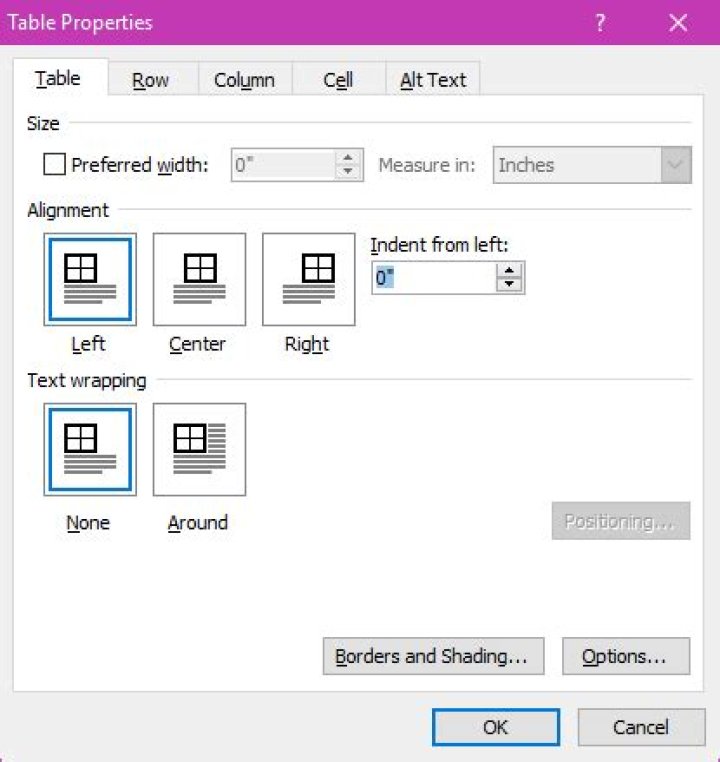
You can change this by editing the table properties, just use ".1" or whatever fits your wishes in this setting (under "Indent from left:"):