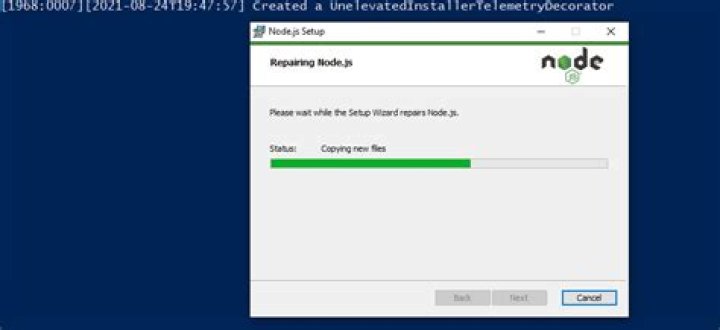
I was installing Node.js on Windows. It installed successfully, and I also selected the option to install necessary files (such as chocolatey) in the node.js installer. After node was installed, it opened up Powershell; after installing for a while, I got this error:
# A lot of logs before, just an excerpt Microsoft.VisualStudio.Workload.VCTools Microsoft.VisualStudio.Component.Roslyn.Compiler Microsoft.Component.MSBuild Microsoft.VisualStudio.Component.CoreBuildTools Microsoft.VisualStudio.Component.Windows10SDK Microsoft.VisualStudio.Component.VC.CoreBuildTools Microsoft.VisualStudio.Component.Static.Analysis.Tools Microsoft.VisualStudio.Component.VC.Tools.x86.x64 Microsoft.VisualStudio.Component.VC.Redist.14.Latest Microsoft.VisualStudio.Component.Windows10SDK.17763 Microsoft.VisualStudio.Component.VC.CMake.Project Microsoft.VisualStudio.Component.TestTools.BuildTools [5330:000f][2021-04-19T18:24:09] Decorating UnelevatedProductModifier with UnelevatedInstallerTelemetryDecorator [5330:000f][2021-04-19T18:24:09] Created a UnelevatedInstallerTelemetryDecorator [5330:000e][2021-04-19T18:24:09] Download requested: [5330:001d][2021-04-19T18:24:09] Attempting download ' using engine 'WebClient' [5330:001d][2021-04-19T18:24:09] WebClient error 'RequestCanceled' with ' - GetWebResponse failed along with a cancellation request [5330:001d][2021-04-19T18:24:09] Error 0x8013153b: [5330:001d][2021-04-19T18:24:09] Could not update channel "" at System.Threading.CancellationToken.ThrowOperationCanceledException() at System.Threading.CancellationToken.ThrowIfCancellationRequested() at Microsoft.VisualStudio.Setup.Download.WebClientEngine.GetWebResponse(Uri uri, DownloadContext downloadContext, DownloadSummary& downloadSummary, HttpWebRequest& webRequest, CancellationToken cancellationToken) at Microsoft.VisualStudio.Setup.Download.WebClientEngine.DownloadCore(Uri uri, Stream stream, ProgressUpdateCallback progress, CancellationToken cancellationToken, DownloadContext downloadContext, ITelemetryOperation telemetryOperation) at Microsoft.VisualStudio.Setup.Download.DownloadEngineBase.DownloadWithBitRate(Uri uri, Stream outputStream, ProgressUpdateCallback progress, CancellationToken cancellationToken, DownloadContext downloadContext, ITelemetryOperation telemetryOperation) at Microsoft.VisualStudio.Setup.Download.DownloadEngineBase.Download(Uri uri, Stream outputStream, ProgressUpdateCallback progress, CancellationToken cancellationToken, DownloadContext downloadContext, ITelemetryOperation telemetryOperation) at Microsoft.VisualStudio.Setup.Download.DownloadManager.DownloadWithRetry(IDownloadEngine[] engines, Uri uri, Stream outputStream, ProgressUpdateCallback progress, CancellationToken cancellationToken, DownloadContext downloadContext, Boolean verifySignature) at Microsoft.VisualStudio.Setup.Download.DownloadManager.<>c__DisplayClass23_0.<Download>b__0() at System.Threading.Tasks.Task`1.InnerInvoke() at System.Threading.Tasks.Task.Execute() --- End of stack trace from previous location where exception was thrown --- at System.Runtime.ExceptionServices.ExceptionDispatchInfo.Throw() at System.Runtime.CompilerServices.TaskAwaiter.ThrowForNonSuccess(Task task) at System.Runtime.CompilerServices.TaskAwaiter.HandleNonSuccessAndDebuggerNotification(Task task) at Microsoft.VisualStudio.Setup.ChannelManager.<GetLatestChannelManifestAsync>d__85.MoveNext() --- End of stack trace from previous location where exception was thrown --- at System.Runtime.ExceptionServices.ExceptionDispatchInfo.Throw() at System.Runtime.CompilerServices.TaskAwaiter.ThrowForNonSuccess(Task task) at System.Runtime.CompilerServices.TaskAwaiter.HandleNonSuccessAndDebuggerNotification(Task task) at Microsoft.VisualStudio.Setup.ChannelManager.<UpdateChannelManifestAsync>d__77.MoveNext() And nothing else is happening. What do I do?
5 Answers
Same problem today. I just had Windows Powershell stop and freeze for about 5 minutes while installing Node.JS for VS Code (not Visual Studio). Last output from console is:
$ Created a UnelevatedInstallerTelemetryDecorator
Long story short: I had to exit the terminal (did not like this action) and reboot the computer because the install program was still running. Then I clicked on the installation file to run the Node.js Setup Wizard (node-v15.14.0-x64.msi). There is a second option to repair the install attempt: "Repair". Click on that button and the install wizard completes the repair with full exit. The program notices that some elements have not been completed. Then you can run a javascript file at the terminal in VS Code.
I did not have to repair VS Code.
Sample run from VS Code Terminal (terminal entry in bold)
PS "Drive Location"\JavaScript> node canDrinkNoIfs.js
To run the script in VSC I need to open the folder (File -> open folder.) and then create a json file to run and debug code. This json file is saved the .vscode subfolder.
{ // Use IntelliSense to learn about possible attributes. // Hover to view descriptions of existing attributes. // For more information, visit: "version": "0.2.0", "configurations": [ { "type": "pwa-node", "request": "launch", "name": "Launch Program", "skipFiles": [ "<node_internals>/**" ], "program": "${workspaceFolder}\\canDrinkNoifs.js" }]} it happens to me.
first try to use space or tab. in my first stop powershell
Download of vs_BuildTools.exe (1.4 MB) completed. Hashes match. Installing visualstudio2017buildtools... is working...
guys if you use space or tab, and then work: this happens because you use the click-mouse in the PowerShell, don't do this, sometimes is pausing the program :) [if is working, is a normal error, and it don't cause nothing danger for completing the downloading]
but then I have a lot of white text. the last stop is
[1968:0007][2021-08-24T19:47:57] Created a UnelevatedInstallerTelemetryDecorator for correct this error... do this!
- go to edge (or the browser you choose for download)
- go to download tab, where there is
node-v14.17.5-x64.msi(for edge isCTRL+J) - OPEN FILE
- CLICK REPAIR and that's it
i will put some photos of final result if you need it:
EDIT
After a while i have this, in the same powershell i have the first stop.
Chocolatey timed out waiting for the command to finish. The timeout specified (or the default value) was '2700' seconds. Perhaps try a higher `--execution-timeout`? See `choco -h` for details. visualstudio2017-workload-vctools may be able to be automatically uninstalled. The upgrade of visualstudio2017-workload-vctools was NOT successful. Error while running 'C:\ProgramData\chocolatey\lib\visualstudio2017-workload-vctools\tools\ChocolateyInstall.ps1'. See log for details. Chocolatey upgraded 15/17 packages. 2 packages failed. See the log for details (C:\ProgramData\chocolatey\logs\chocolatey.log). Upgraded: - chocolatey-dotnetfx.extension v1.0.1 - kb3033929 v1.0.5 - visualstudio2017buildtools v15.9.38.0 - chocolatey-windowsupdate.extension v1.0.4 - vcredist140 v14.29.30133 - kb2999226 v1.0.20181019 - visualstudio-installer v2.0.1 - kb2919355 v1.0.20160915 - chocolatey-core.extension v1.3.5.1 - kb2919442 v1.0.20160915 - chocolatey-visualstudio.extension v1.9.0 - vcredist2015 v14.0.24215.20170201 - dotnetfx v4.8.0.20190930 - kb3035131 v1.0.3 - python v3.9.6 Failures - python3 (exited 1603) - Error while running 'C:\ProgramData\chocolatey\lib\python3\tools\chocolateyInstall.ps1'. See log for details. - visualstudio2017-workload-vctools (exited -1) - Error while running 'C:\ProgramData\chocolatey\lib\visualstudio2017-workload-vctools\tools\ChocolateyInstall.ps1'. See log for details. and the last thing is TYPE ENTER FOR EXIT - message on powershell
if you see the last message.
See "choco -h" for details. so, i write it, in PowerShell.
i have this result, with a green message, in the end, with the version
This is a listing of all of the different things you can pass to choco. Commands * list - lists remote or local packages * find - searches remote or local packages (alias for search) * search - searches remote or local packages (alias for list) * info - retrieves package information. Shorthand for choco search pkgname --exact --verbose * install - installs packages from various sources * pin - suppress upgrades for a package * outdated - retrieves packages that are outdated. Similar to upgrade all --noop * upgrade - upgrades packages from various sources * uninstall - uninstalls a package * pack - packages up a nuspec to a compiled nupkg * push - pushes a compiled nupkg * new - generates files necessary for a chocolatey package from a template * sources - view and configure default sources (alias for source) * source - view and configure default sources * config - Retrieve and configure config file settings * feature - view and configure choco features * features - view and configure choco features (alias for feature) * setapikey - retrieves, saves or deletes an apikey for a particular source (alias for apikey) * apikey - retrieves, saves or deletes an apikey for a particular source * unpackself - have chocolatey set itself up * version - [DEPRECATED] will be removed in v1 - use `choco outdated` or `cup <pkg|all> -whatif` instead * update - [DEPRECATED] RESERVED for future use (you are looking for upgrade, these are not the droids you are looking for) Please run chocolatey with `choco command -help` for specific help on each command. How To Pass Options / Switches You can pass options and switches in the following ways: * Unless stated otherwise, an option/switch should only be passed one time. Otherwise you may find weird/non-supported behavior. * `-`, `/`, or `--` (one character switches should not use `--`) * **Option Bundling / Bundled Options**: One character switches can be bundled. e.g. `-d` (debug), `-f` (force), `-v` (verbose), and `-y` (confirm yes) can be bundled as `-dfvy`. * NOTE: If `debug` or `verbose` are bundled with local options (not the global ones above), some logging may not show up until after the local options are parsed. * **Use Equals**: You can also include or not include an equals sign `=` between options and values. * **Quote Values**: When you need to quote an entire argument, such as when using spaces, please use a combination of double quotes and apostrophes (`"'value'"`). In cmd.exe you can just use double quotes (`"value"`) but in powershell.exe you should use backticks (`` `"value`" ``) or apostrophes (`'value'`). Using the combination allows for both shells to work without issue, except for when the next section applies. * **Pass quotes in arguments**: When you need to pass quoted values to to something like a native installer, you are in for a world of fun. In cmd.exe you must pass it like this: `-ia "/yo=""Spaces spaces"""`. In PowerShell.exe, you must pass it like this: `-ia '/yo=""Spaces spaces""'`. No other combination will work. In PowerShell.exe if you are on version v3+, you can try `--%` before `-ia` to just pass the args through as is, which means it should not require any special workarounds. * **Periods in PowerShell**: If you need to pass a period as part of a value or a path, PowerShell doesn't always handle it well. Please quote those values using "Quote Values" section above. * Options and switches apply to all items passed, so if you are installing multiple packages, and you use `--version=1.0.0`, choco is going to look for and try to install version 1.0.0 of every package passed. So please split out multiple package calls when wanting to pass specific options. Scripting / Integration - Best Practices / Style Guide When writing scripts, such as PowerShell scripts passing options and switches, there are some best practices to follow to ensure that you don't run into issues later. This also applies to integrations that are calling Chocolatey and parsing output. Chocolatey **uses** PowerShell, but it is an exe, so it cannot return PowerShell objects. Following these practices ensures both readability of your scripts AND compatibility across different versions and editions of Chocolatey. Following this guide will ensure your experience is not frustrating based on choco not receiving things you think you are passing to it. * For consistency, always use `choco`, not `choco.exe`. Never use shortcut commands like `cinst` or `cup`. * Always have the command as the first argument to `choco. e.g. `choco install`, where `install` is the command. * If there is a subcommand, ensure that is the second argument. e.g. `choco source list`, where `source` is the command and `list` is the subcommand. * Typically the subject comes next. If installing packages, the subject would be the package names, e.g. `choco install pkg1 pkg2`. * Never use 'nupkg' or point directly to a nupkg file UNLESS using 'choco push'. Use the source folder instead, e.g. `choco install <package id> --source="'c:\folder\with\package'"` instead of `choco install DoNotDoThis.1.0.nupkg` or `choco install DoNotDoThis --source="'c:\folder\with\package\DoNotDoThis.1.0.nupkg'"`. * Switches and parameters are called simply options. Options come after the subject. e.g. `choco install pkg1 --debug --verbose`. * Never use the force option (`--force`/`-f`) in scripts (or really otherwise as a default mode of use). Force is an override on Chocolatey behavior. If you are wondering why Chocolatey isn't doing something like the documentation says it should, it's likely because you are using force. Stop. * Always use full option name. If the short option is `-n`, and the full option is `--name`, use `--name`. The only acceptable short option for use in scripts is `-y`. Find option names in help docs online or through `choco -?` /`choco [Command Name] -?`. * For scripts that are running automated, always use `-y`. Do note that even with `-y` passed, some things / state issues detected will temporarily stop for input - the key here is temporarily. They will continue without requiring any action after the temporary timeout (typically 30 seconds). * Full option names are prepended with two dashes, e.g. `--` or `--debug --verbose --ignore-proxy`. * When setting a value to an option, always put an equals (`=`) between the name and the setting, e.g. `--source="'local'"`. * When setting a value to an option, always surround the value properly with double quotes bookending apostrophes, e.g. `--source="'internal_server'"`. * If you are building PowerShell scripts, you can most likely just simply use apostrophes surrounding option values, e.g. `--source='internal_server'`. * Prefer upgrade to install in scripts. You can't `install` to a newer version of something, but you can `choco upgrade` which will do both upgrade or install (unless switched off explicitly). * If you are sharing the script with others, pass `--source` to be explicit about where the package is coming from. Use full link and not source name (' versus 'chocolatey'). * If parsing output, you might want to use `--limit-output`/`-r` to get output in a more machine parseable format. NOTE: Not all commands handle return of information in an easily digestible output. * Use exit codes to determine status. Chocolatey exits with 0 when everything worked appropriately and other exits codes like 1 when things error. There are package specific exit codes that are recommended to be used and reboot indicating exit codes as well. To check exit code when using PowerShell, immediately call `$exitCode = $LASTEXITCODE` to get the value choco exited with. Here's an example following bad practices (line breaks added for readability): `choco install pkg1 -y -params '/Option:Value /Option2:value with spaces' --c4b-option 'Yaass' --option-that-is-new 'dude upgrade'` Now here is that example written with best practices (again line breaks added for readability - there are not line continuations for choco): `choco upgrade pkg1 -y --source="'" --package-parameters="'/Option:Value /Option2:value with spaces'" --c4b-option="'Yaass'" --option-that-is-new="'dude upgrade'"` Note the differences between the two: * Which is more self-documenting? * Which will allow for the newest version of something installed or upgraded to (which allows for more environmental consistency on packages and versions)? * Which may throw an error on a badly passed option? * Which will throw errors on unknown option values? See explanation below. Chocolatey ignores options it doesn't understand, but it can only ignore option values if they are tied to the option with an equals sign ('='). Note those last two options in the examples above? If you roll off of a commercial edition or someone with older version attempts to run the badly crafted script `--c4b-option 'Yaass' --option-that-is-new 'dude upgrade'`, they are likely to see errors on 'Yaass' and 'dude upgrade' because they are not explicitly tied to the option they are written after. Now compare that to the other script. Choco will ignore `--c4b-option="'Yaass'"` and `--option-that-is-new="'dude upgrade'"` as a whole when it doesn't register the options. This means that your script doesn't error. Following these scripting best practices will ensure your scripts work everywhere they are used and with newer versions of Chocolatey. Default Options and Switches -?, --help, -h Prints out the help menu. -d, --debug Debug - Show debug messaging. -v, --verbose Verbose - Show verbose messaging. Very verbose messaging, avoid using under normal circumstances. --trace Trace - Show trace messaging. Very, very verbose trace messaging. Avoid except when needing super low-level .NET Framework debugging. Available in 0.10.4+. --nocolor, --no-color No Color - Do not show colorization in logging output. This overrides the feature 'logWithoutColor', set to 'False'. Available in 0.10.9+. --acceptlicense, --accept-license AcceptLicense - Accept license dialogs automatically. Reserved for future use. -y, --yes, --confirm Confirm all prompts - Chooses affirmative answer instead of prompting. Implies --accept-license -f, --force Force - force the behavior. Do not use force during normal operation - it subverts some of the smart behavior for commands. --noop, --whatif, --what-if NoOp / WhatIf - Don't actually do anything. -r, --limitoutput, --limit-output LimitOutput - Limit the output to essential information --timeout, --execution-timeout=VALUE CommandExecutionTimeout (in seconds) - The time to allow a command to finish before timing out. Overrides the default execution timeout in the configuration of 2700 seconds. '0' for infinite starting in 0.10.4. -c, --cache, --cachelocation, --cache-location=VALUE CacheLocation - Location for download cache, defaults to %TEMP% or value in chocolatey.config file. --allowunofficial, --allow-unofficial, --allowunofficialbuild, --allow-unofficial-build AllowUnofficialBuild - When not using the official build you must set this flag for choco to continue. --failstderr, --failonstderr, --fail-on-stderr, --fail-on-standard-error, --fail-on-error-output FailOnStandardError - Fail on standard error output (stderr), typically received when running external commands during install providers. This overrides the feature failOnStandardError. --use-system-powershell UseSystemPowerShell - Execute PowerShell using an external process instead of the built-in PowerShell host. Should only be used when internal host is failing. Available in 0.9.10+. --no-progress Do Not Show Progress - Do not show download progress percentages. Available in 0.10.4+. --proxy=VALUE Proxy Location - Explicit proxy location. Overrides the default proxy location of ''. Available for config settings in 0.9.9.9+, this CLI option available in 0.10.4+. --proxy-user=VALUE Proxy User Name - Explicit proxy user (optional). Requires explicity proxy (`--proxy` or config setting). Overrides the default proxy user of ''. Available for config settings in 0.9.9.9+, this CLI option available in 0.10.4+. --proxy-password=VALUE Proxy Password - Explicit proxy password (optional) to be used with username. Requires explicity proxy (`--proxy` or config setting) and user name. Overrides the default proxy password (encrypted in settings if set). Available for config settings in 0.9.9.9+, this CLI option available in 0.10.4+. --proxy-bypass-list=VALUE ProxyBypassList - Comma separated list of regex locations to bypass on proxy. Requires explicity proxy (`--proxy` or config setting). Overrides the default proxy bypass list of ''. Available in 0.10.4+. --proxy-bypass-on-local Proxy Bypass On Local - Bypass proxy for local connections. Requires explicity proxy (`--proxy` or config setting). Overrides the default proxy bypass on local setting of 'True'. Available in 0.10.4+. --log-file=VALUE Log File to output to in addition to regular loggers. Available in 0.1- 0.8+. Chocolatey v0.10.15 the most important thing is:
`Chocolatey v0.10.15`
ok, let test if npm is installed :)
first at all write: npm -version
if return a version, you are fine!!!! 😊
now you can install from npm!
for example: me installing tailwindcss
go to website of tailwindcss
copy the npm code
npm install tailwindcssgo to vs code and paste it.
PS C:\Users\laaou\Desktop> npm -version 6.14.14
PS C:\Users\laaou\Desktop> npm install tailwindcss npm WARN saveError ENOENT: no such file or directory, open 'C:\Users\laaou\package.json' npm WARN enoent ENOENT: no such file or directory, open 'C:\Users\laaou\package.json' npm WARN tailwindcss@2.2.7 requires a peer of autoprefixer@^10.0.2 but none is installed. You must install peer dependencies yourself. npm WARN laaou No description npm WARN laaou No repository field. npm WARN laaou No README data
npm WARN laaou No license field. npm WARN optional SKIPPING OPTIONAL DEPENDENCY: fsevents@2.3.2 (node_modules\fsevents): npm WARN notsup SKIPPING OPTIONAL DEPENDENCY: Unsupported platform for fsevents@2.3.2: wanted {"os":"darwin","arch":"any"} (current: {"os":"win32","arch":"x64"})
- tailwindcss@2.2.7 updated 1 package and audited 180 packages in 3.857s
17 packages are looking for funding run npm fund for details
found 0 vulnerabilities
PS C:\Users\laaou\Desktop> 
- then try use npm fund if you are curious
The additional tools install a number of items and their dependencies as mentioned when progressing through the script. These items would be used in case any node modules need to be compiled with these tools.
This script will install Python and the Visual Studio Build Tools, necessary to compile Node.js native modules. Note that Chocolatey and required Windows updates will also be installed.
This will require about 3 Gb of free disk space, plus any space necessary to install Windows updates. This will take a while to run.
Example for node-v16.13.0-x64.msi
- - - In particular the visualstudio2019-workload-vctools involves the download of 1.6 gig of build tools, which can take awhile.
If you are wondering if things are progressing, try to launch Visual Studio Installer. If it is still running, you might get a message that says "Cannot start another instance of the installer while this instance is running."
If you've exited, rebooted, and relaunched the script and you're still wondering if all the tools got installed you can do the following:
- Type
choco list -loto see if the packagesvisualstudio-installer,visualstudio2019-workload-vctools, andvisualstudio2019buildtoolsare installed - open the Visual Studio Installer and you can see if the installer has completed installing the build tools. It may need to be resumed.
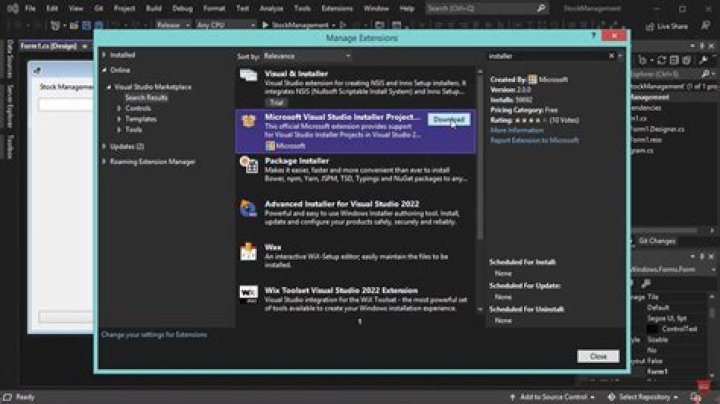
Happened to me also. As long as setup processes proceed, I think those specific errors are insignificant. It may take a while to complete, as it uses much Network and CPU. If all setup processes are done and the last message in terminal is the one shared, you probably paused it with your cursor. Just press space or enter and the terminal will release. 
the same when this happens, close the window and before restarting or doing anything else, check the node version in the CMD, if the version you selected when downloading appears, everything went well, if nothing appears, then if you should try by other means, sometimes it stays like this because it doesn't give a completed response, that's how the windows power shell is... (it always happens to me).
1