How do I convert the following text into {dd/mm/yyyy} format, in excel:
Dec 3, 2012 Nov 1, 2012 Oct 2, 2012 Sep 3, 2012 Aug 1, 2012 Jul 2, 2012 Jun 1, 2012 The expected results should be:-
3/12/2012 {dd/mm/yyyy} 1/11/2012 5 Answers
Try using "Text to columns" functionality to convert "in situ"
Select column of dates then use
Data > Text to columns > Next > Next > under "column data format" choose "Date" > in dropdown select MDY > OK
Now you should have valid dates which you can reformat any way you want, e.g. dd/mm/yyyy
See here
5You can use Excel's DATEVALUE function to convert each of the date strings to Excel date values, then format the cells as dates.
To format the cells, select them and right-click. Choose "Format cells" on the menu that appears, select Format Cells and choose a date format.
4Your dates are already in a format that Excel should be able to recognize (MMM DD, YYYY), but sometimes importing data can lead to the cells being formatted as Text.
Here's one way to fix your problem:
Type
0into a cell and copy it. You may also copy a blank cell.
Select all the dates in your range. Right-click the cells > Paste Special > Add. Click OK.
Your dates should now look like these:
With your dates still selected, press Ctrl + F1 (assuming you're on Windows) and then change the Number format to
mm/dd/yyyy,dd/mm/yyyyor whichever you prefer.
You can also try others ways to fix your dates, like:
- Copy the cells with the text dates and paste them into blank cells using Paste Special > Add.
- Highlight the cells with the dates, change the number format to
m/dd/yyyyand then manually pressF2for each cell. But this is too tedious. - As chuff mentioned above, use
DATEVALUE.
If you are ok to store date in format like 20120312 Then you can use below formula
=DATE(LEFT(C7;4);MID(C7;5;2);RIGHT(C7;2)) Please try below
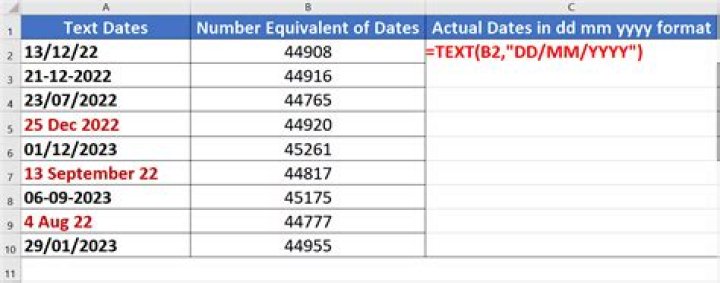
=TEXT(A1;"dd/mm/yyyy") if you right click, you need to choose the format cells option, select the Custom option (all the way at the bottom), then in the Type box enter dd/mm/yyyy and click ok
7