I have installed the PowerShell 6.1.3 version and I want to get a connection to the Azure account using the following Azure PowerShell command:
Connect-AzAccount -Tenant <tenantId> -Subscription <subId> After entering this command I get the warning with the url and some code. Then I have to go to the URL and enter the code there. After that, I get a connection to the Azure account.
Are there any ways to avoid this confirmation?
I've also tried to do it using the following command:
az login -u <username> -p <password> This command only returns some account information(subscriptionId, tenantId etc) but it doesn't install a connection to this account.
3 Answers
1.To login with the user account, try the command as below, make sure your account doesn't enable the MFA(Multi-Factor Authentication).
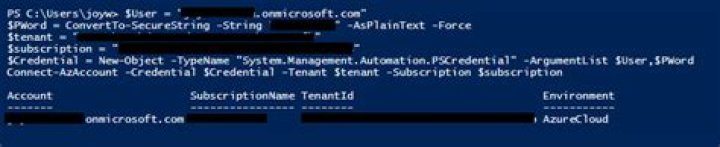
$User = "" $PWord = ConvertTo-SecureString -String "<Password>" -AsPlainText -Force $tenant = "<tenant id>" $subscription = "<subscription id>" $Credential = New-Object -TypeName "System.Management.Automation.PSCredential" -ArgumentList $User,$PWord Connect-AzAccount -Credential $Credential -Tenant $tenant -Subscription $subscription 
2.You can also use a service principal to login, use the command as below.
$azureAplicationId ="Azure AD Application Id" $azureTenantId= "Your Tenant Id" $azurePassword = ConvertTo-SecureString "strong password" -AsPlainText -Force $psCred = New-Object System.Management.Automation.PSCredential($azureAplicationId , $azurePassword) Connect-AzAccount -Credential $psCred -TenantId $azureTenantId -ServicePrincipal See a similar issue I answered here, it use the old AzureRM module, for Az, just change the last line.
If you are not familiar with service principal, Also see : How to: Use the portal to create an Azure AD application and service principal that can access resources, the application id and authentication key are the Azure AD Application Id and strong password you need.
You have 2 options.
Sign in with credentials (Requires Az.Accounts v 1.2.0 or higher)
You can also sign in with a PSCredential object authorized to connect to Azure. The easiest way to get a credential object is with the Get-Credential cmdlet. When run, this cmdlet will prompt you for a username/password credential pair.
$creds = Get-Credential Connect-AzAccount -Credential $creds Sign in with a service principal
Service principals are non-interactive Azure accounts. Like other user accounts, their permissions are managed with Azure Active Directory. By granting a service principal only the permissions it needs, your automation scripts stay secure.
To learn how to create a service principal for use with Azure PowerShell, see Create an Azure service principal with Azure PowerShell.
1If Multi Factor Enabled then also below logic should work
$clientId = "***********************" $clientSecret = "********************" $tenantId = "***********************" $tempPassword = ConvertTo-SecureString "$clientSecret" -AsPlainText -Force $psCred = New-Object System.Management.Automation.PSCredential($clientId , $tempPassword) Connect-AzAccount -Credential $psCred -TenantId $azureTenantId -ServicePrincipal