I am little surprised but Google Chrome is not saving/showing passwords for certain sites (Facebook and Google to name a few). I remember it was saving this earlier, but somehow it is not.
What has caused this?
No sites are in the "Do not save password" list.
221 Answers
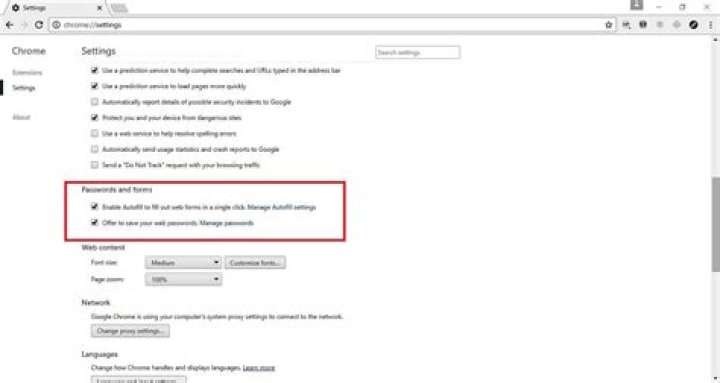
In Chrome's settings (navigate to chrome://settings/ or choose Settings from the... menu?) make sure that you have both "Enable Autofill to fill out web forms in a single click" and "Offer to save passwords I enter on the web" are checked. These are under Passwords and Forms and you'll need to click the link to show advanced settings.
Also check that you are signed into Chrome with the account that you intend on being signed in with and that the sync settings are correct. It could be some weird sync issue where it is saving them until you close and reopen the browser or somesuch.
If all else fails, re-installing Chrome couldn't hurt.
6If the settings to store passwords are enabled, but it still doesn't work, removing the password database might help.
Here are steps:
Quit Chrome.
Go to the directory where Chrome stores its user-specific data, below your user home directory:
- Mac:
~/Library/Application Support/Google/Chrome - Linux:
~/.config/google-chrome. Note that Chromiumsnap(default on Ubuntu 20.10 and earlier) is at~/snap/chromium/common/chromium/Default/however - Windows:
%UserProfile%\AppData\Local\Google\Chrome\User Data
- Mac:
From there, go into the directory called Default if you want to fix your main profile, or into Profile 1 or Profile 2, etc., to fix one of your extra profiles.
Delete the files "Login Data" and "Login Data-journal".
Repeat for other profiles as necessary.
Thanks to for this successful fix.
update:
This solution still works in 2019 and on kubuntu 18.04. Many comments below indicate other versions where it worked.
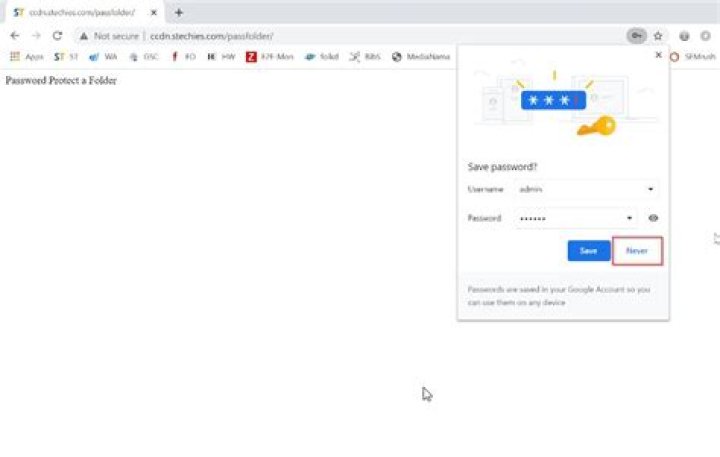
30I had this problem, but I found the solution. With your username and password login to the site, then click the key icon at end of the address bar.

We have a local server to which I was trying to connect - "".
When I first connected, I left off most of the URL, just entering "bowser/admin", which worked (because of sufficiently satisfactory name resolution). However, I got a warning from Chrome (Chromium, actually) that warned that the https site was not secure; I just went into the Advanced settings and told Chrome to ignore the security warning, and was able to log in. But Chrome never prompted me to save my password.
After a couple of days of this, I came and found this site, and after trying other things unsuccessfully, reset my Chrome settings to the default ("Settings" / "Show advanced settings..." / "Reset settings"). Then when I reloaded my page, I again got the security error, and noticed the URL address bar had a red flag with https X'd out, and realized maybe Chrome is not saving passwords on insecure https sites.
So I put in the full URL of "", and this time Chrome offered to save my password.
Hopefully this info might help someone.
Using a clean new profile was the only way that fixed this problem for me:
Go to settings via the following URL:
chrome://settingsClick on the Add person... button to add a new profile
chrome://settings/createProfileMake this new Chrome profile your default browser to navigate the web
I had "Enable Autofill" and "Offer to save passwords" checked. Also, I didn't see any sites in my "Never saved". What fixed it for me was resetting my settings to the default (there is a button on the bottom of the Settings page, in the advanced section).
1Unfortunately I've got the same problem even though I checked remember my password and etc.
But this worked for me so I share it with you, go to: chrome://settings/content
and check the recommended option for cookies(something with "allow to save locally", I don't remember what it exactly was) and click OK. That helped me.
None of these suggestions worked for me. I found a helpful link in the Chrome forum that suggests that this happens because your Chrome profile can become corrupted. Here are the steps to take to create a new profile and get your password saving working again:
Following these steps also caused my previously saved passwords to come back!
0Just make sure that you did not save the password for the same domain with a different port!
Chrome is ignoring the port when checking the URL to save or not save.
But when fill the fields it cares about the port.
I think this is a Bug in Chrome.
This is a 'security' feature of Chrome profiles. Chrome does not offer to store passwords for Google (and some other) accounts if you have added your profile to Chrome.
The solution is to:
- Remove yourself (your profile) from Chrome
- Log in to Gmail, FB etc. Chrome will now offer to store the passwords.
- Add your profile back into Chrome.
Here are few things you can try doing.
Try deleting existing saved passwords. May be Chrome has a limit on the number of saved passwords.
Try re-installing the Google Chrome. It might be a bug
Updating Google Chrome to most recent version
I had the same issue with my site. It appeared that email and password input of sign in form had no name attributes. When I added them and refresh page chrome showed me "save password" popup at the same moment
Reset Sync
While you are signed out you can save passwords.
1I went to chrome://settings/content and clicked all cookie and site data. deleted all cookies and chrome started working correctly again.
In addition to allowing Google to remember passwords in the advanced settings, you also have to allow google to set cookies, otherwise google will continue to ask you to login when you exit and go back in.
If you're using Incognito mode Chrome won't prompt to save your passwords either (even if you have "Offer to save passwords" enabled).
Tested using Google Chrome v73.0.3683.103.
I've had this issue at one of our clients where they are on a terminal server and login with their usernames with their profiles. My issue was that the autofil usernames were updating, but the passwords were not, and the "key" symbol on the top right was missing so they could not save their passwords.
I found a fix : this is related to the chrome temp profile : Hit run and navigate to %appdata% - this will get you to your appdata path on the profile. in our case its not a roaming profile so was only on the C drive Example: C:\Users\**username**\AppData\Roaming
Point is, to rename 2 folders in appdata, one in Roaming, one in local :
C:\Users\R1eger\AppData\Roaming\Google\Chrome - rename User Data folder
C:\Users\R1eger\AppData\local\Google\Chrome - rename User Data folder
Restart Chrome, and it will ask you to login once again. Once logged in, it started to ask the passwords again
Hope this helps someone
I answer from a Linux perspective (so, I'm not able to say what the Windows-equivalent of what I'm going to say is). I also assume that, when one asks «Why is Google Chrome no longer saving passwords?», what one really wants to know (which is the reason why I landed on this page) is why Chrome, even if it apparently keeps on saving login data (for example: you log in to your Google account, fill in your data, and Chrome asks you «Do you want me to save your login data?»; you answer YES; and when, tomorrow, you try to log in again, you find that your data are gone), actually doesn't save them any more.
I add that «from a Linux perspective» actually means «a KUbuntu 19.10 perspective»: indeed, I haven't found any such problem in Fedora, nor in openSUSE, nor in Arch.
- apply the suggestion originally made by JessG here. Then
- [very important] navigate to '/home/user/.local/share/kwalletd/' and
- delete your 'kwallet.kwl' file.
Reopen Chrome. On start-up, it will activate your KWallet application, which will prompt you for a password in order to store your login secrets privately. Do whatever you like, here: if you usually put a password in there, do it; or, leave it blank in order to avoid the hassle of having KWallet ask you for your password every time you open Chrome. But, at any rate, what you need to rebuild is your 'kwallet.kwl' file.
Then, try again to log in to Google, or Facebook, or whatever. The usual procedure will start: but, this time, your login data should be kept where they have to, and you should be able to find them again the next time you'll need to use them.
Hope this helps...
P.S.: of course, my little "fix" works also for Chromium, Opera, Vivaldi, as well as any other Chromium-based browser which needs to talk with the KWallet demon in order to store login secrets...
P.S.2 (January 24, 2022): I add that my "fix" still works PERFECTLY even with KUbuntu 21.10 and Chrome 97.0.4692.99 (64-bit)...
Open Internet Explorer and go to your site. When asked to save the password in IE, say 'Yes'. Now go back to Chrome and go to 'settings', now import saved passwords from IE.
3Besides checking all the recommended chrome settings, i.e. Autofill-ON, Offer to save passwords-ON, as well as setting chrome://flags/#PasswordForceSaving -ON be sure to DELETE (click 'x') the 'Never Saved' list at the bottom of chrome://settings/passwords/. If you have been trying to get a particular site to save your password, and the site tab is still up, delete the tab and restart Chrome and do a fresh browse to that site. Also, I didn't see it documented but if you don't get the 'Save Password' pop-up immediately after all those setting are ON and you have the chrome://flags/#PasswordForceSaving ON then right mouse click (win) after you have entered your password and while the cursor is still in the password box and you should see a pop-up menu with 'Save password' at the top which you should click. I had to do all this a couple of times on some Gov of Canada sites to fix my Not Saving Password problem.
"Open Internet Explorer or Firefox and go to your site. When asked to save the password in IE or Firefox, say 'Yes'. Now go back to Chrome and go to 'settings', now import saved passwords from IE or Firefox" worked for me. Thanks Alex Tvp Storr