
First of all: I'm using Microsoft Visual Studio 2012
I am a C#/Java developer and I am now trying to program for the kinect using Microsoft SDK and C++. So I started of with the Color Basics example, and I can not get it to compile. At first, none of the classes were able to find Windows.h. So I installed (Or re-installed, I'm not sure) the Windows SDK, and added the include dir of the SDK to the include "path" of the project. Then all the problems were gone, except for one:
Error 5 error RC1015: cannot open include file 'windows.h'. C:\temp\ColorBasics-D2D\ColorBasics.rc 17 1 ColorBasics-D2D And thats the error. No reasons why, the system can find it because it is used in multiple other files, only this file is not able to work with it. As a reference, the entire file that is bugging (ColorBasics.rc):
//------------------------------------------------------------------------------ // <copyright file="ColorBasics-D3D.rc" company="Microsoft"> // Copyright (c) Microsoft Corporation. All rights reserved. // </copyright> //------------------------------------------------------------------------------ // Microsoft Visual C++ generated resource script. // #include "resource.h" #define APSTUDIO_READONLY_SYMBOLS ///////////////////////////////////////////////////////////////////////////// // // Generated from the TEXTINCLUDE 2 resource. // #define APSTUDIO_HIDDEN_SYMBOLS #include "windows.h" #undef APSTUDIO_HIDDEN_SYMBOLS ///////////////////////////////////////////////////////////////////////////// #undef APSTUDIO_READONLY_SYMBOLS ///////////////////////////////////////////////////////////////////////////// // English (United States) resources #if !defined(AFX_RESOURCE_DLL) || defined(AFX_TARG_ENU) LANGUAGE LANG_ENGLISH, SUBLANG_ENGLISH_US ///////////////////////////////////////////////////////////////////////////// // // Icon // // Icon with lowest ID value placed first to ensure application icon // remains consistent on all systems. IDI_APP ICON "app.ico" ///////////////////////////////////////////////////////////////////////////// // // Dialog // IDD_APP DIALOGEX 0, 0, 512, 424 STYLE DS_SETFONT | DS_FIXEDSYS | WS_MINIMIZEBOX | WS_CLIPCHILDREN | WS_CAPTION | WS_SYSMENU EXSTYLE WS_EX_CONTROLPARENT | WS_EX_APPWINDOW CAPTION "Color Basics" CLASS "ColorBasicsAppDlgWndClass" FONT 8, "MS Shell Dlg", 400, 0, 0x1 BEGIN DEFPUSHBUTTON "Screenshot",IDC_BUTTON_SCREENSHOT,238,391,50,14 CONTROL "",IDC_VIDEOVIEW,"Static",SS_BLACKFRAME,0,0,512,384 LTEXT "Press 'Screenshot' to save a screenshot to your 'My Pictures' directory.",IDC_STATUS,0,413,511,11,SS_SUNKEN,WS_EX_CLIENTEDGE END ///////////////////////////////////////////////////////////////////////////// // // DESIGNINFO // #ifdef APSTUDIO_INVOKED GUIDELINES DESIGNINFO BEGIN IDD_APP, DIALOG BEGIN END END #endif // APSTUDIO_INVOKED #ifdef APSTUDIO_INVOKED ///////////////////////////////////////////////////////////////////////////// // // TEXTINCLUDE // 1 TEXTINCLUDE BEGIN "resource.h\0" END 2 TEXTINCLUDE BEGIN "#define APSTUDIO_HIDDEN_SYMBOLS\r\n" "#include ""windows.h""\r\n" "#undef APSTUDIO_HIDDEN_SYMBOLS\r\n" "\0" END 3 TEXTINCLUDE BEGIN "\r\n" "\0" END #endif // APSTUDIO_INVOKED #endif // English (United States) resources ///////////////////////////////////////////////////////////////////////////// #ifndef APSTUDIO_INVOKED ///////////////////////////////////////////////////////////////////////////// // // Generated from the TEXTINCLUDE 3 resource. // ///////////////////////////////////////////////////////////////////////////// #endif // not APSTUDIO_INVOKED 8 Answers
If you already haven't done it, try adding "SDK Path\Include" to:
Project → Preferences → C/C++ → General → Additional Include Directories And add "SDK Path\Lib" to:
Project → Preferences → Linker → General → Additional Library Directories Also, try to change "Windows.h" to <windows.h>
If won't help, check the physical existence of the file, it should be in "\VC\PlatformSDK\Include" folder in your Visual Studio install directory.
6Start Visual Studio. Go to Tools->Options and expand Projects and solutions. Select VC++ Directories from the tree and choose Include Files from the combo on the right.
You should see:
$(WindowsSdkDir)\include
If this is missing, you found a problem. If not, search for a file. It should be located in
32 bit systems:
C:\Program Files\Microsoft SDKs\Windows\v6.0A\Include
64 bit systems:
C:\Program Files (x86)\Microsoft SDKs\Windows\v6.0A\Include
if VS was installed in the default directory.
5If you are targeting Windows XP (v140_xp), try installing Windows XP Support for C++.
Starting with Visual Studio 2012, the default toolset (v110) dropped support for Windows XP. As a result, a Windows.h error can occur if your project is targeting Windows XP with the default C++ packages.
Check which Windows SDK version is specified in your project's Platform Toolset. (Project → Properties → Configuration Properties → General). If your Toolset ends in _xp, you'll need to install XP support.
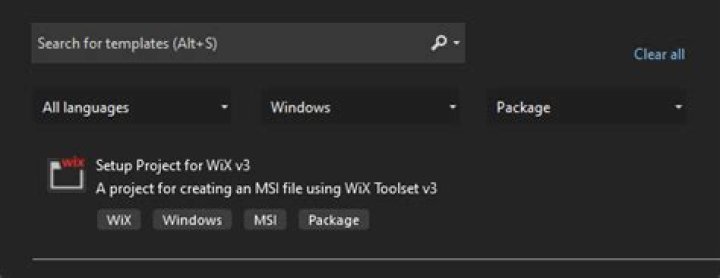
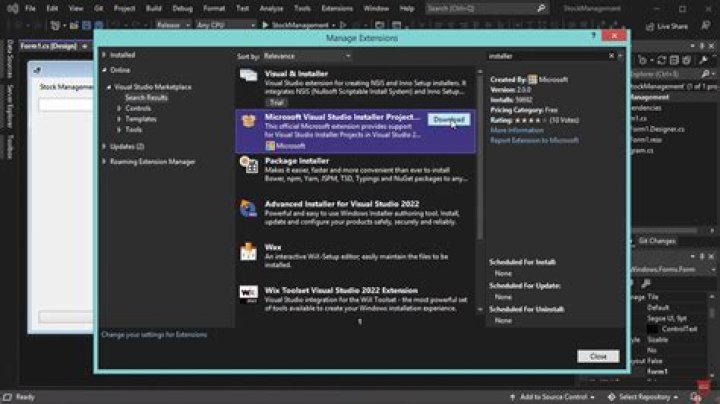
Open the Visual Studio Installer and click Modify for your version of Visual Studio. Open the Individual Components tab and scroll down to Compilers, build tools, and runtimes. Near the bottom, check Windows XP support for C++ and click Modify to begin installing.
See Also:
- How to target Windows XP in Microsoft Visual Studio C++
- What's the difference between Platform Toolsets v140 and v140_xp?
For my case, I had to right click the solution and click "Retarget Projects". In my case I retargetted to Windows SDK version 10.0.1777.0 and Platform Toolset v142. I also had to change "Windows.h"to<windows.h>
I am running Visual Studio 2019 version 16.25 on a windows 10 machine
1) Go to C:\Program Files (x86)\Microsoft SDKs\Windows\v7.1A for VS2013
2) Copy the folders Include and Lib (you should check where are your folders in folder windows such as v7.1, v8, v6, etc.)
3) Paste them into C:\Program Files (x86)\Microsoft Visual Studio 12.0\VC
I solved my problems like:
error lnk1104: cannot open file 'kernel32.lib'.
error c1083: Cannot open Windows.h
Thanks.
The right combination of Windows SDK Version and Platform Toolset needs to be selected Depends of course what toolset you have currently installed
I got this error fatal error lnk1104: cannot open file 'kernel32.lib'. this error is getting because there is no path in VC++ directories. To solve this problem
Open Visual Studio 2008
- go to Tools-options-Projects and Solutions-VC++ directories-*
- then at right corner select Library files
- here you need to add path of kernel132.lib
In my case It is C:\Program Files\Microsoft SDKs\Windows\v6.0A\Lib
if anyone is facing this issue in Visual Studio, do the following steps:
- run the Visual Studio Installer
- go to modify
- untick the old version of Windows SDK version (for me, it was 10.0.18??????)
- tick the latest version of Windows SDK version (for me, it was 10.0.19??????)
- press OK and it will uninstall the old SDK and install the new SDK version with all the header files.